Minimum requirements to connect
In order to connect the Property Manager’s (PM’s) property to Hostelworld, the following requirements must be met:
- Property name is provided
- Property type: It is set to one of the following: Apartment, Bed and breakfast, Cabin or bungalow, Campground, Chalet, Guest farm, Guest house, Hostel, Hotel, Residential apartment, Vacation home, Charm hotel, Aparthotel, Cottage, Camping
- Maximum number of guests is provided
- Address is provided (incl. Country)
- Geo-coordinates are provided
- Licence number must be filled if the property is located in certain locations, for example France or on a French-administered territory, but you may be asked to fill it in for other locations, too. Please, refer to your local law.
- Bedding composition: the number of beds equals the value set in Maximum number of guests;
- Description is provided
-
Photos:
- At least 10 images are provided.
- The main photo is selected.
- Availability & Pricing: The property has some available periods with prices specified
- Payment methods are provided
- Cancellation Policy is provided
Establishing connection
In order to start advertising on Hostelworld, you need to establish the connection with this sales channel. You can do this by adding it to the list of services in your account. Follow the below steps in order to get connected.
-
In Rentals United platform, go to the Services tab.
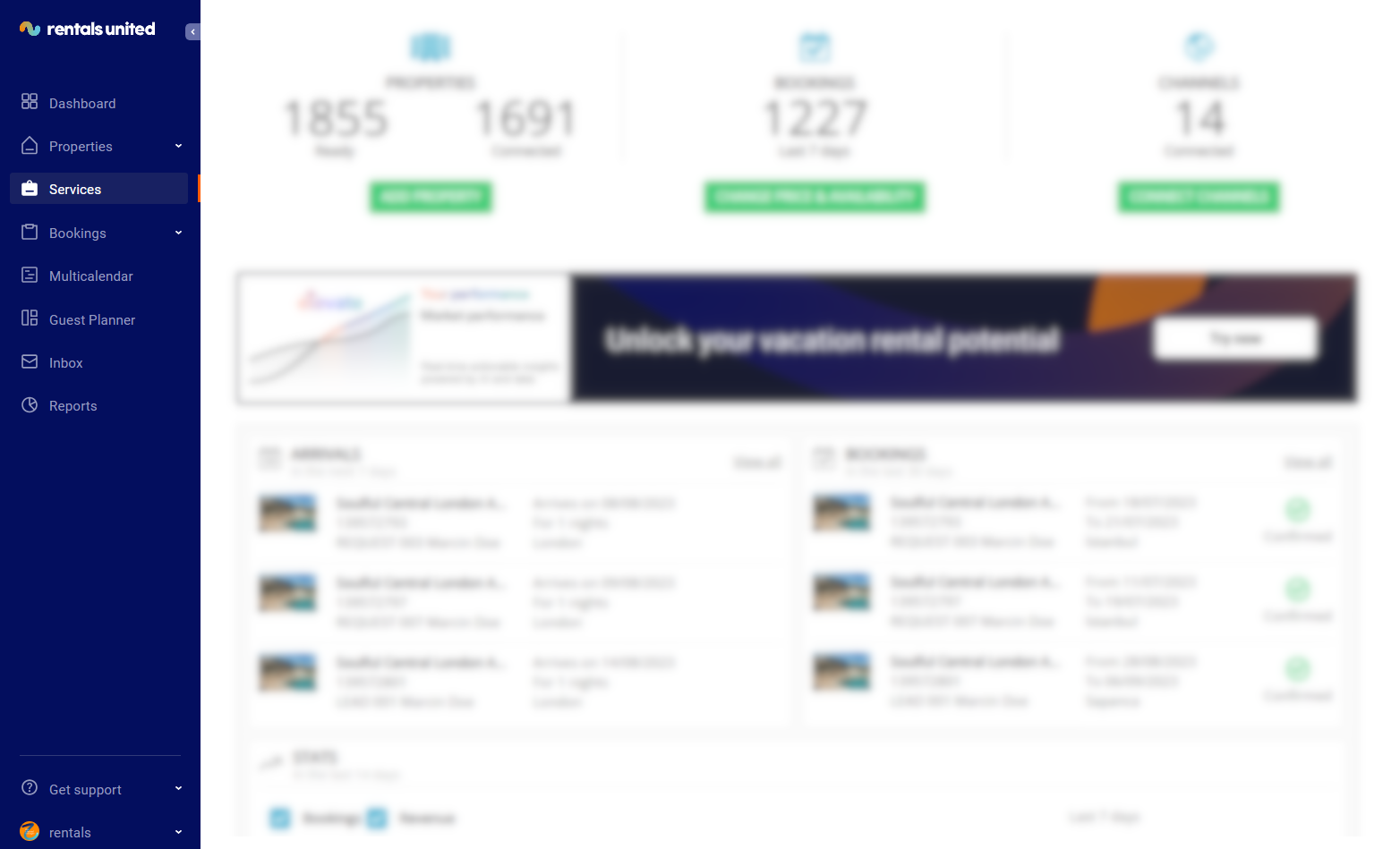
-
Click the Find Services tab.
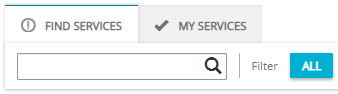
- Type Hostelworld name in the search box or scroll down through the list of available channels.
- Unfold the Hostelworld section by clicking the Down arrow button.
-
Click the Get connected button.
- Follow the instructions in the platform. Once you finish, your account is connected to Hostelworld.
Create new listing (N/A)
Mapping properties to existing listings
First you need to make sure that you have properties in Rentals United that can be linked to your listings in Hostelworld. If you do not have matching properties, then:
- add new properties in Rentals United following the instructions available here
- add new listings in the Hostelworld dashboard
Then, you can start linking them together in order to start managing availability and price directly from Rentals United.
-
In Rentals United platform, go to the Services tab.
-
Select the proper list to search for Hostelworld.
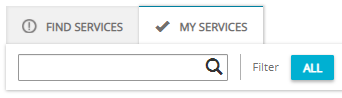
- Find Services lists the channels you are not yet connected to,
- My Services lists the channels which you have already established connection with and channels that are in the process of being connected.
- Type Hostelworld in the search box or scroll down through the list of available channels.
- Unfold the Hostelworld section by clicking the Down arrow button.
-
Click the Property Settings button.

-
Connect the property.
Depending on whether you already have some properties connected to the Hostelworld or not, you are presented with two different options.
- Click
 if it is the first property to be connected.
 - Click
 if you already have some properties connected.
- Click
-
Provide the Hotel ID and Property password of the property you want to map. Then, click Next.
Hotel ID can be found in the Hostelworld dashboard. If you are unable to find it, contact the Sales Channel Support Team.
-
Click the Connect this room button.

-
Select the properties you want to map to this room type. One or more properties may be mapped to one Hostelworld listing.
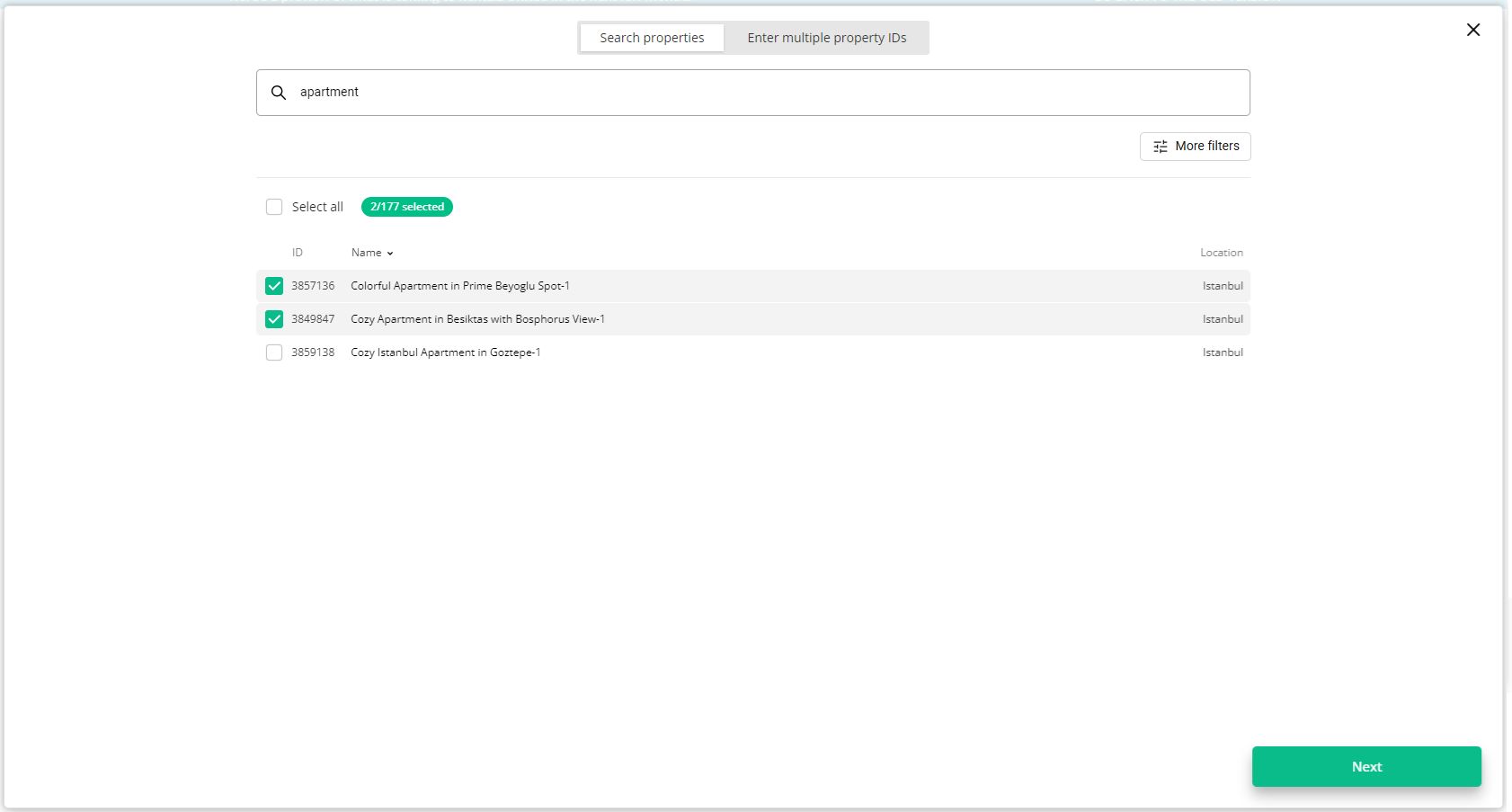 Tip: Multiple properties should be selected only if they share the same characteristics (amenities, photos, pricing etc.). If you do so, you will create a multi-unit group in Hostelworld. You can learn more on multi-unit groups here.
 - Click Next.
-
The summary is displayed. You can set the rate mark-up now.
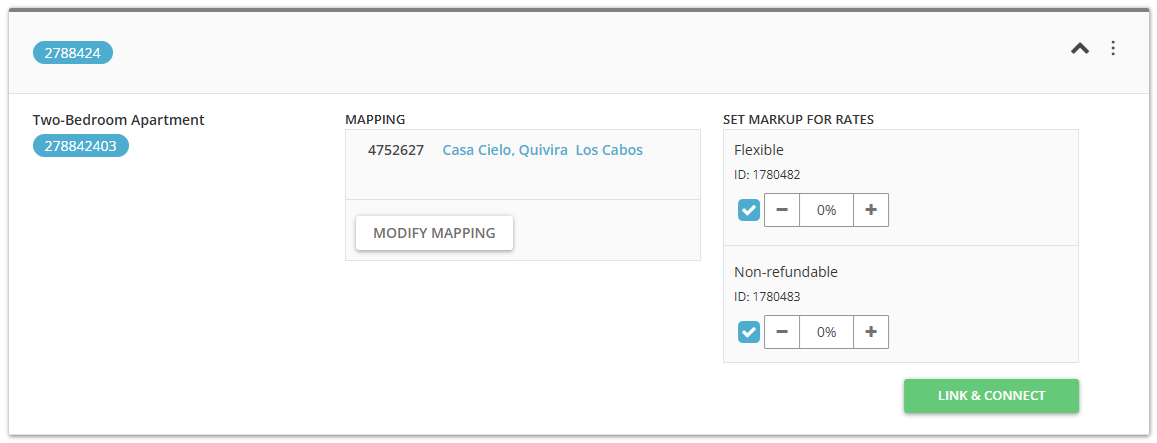
- Click the Connect property button.
The information in this chapter is useful when you already have properties connected or mapped, but you want to introduce changes to rates that will affect only Hostelworld.
Updating listings
Deactivating rates
-
In Rentals United platform, go to the Services tab.
-
Select the proper list to search for Hostelworld.
- Find Services lists the channels you are not yet connected to,
- My Services lists the channels which you have already established connection with and channels that are in the process of being connected.
- Type Hostelworld in the search box or scroll down through the list of available channels.
- Unfold the Hostelworld section by clicking the Down arrow button.
-
Click the Property Settings button.
- Search for the property you want to deactivate rates for by scrolling down or filtering the property out.
-
Click the Manage rates button.
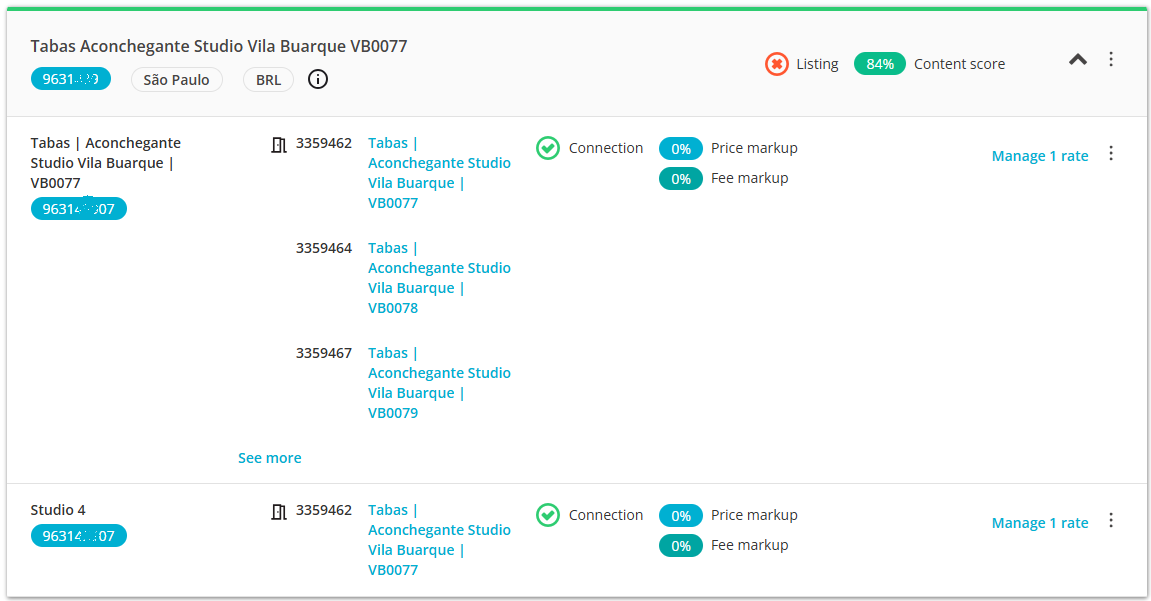
- A property management page is opened.
-
Click the Deactivate button.
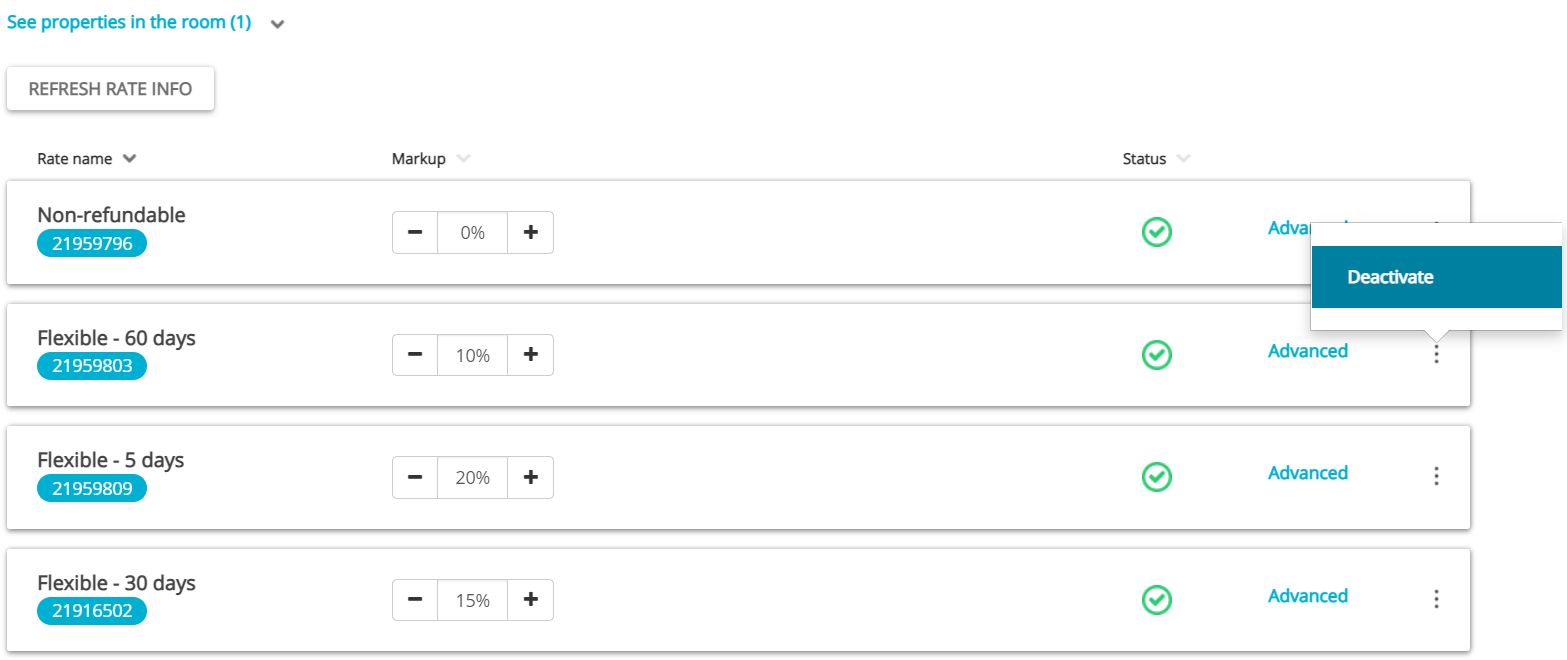
Note: Deactivating rates
- If there are multiple rates in a group and you deactivate one - you stop sending availability and prices to Sales Channel, leaving the property open to new reservations on the Hostelworld channel. This means that new reservations can be made through Hostelworld, but the channel will not receive the updates in availability and pricing from Rentals United.
- If there is only one rate in the group or you deactivate the last rate, you need to choose if you want to either stop sending availability and prices to Hostelworld, leaving the property open to new reservations on the Hostelworld channel, or to close the availability. If you close the availability, it means you will not receive reservations from Hostelworld any more.
Availability can be always re-opened by clicking the Activate button next to the rate.
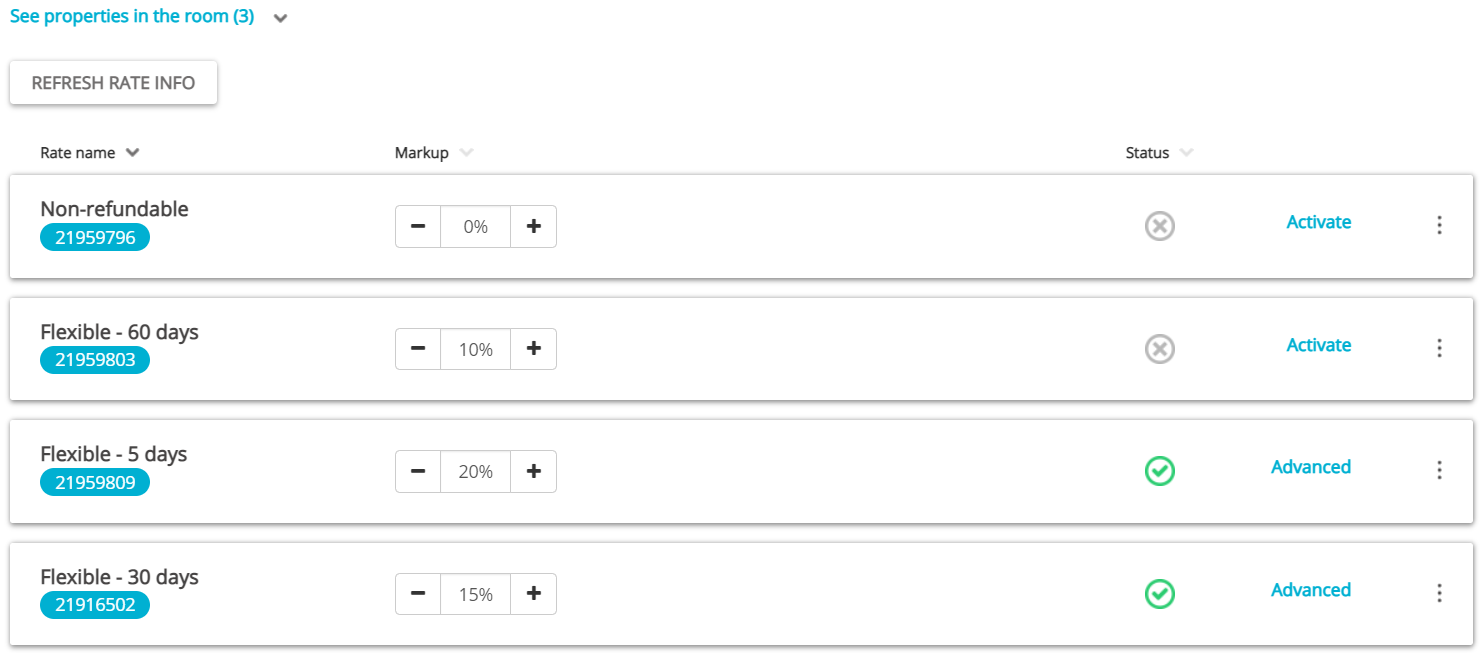
Once the rate has been deactivated, it will still be visible in the Property Settings. If you want to remove it from display, you should follow the below steps. Note that rates can be deleted only if there are no existing reservations that use this rate.
- From the three-dot menu, select the Confirm removal option.
- The rate is removed. No additional confirmation is required.
Removing hotels and room types from Property Settings
If you have some properties that are no longer listed in Hostelworld, but still appear in Property Settings in Rentals United and pollute your view, you may remove them from Property Settings. After deactivating the hotel or room type in Hostelworld, just use the Remove options available in Property Settings to make the property list in Property Settings identical in Hostelworld and Rentals United. There are two options available now:
- Remove the whole hotel
- Remove room type
Note, however, that these options can be used only to remove the hotels and room types from the Property Settings list. They do not stop your properties from being rented on the Hostelworld website.
-
In Rentals United platform, go to the Services tab.
-
Select the proper list to search for Hostelworld.
- Find Services lists the channels you are not yet connected to,
- My Services lists the channels which you have already established connection with and channels that are in the process of being connected.
- Type Hostelworld in the search box or scroll down through the list of available channels.
- Unfold the Hostelworld section by clicking the Down arrow button.
-
Click the Property Settings button.
- Search for the property you want to remove by scrolling down or filtering the property out.
- Once found, decide whether you want to remove the entire hotel or particular room types only. Make sure that you have already removed the same properties in Hostelworld dashboard.
-
If you want to remove the whole hotel, hover over the three-dot menu on top of the cluster and select the Remove hotel option. Hotels stuck in the Pending state can be deleted from the Property Settings, too.
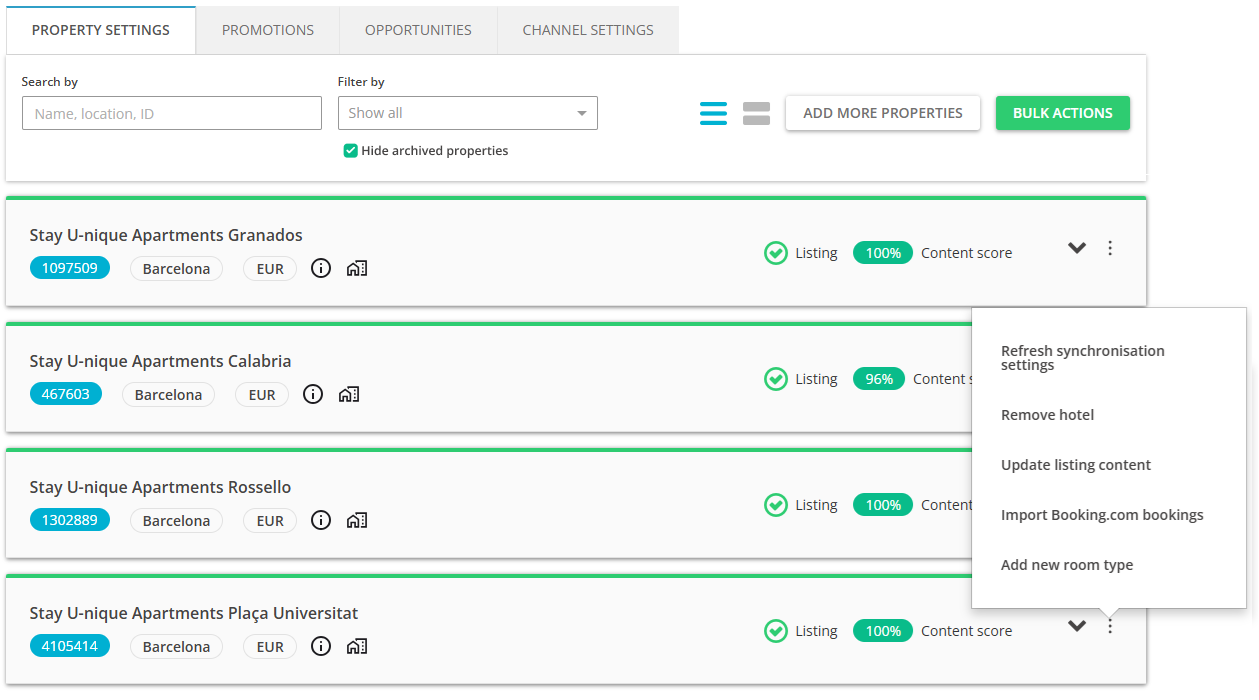
-
If you want to remove specific room type only, unfold the hotel cluster and hover over the three-dot menu next to the room type to be removed. Click the Remove room type option.
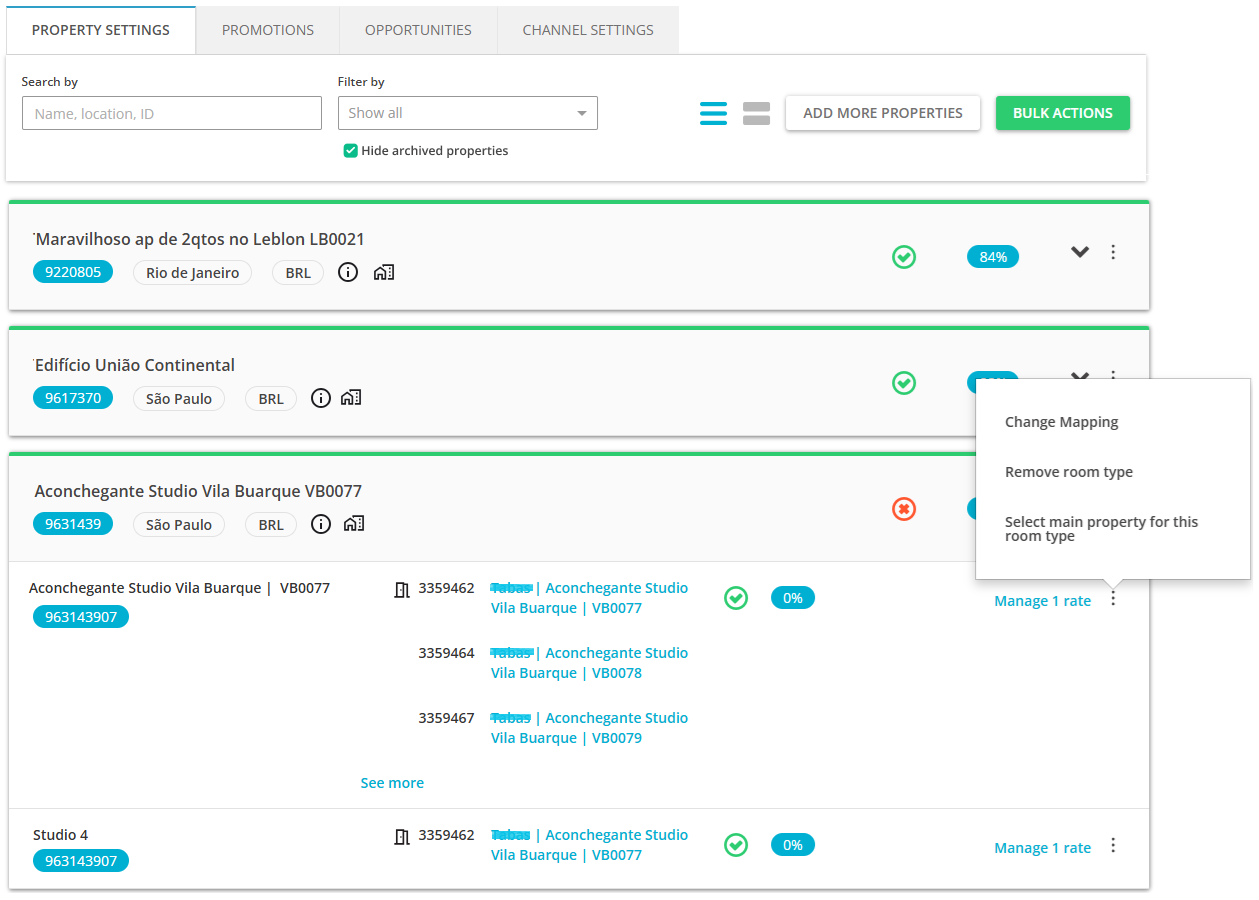
-
-
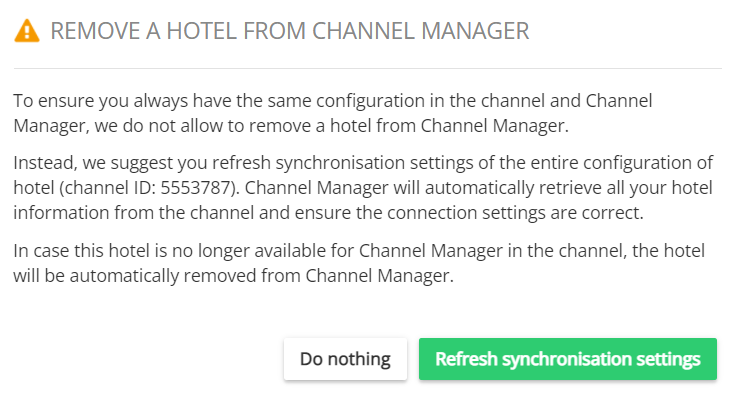
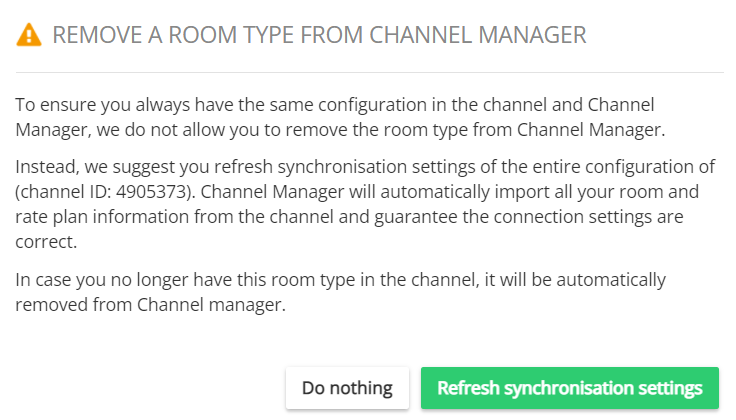
A notification is displayed. Click the Refresh synchronization settings button to confirm.
-
If you wanted to remove an entire hotel, the following notification is displayed:
-
If you wanted to remove a room type, the following notification is displayed:
Note: The Remove option will usually point you to refresh the property set-up in order to maintain synchronization with Hostelworld. Hence, make sure to remove the hotel or room type in Hostelworld dashboard before attempting to remove it in Rentals United. If you need more information how to proceed with hotel or room deletion in Hostelworld, you may want to contact the Hostelworld Support Team directly and request detailed instructions. -
- Confirm the process by clicking the Confirm button.
- The summary of changes is displayed. If you removed the hotel or room type correctly in Hostelworld, you should see this change in the pop-up.
