Establishing connection
-
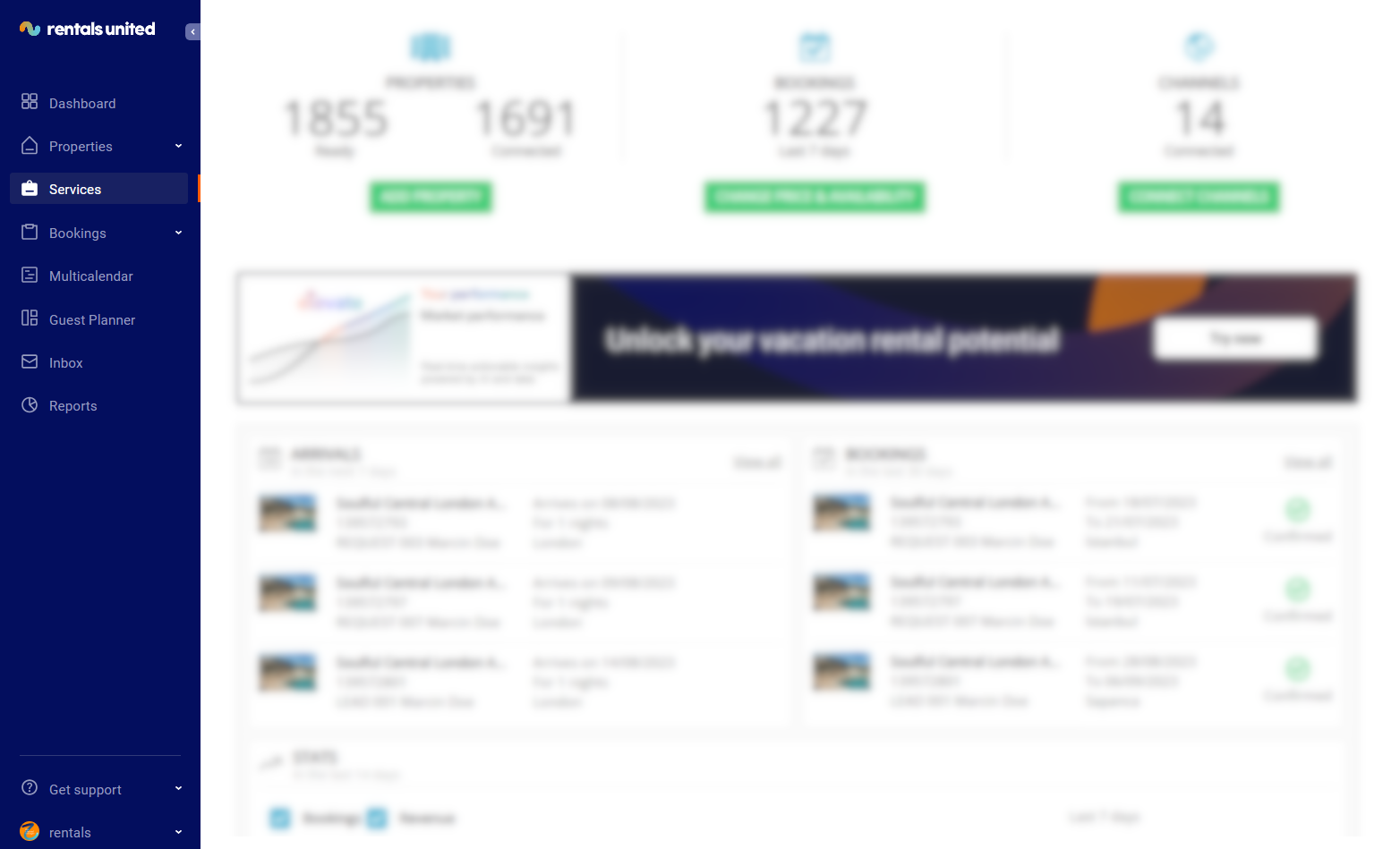
In Rentals United platform, go to the Services tab.
-
Click the Find Services tab.
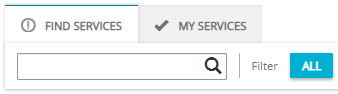
- Type Emerging Travel Group in the search box or scroll down through the list of available channels.
- Unfold the Emerging Travel Group section by clicking the Down arrow button.
-
Click the Get connected button.
-
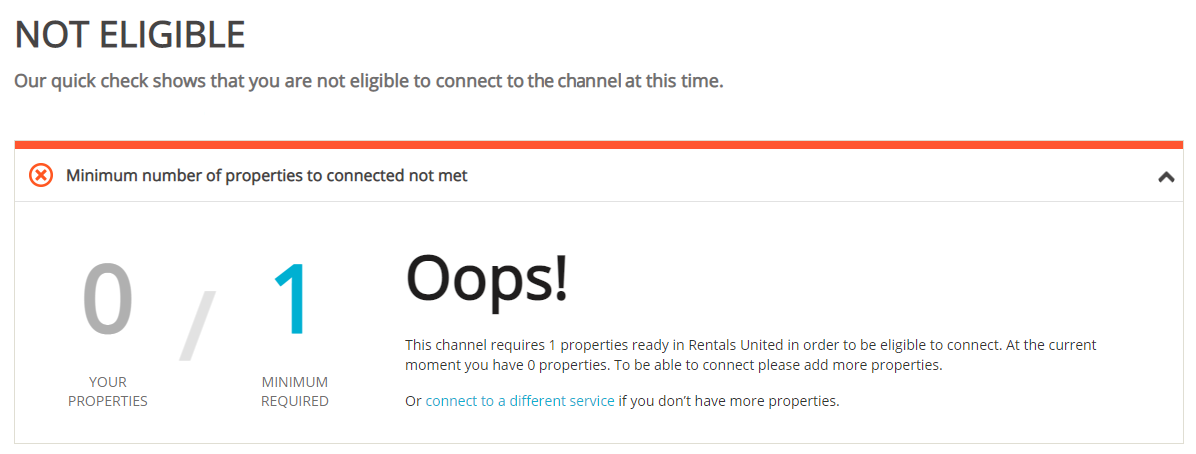
Your connection is now being validated in the background. If the validation is passed successfully, the Connection Wizard is launched and you can go to the next step. If you are not eligible to connect to Emerging Travel Group, an error is displayed.
Eligibility errors indicate violating initial channel requirements that need to be met before you establish the connection. You will not be able to go to the next step and finish the connection process unless the eligibility error is cleared away. In order to resolve it, follow the instructions displayed on the screen. Please, see an exemplary eligibility error below.
-
You are presented with a brief description on how the Emerging Travel Group works. Read it carefully and confirm that you agree with it by ticking the checkbox below. Do not worry, once all the steps of the Connection Wizard are completed, you will still be able to view the How it works content again. Click the Save & Next button on the bottom of the page to move to the next step.
Tip: On the top of the page, you can view the progress of the Connection Wizard. Depending on the channel, the number of steps may differ. You can stop anywhere along the process. Upon next time you open the Connection Wizard, you will continue at the last completed step. - Follow the next steps displayed in Rentals United.
Create new listing
Once your listings are properly created in Emerging Travel Group, you can start the process of mapping the listings on the Emerging Travel Group website to Rentals United properties, following Mapping properties to existing listings.
Mapping properties to existing listings
Before you start mapping your properties , make sure you have properties created in the Emerging Travel Group. Later, it is possible to map your listings from the Emerging Travel Group to the properties in Rentals United to create a direct connection between them and receive bookings.
-
In Rentals United platform, go to the Services tab.
-
Select the proper list to search for Emerging Travel Group.
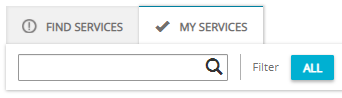
- Find Services lists the channels you are not yet connected to,
- My Services lists the channels which you have already established connection with and channels that are in the process of being connected.
- Type Emerging Travel Group in the search box or scroll down through the list of available channels.
- Unfold the Emerging Travel Group section by clicking the Down arrow button.
-
Click the Property Settings button.

-
Connect the property.
Depending on whether you already have some properties connected to the Emerging Travel Group or not, you are presented with two different options.
- Click
 if it is the first property to be connected.
 - Click
 if you already have some properties connected.
- Click
- Provide the Hotel ID of the property you want to map. Then, click Next.
-
Click the Connect this room button.

-
Select the properties you want to map to this room type. One or more properties may be mapped to one Emerging Travel Group listing.
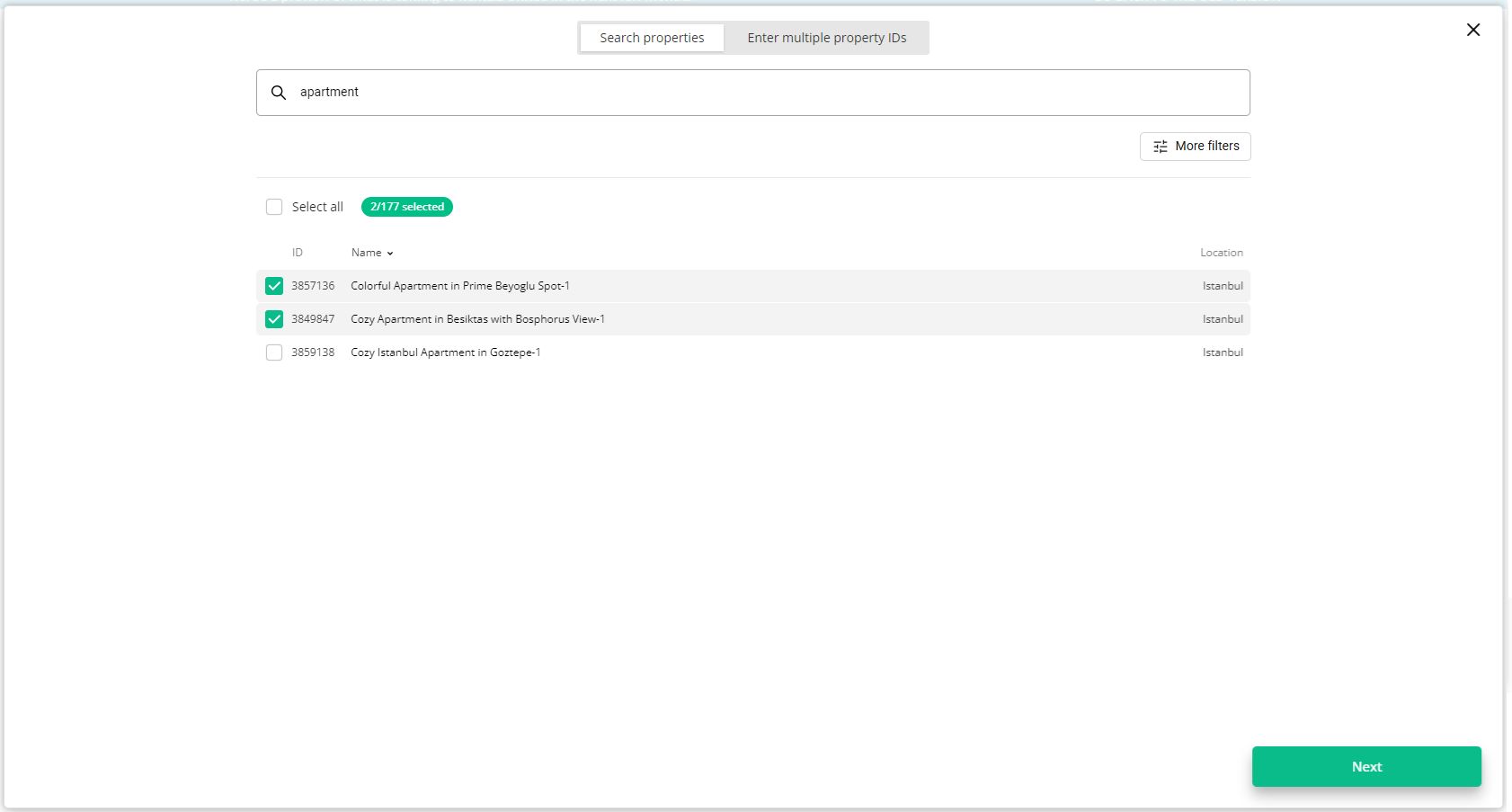 Tip: Multiple properties should be selected only if they share the same characteristics (amenities, photos, pricing etc.). If you do so, you will create a multi-unit group in Emerging Travel Group. You can learn more on multi-unit groups here.
 - Click Next.
-
The summary is displayed. You can set the rate mark-up now.
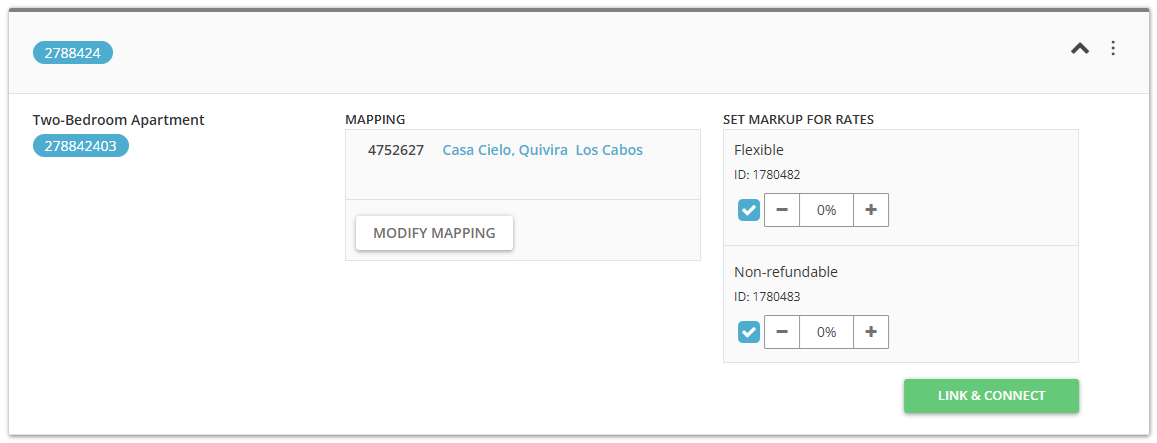
- Click the Connect property button.
-
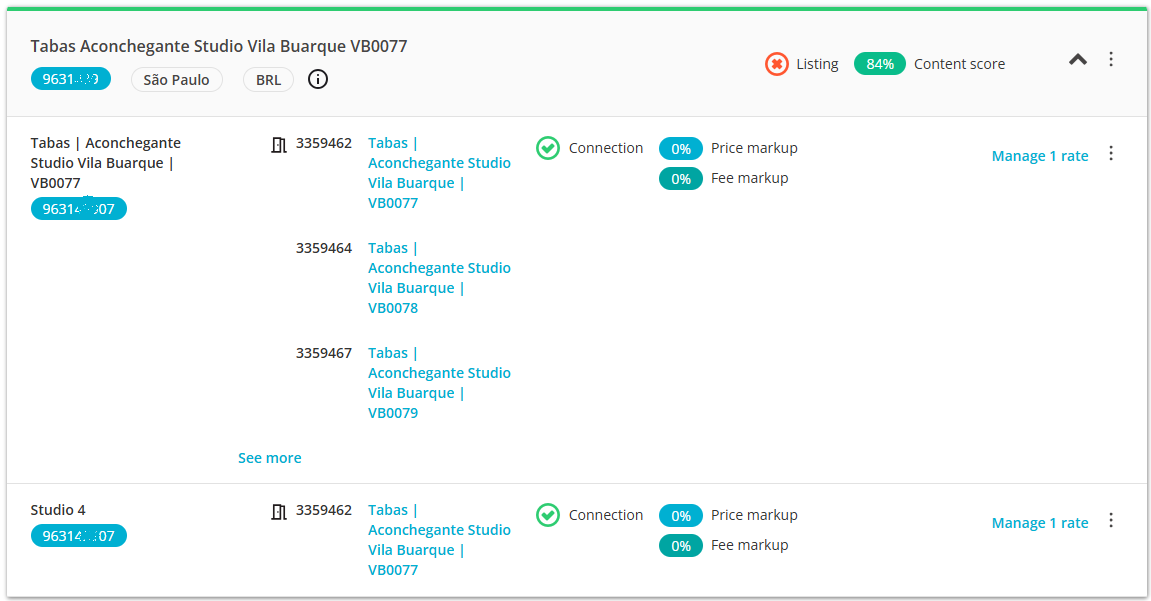
The connection is established. Go to Manage / Manage rates and activate the rate plans to enable sending the prices and availability. If you do not have any rate plans yet, create them.
Updating listings
Refreshing the synchronization settings
If you make any changes in the channel or notice any discrepancies between how your properties are displayed in the channel dashboard and in Rentals United, you may want to refresh the view. This action will update your inventory in Rentals United and show you the most up-to-date set-up.
-
In Rentals United platform, go to the Services tab.
-
Select the proper list to search for Emerging Travel Group.
- Find Services lists the channels you are not yet connected to,
- My Services lists the channels which you have already established connection with and channels that are in the process of being connected.
- Type Emerging Travel Group in the search box or scroll down through the list of available channels.
- Unfold the Emerging Travel Group section by clicking the Down arrow button.
-
Click the Property Settings button.
-
Choose the hotel you would like to refresh the inventory set-up for and hover over the three dot menu. All room types and rates in this hotel will be refreshed.
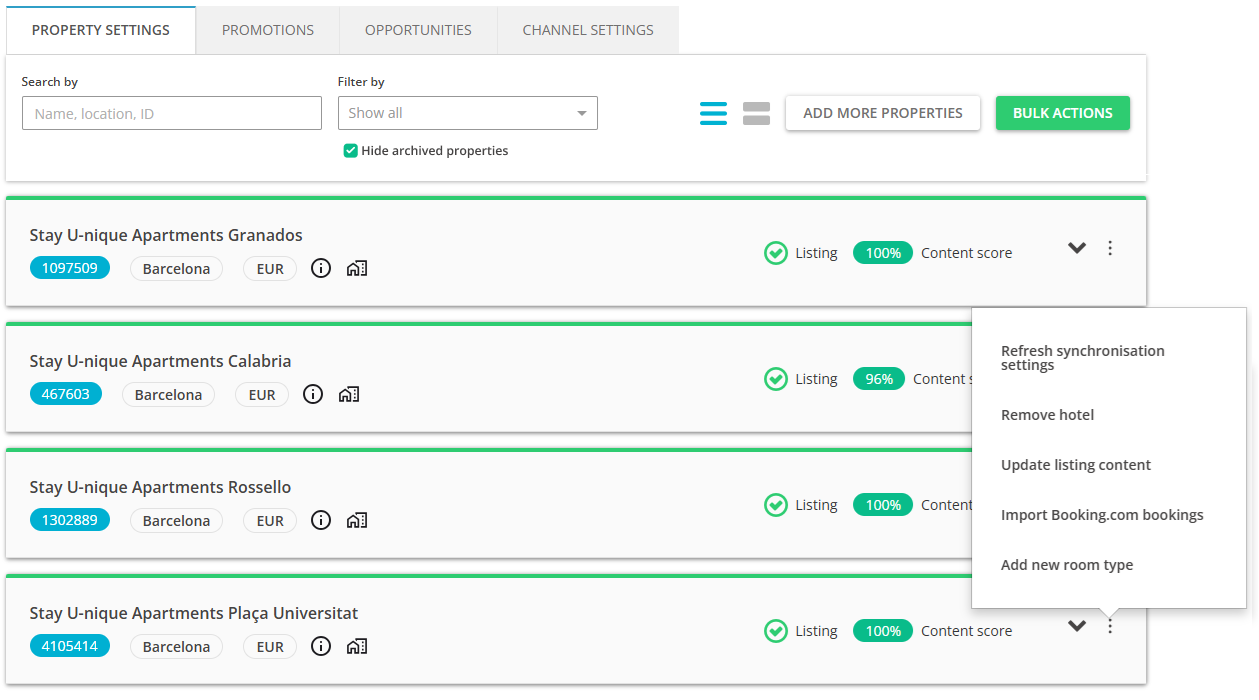 Note: Use the three dot menu of the hotel, not room.
 - Confirm the process by clicking the Proceed button.
- Rentals United retrieves the configuration of rates from the channel.
- if there are more rates in the channel, then the new rates are created in Rentals United and mapped to the corresponding ones; the newly created rates enter the inactive state
- any rates that do not have any corresponding channel rates are removed from Rentals United
- rates for which configuration has not changed remain intact
-
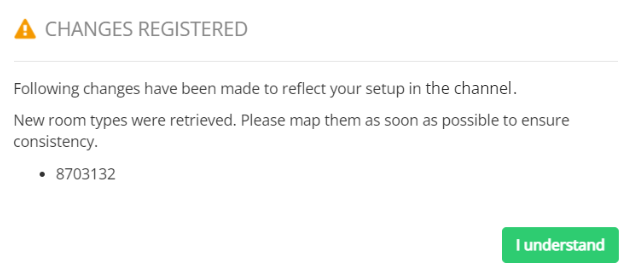
After the changes are performed, a pop-up with the summary of changes is displayed. Click the I understand button.
 Note: If you attempt to refresh the inventory set-up, but Rentals United does not have access to the hotel in Emerging Travel Group or finds no active rates for a given room type, then you will be prompted with a relevant information. Please, follow the steps displayed in the pop-up.
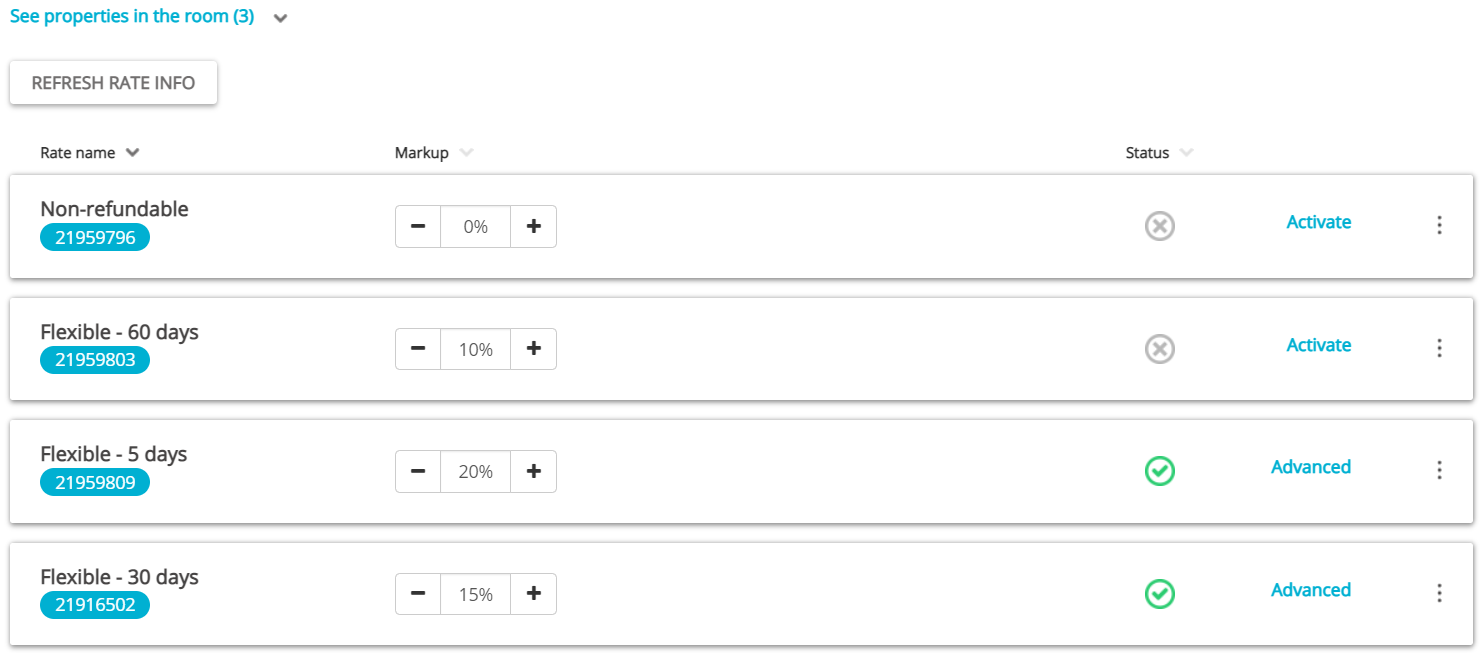
Tip: If you do not want to refresh the set-up of a hotel (all room types and rates), you may as well refresh the rates of an individual room type only. In this case, select the hotel and click the Manage rates button. The list of available rates is opened. Click the Refresh rate info button. The process follows as above.
Deactivating rates
-
In Rentals United platform, go to the Services tab.
-
Select the proper list to search for Emerging Travel Group.
- Find Services lists the channels you are not yet connected to,
- My Services lists the channels which you have already established connection with and channels that are in the process of being connected.
- Type Emerging Travel Group in the search box or scroll down through the list of available channels.
- Unfold the Emerging Travel Group section by clicking the Down arrow button.
-
Click the Property Settings button.
- Search for the property you want to deactivate rates for by scrolling down or filtering the property out.
-
Click the Manage rates button.
- A property management page is opened.
-
Click the Deactivate button.
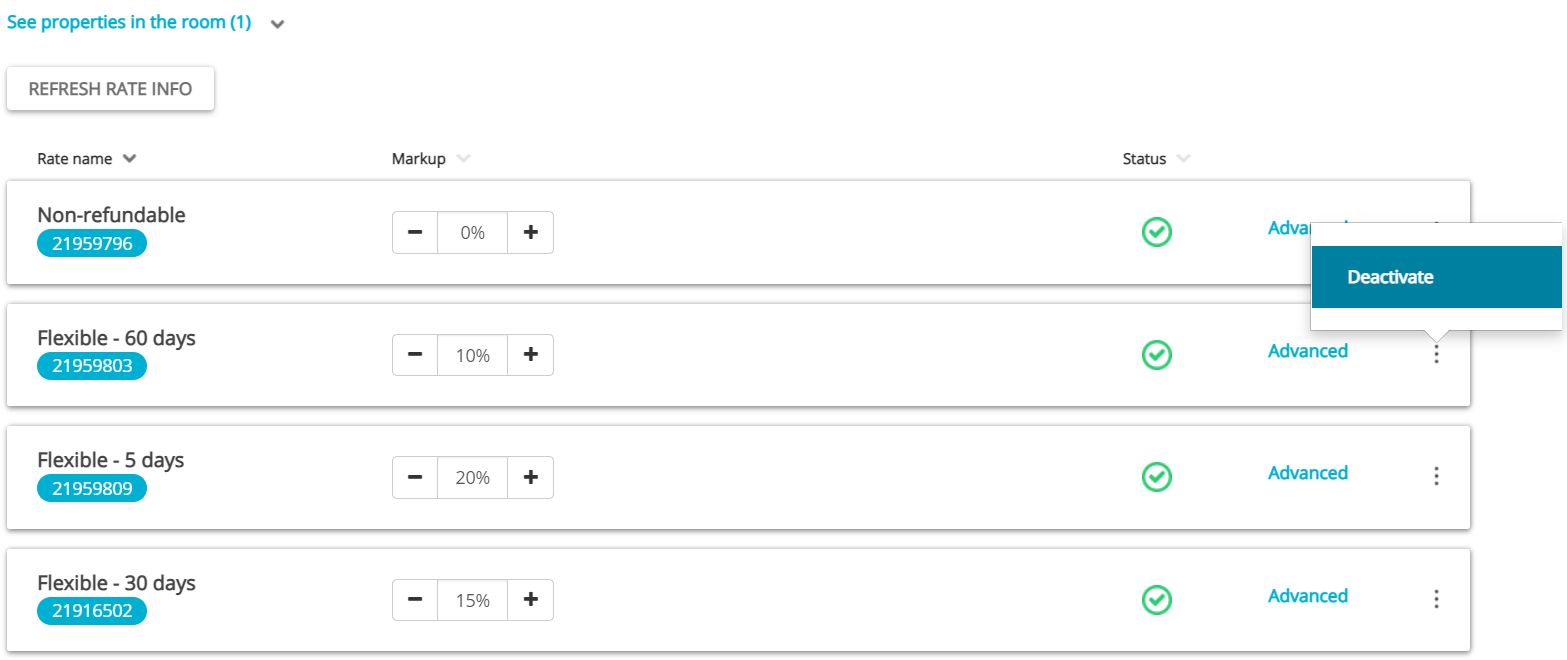
Note: Deactivating rates
- If there are multiple rates in a group and you deactivate one - you stop sending availability and prices to Sales Channel, leaving the property open to new reservations on the Emerging Travel Group channel. This means that new reservations can be made through Emerging Travel Group, but the channel will not receive the updates in availability and pricing from Rentals United.
- If there is only one rate in the group or you deactivate the last rate, you need to choose if you want to either stop sending availability and prices to Emerging Travel Group, leaving the property open to new reservations on the Emerging Travel Group channel, or to close the availability. If you close the availability, it means you will not receive reservations from Emerging Travel Group any more.
Availability can be always re-opened by clicking the Activate button next to the rate.
Once the rate has been deactivated, it will still be visible in the Property Settings. If you want to remove it from display, you should follow the below steps. Note that rates can be deleted only if there are no existing reservations that use this rate.
- From the three-dot menu, select the Confirm removal option.
- The rate is removed. No additional confirmation is required.