Establishing connection
In order to start advertising on Google Travel, you need to establish the connection with this sales channel. You can do this by adding it to the list of services in your account. Follow the below steps in order to get connected.
-
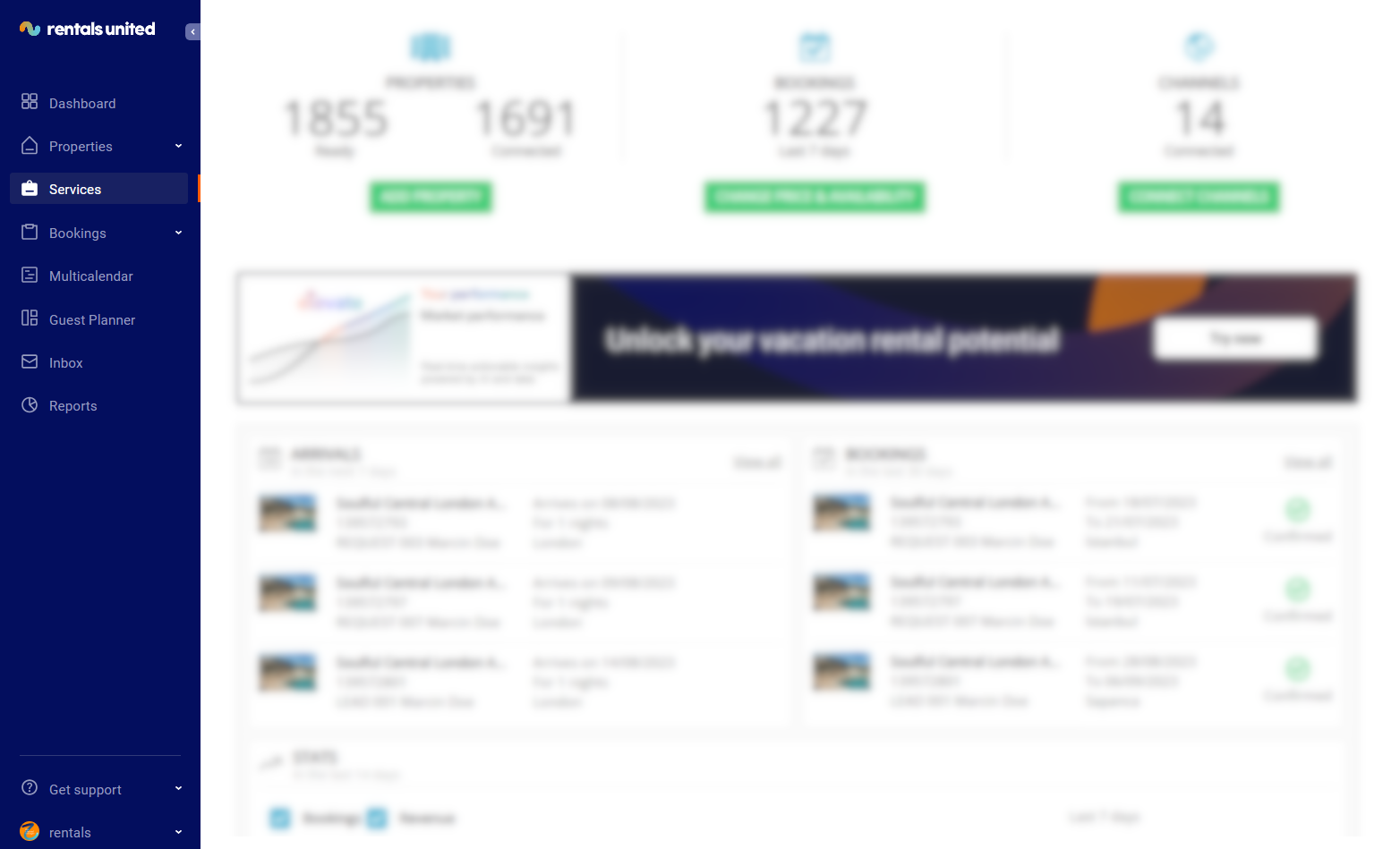
In Rentals United platform, go to the Services tab.
-
Click the Find Services tab.
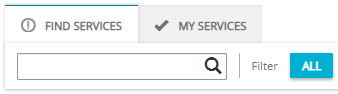
- Type Google Travel in the search box or scroll down through the list of available channels.
- Unfold Google Travel section by clicking the Down arrow button.
-
Click the Get connected button.
-
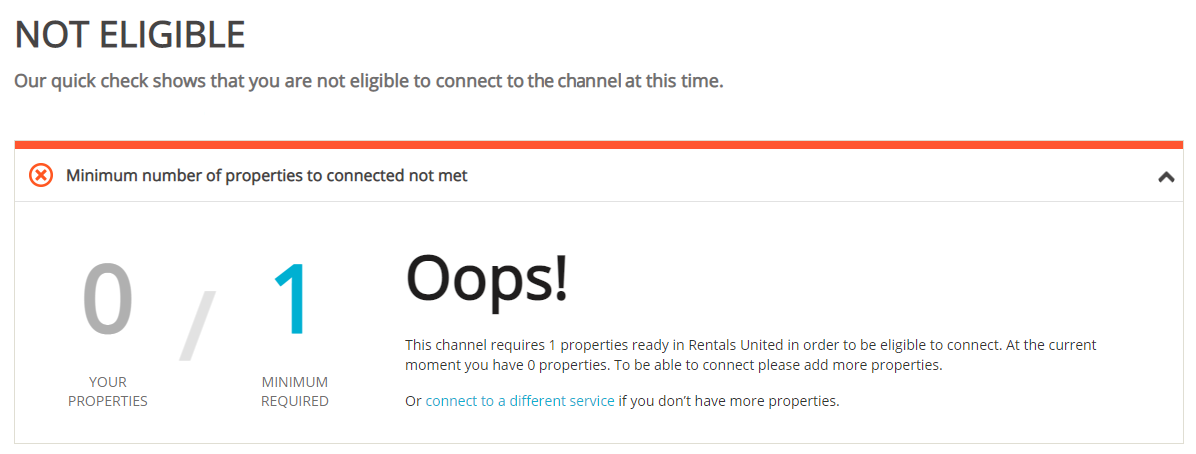
Your connection is now being validated in the background. If the validation is passed successfully, the Connection Wizard is launched and you can go to the next step. If you are not eligible to connect to Google Travel, an error is displayed.
Eligibility errors indicate violating initial channel requirements that need to be met before you establish the connection. You will not be able to go to the next step and finish the connection process unless the eligibility error is cleared away. In order to resolve it, follow the instructions displayed on the screen. Please, see an exemplary eligibility error below.
-
You are presented with a brief description on how Google Travel works. Read it carefully and confirm that you agree with it by ticking the checkbox below. Do not worry, once all the steps of the Connection Wizard are completed, you will still be able to view the How it works content again. Click the Save & Next button on the bottom of the page to move to the next step.
Tip: On the top of the page, you can view the progress of the Connection Wizard. Depending on the channel, the number of steps may differ. You can stop anywhere along the process. Upon next time you open the Connection Wizard, you will continue at the last completed step. - Follow the next steps displayed in Rentals United.
Create new listing
If you already have some properties created in Rentals United and you want to start advertising them on Google Travel.
In Rentals United platform, open Property Settings. Follow the steps here.
-
Connect the property.
Depending on whether you already have some properties connected to Google Travel or not, you are presented with two different options.
-
If it is the first property to be connected, click the Connect your first property button.

-
If it is the next property to be connected, click the Add property button.
-
-
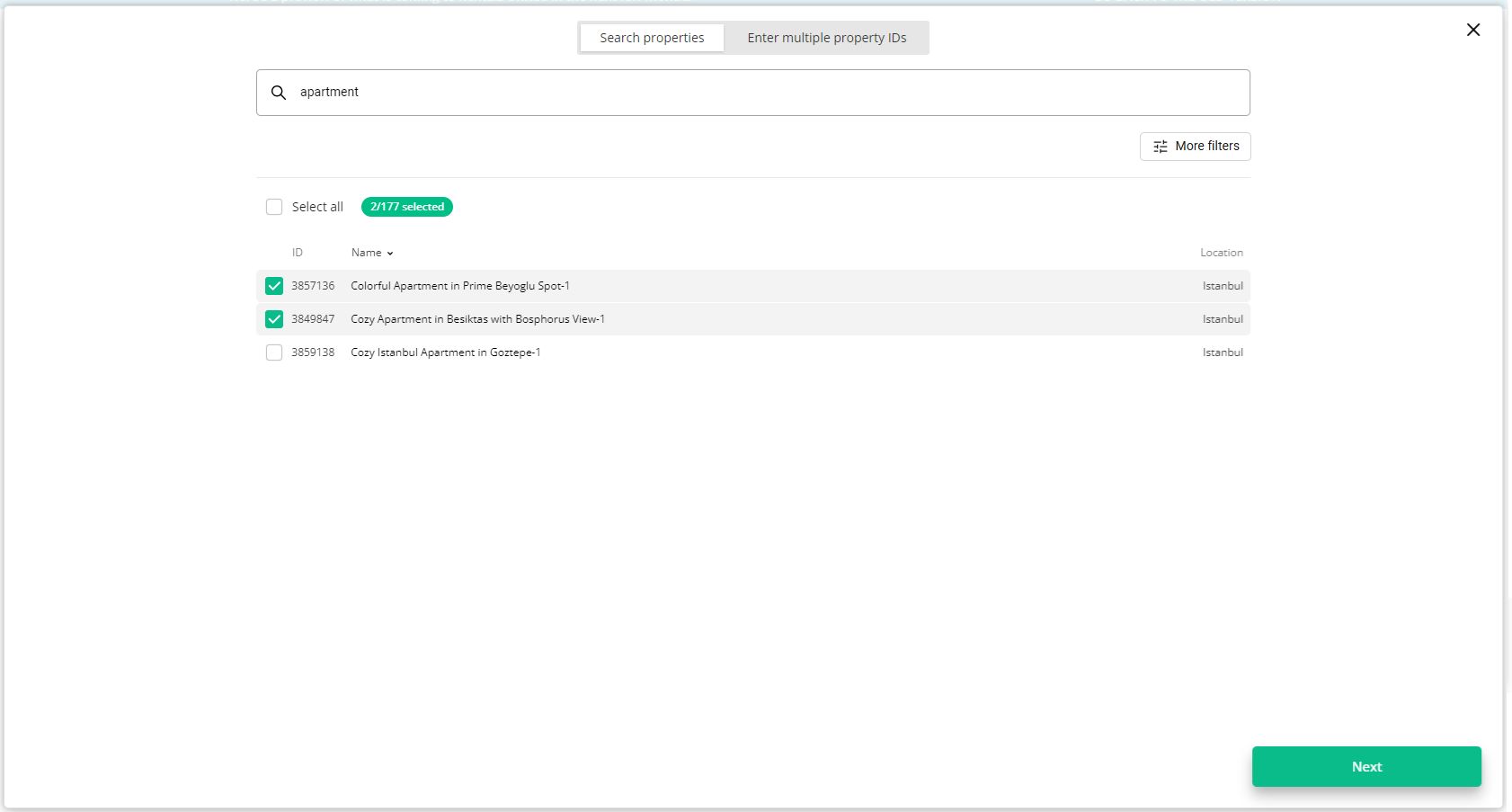
Choose the properties. You can read about the different ways of filtering and selecting properties here.
-
Click Next. You will see here the summary of all selected properties. Review the list and check if all properties are included.
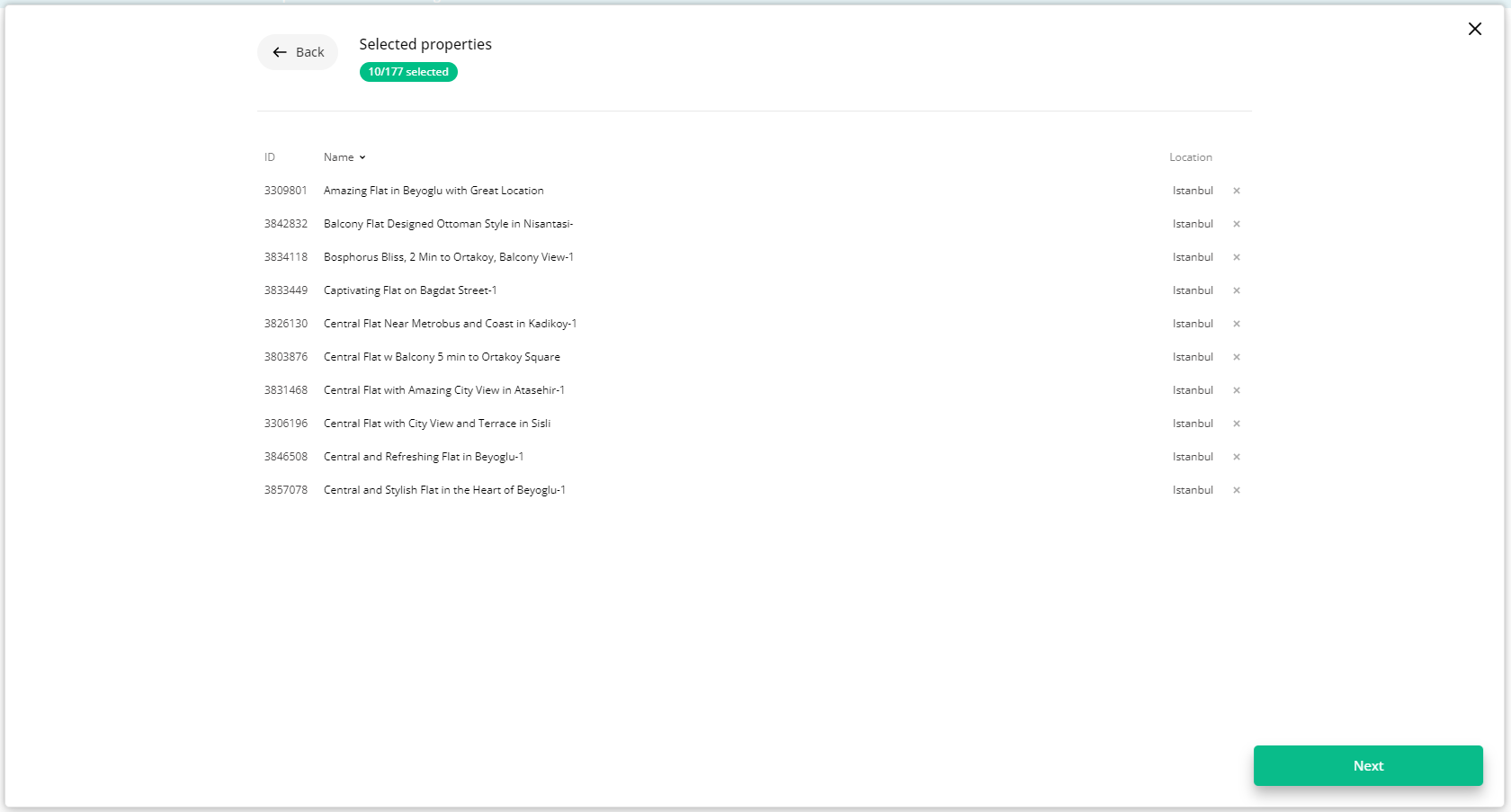
- Click Next to proceed.
- The content quality is analysed. The process should take up to a few minutes.
-
The summary of properties’ content is displayed.
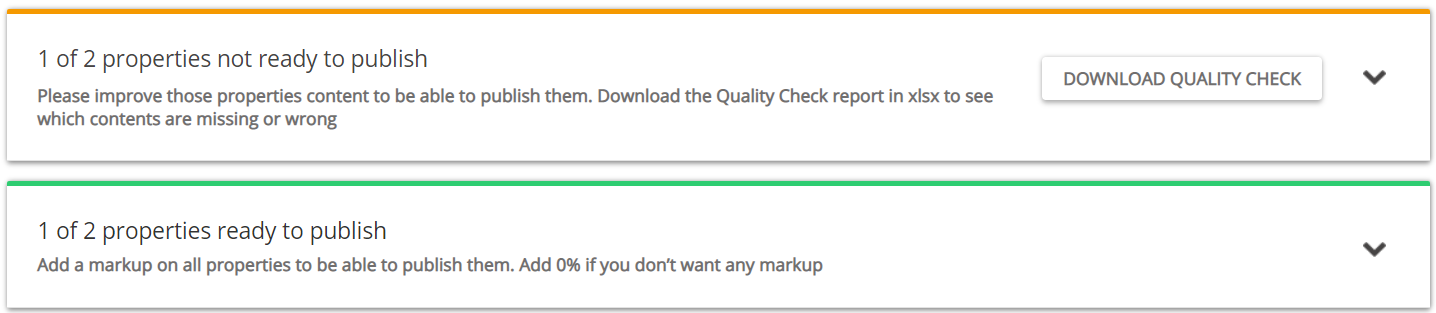 If some properties are not ready to publish, improve the content.
-
Check the content quality by unfolding the section with warning.
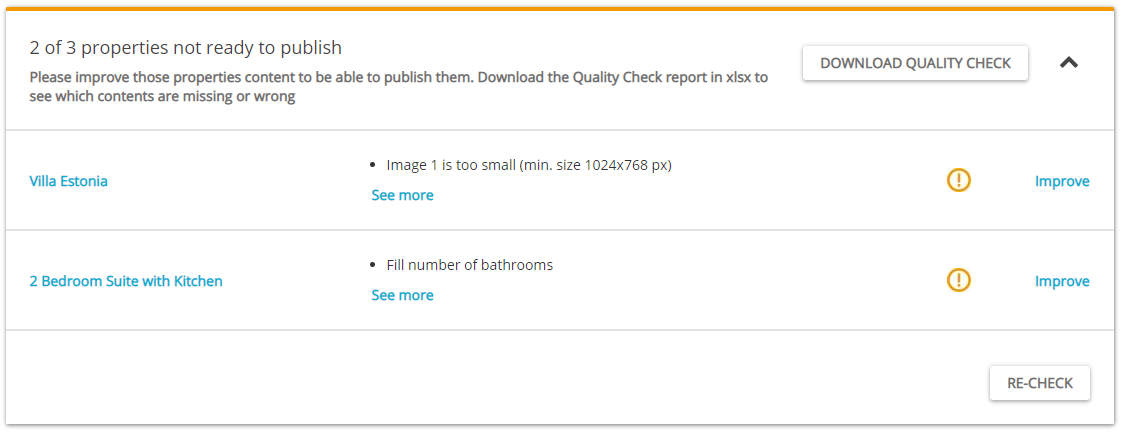
Verify if any data is missing or incorrect. It is possible to display the errors by unfolding the section. For more detailed summary of errors, download the XLSX report by clicking the Download Quality Check button.
- Click the Improve button. The Edit property page is opened in a new tab.
- Correct the content indicated in the report in the Edit property page.
-
Go back to the Property List and click the Re-check button. If no further errors are displayed, the property is ready to publish.
-
-
If the properties are ready to publish, adjust the markup for each of them. You can adjust the mark-up for each property one by one or apply the same mark-up value for all at once.
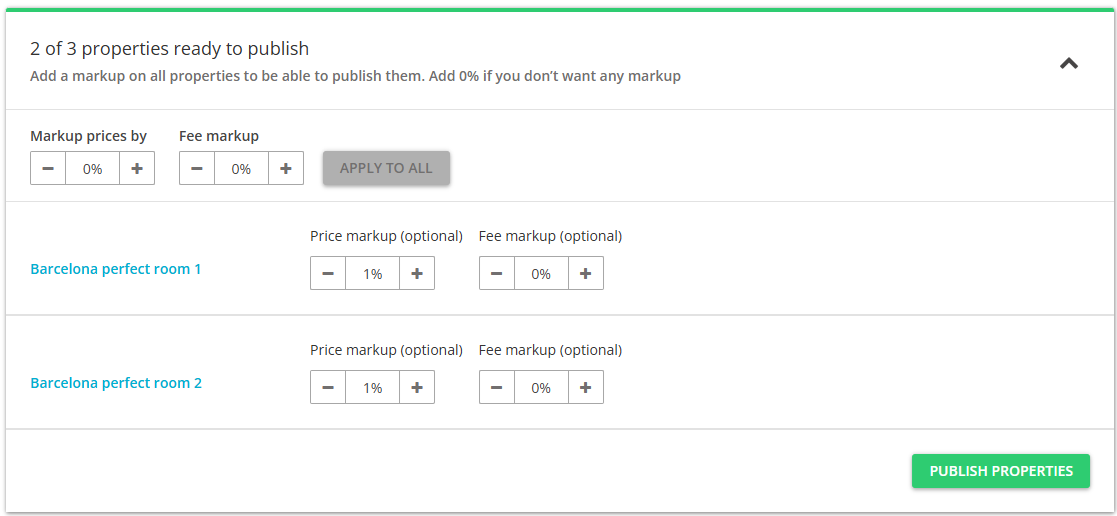
- Click the Publish properties button.
-
The published properties enter the
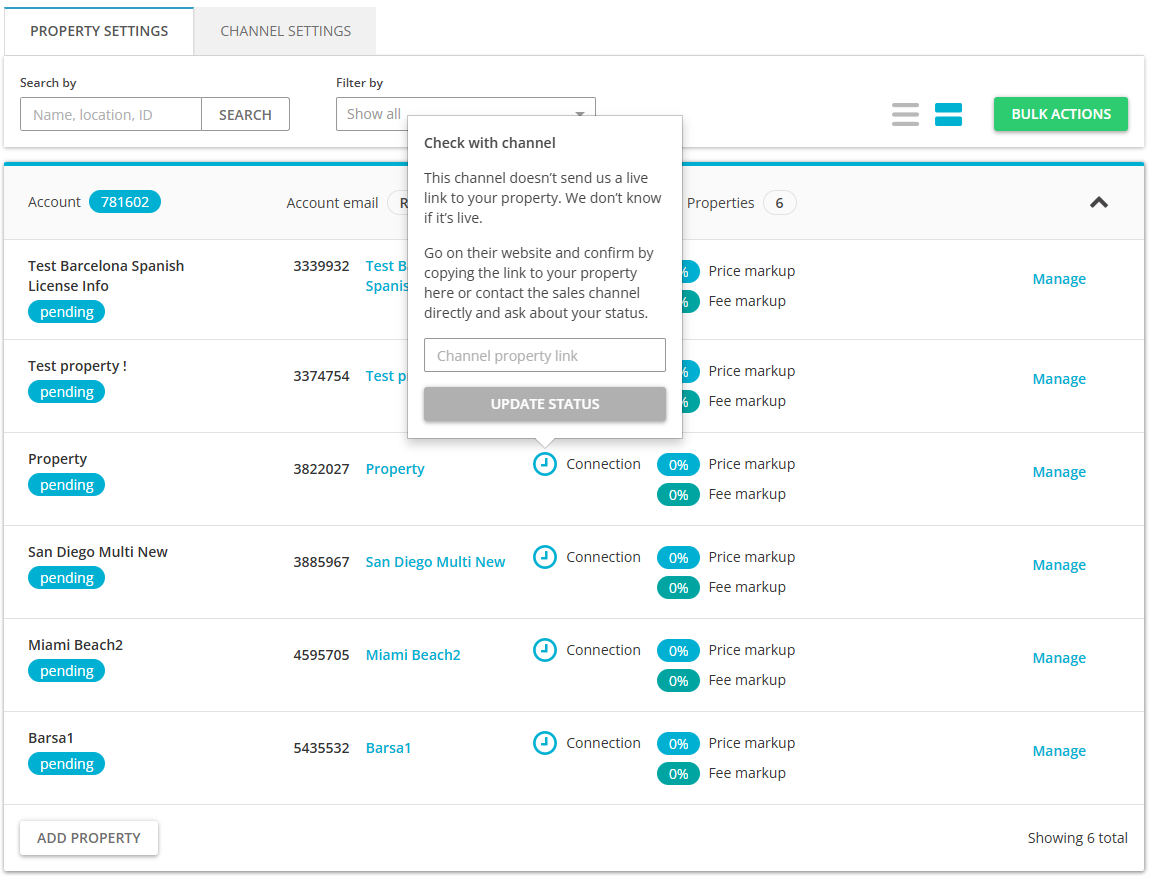
 Pending status.
At this point, you need to wait until Google Travel completes all the necessary steps on their side in order to successfully connect your property. Usually, it may be signing a contract, completing the account set-up and so on. For some channels, for example Google Travel it happens almost automatically. For others, you may wait up to few days. If you do not hear from the channel, you should contact them.
Tip: Additionally, you may receive some warnings due to the lack of an URL directing to your property on the sales channel's website, but bear in mind that the URL is not necessary. However, if you want to clear the warnings away, hover over the status icon and provide the URL to your property in Google Travel website. If the warning does not clear away despite providing the URL, contact Google Travel Support.
Mapping properties to existing listings (N/A)
Manage / Manage rates
The information in this chapter is useful when you already have properties connected, but you want to introduce changes to rates that will affect only Google Travel.
Setting the mark-up level
In Rentals United platform, open Property Settings. Follow the steps here.
- The Property page is opened.
-
Click the Manage button.
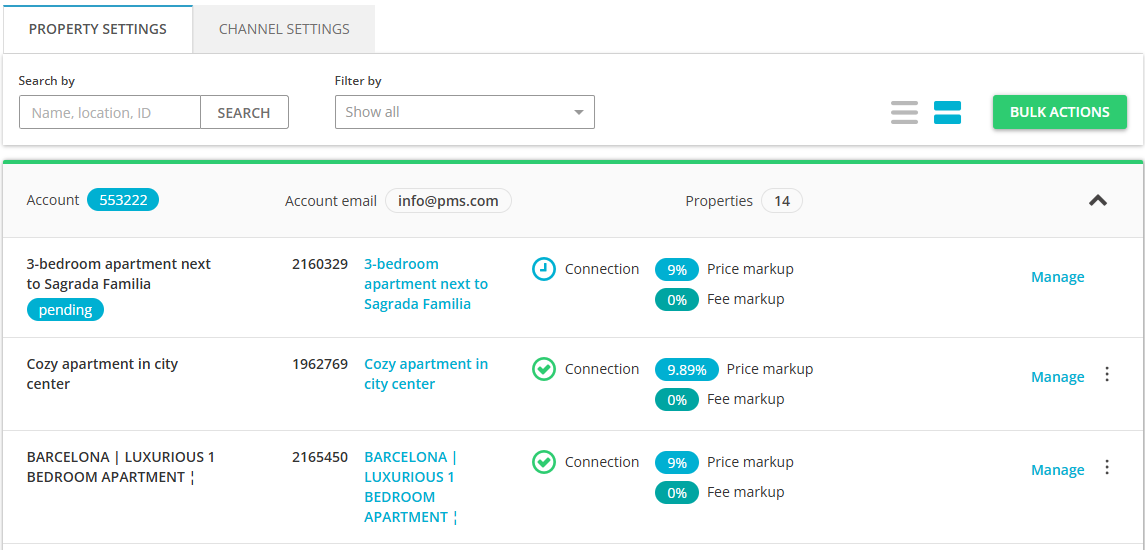
- Set the mark-up level the property price should be adjusted to for Google Travel.
Updating listings
After the property content is changed in the Edit property page in Rentals United, your listing will be automatically updated on Google Travel website through the Live Notification Mechanism.
Deactivating properties
In this section, you can find more information on how to stop renting your properties on Google Travel channel.
In Rentals United platform, open Property Settings. Follow the steps here.
- Search for the property you want to deactivate by scrolling down or filtering the property out.
-
Click the Manage button.
-
A property management page is opened.

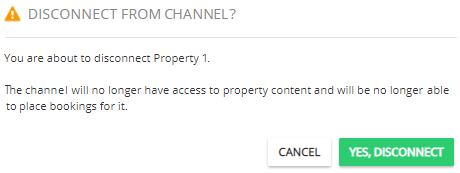
- Click the Disconnect button.
-
A pop-up window is displayed. Confirm the action by clicking the Yes, disconnect button.
Old Property Settings
Old Property Settings are no longer supported and we recommend using new Property Settings exclusively. New Property Settings are a robust and safe solution that offers you the newest features to manage your connections. If you need instructions related to old Property Settings, see Connecting to Google Travel.
