Instant booking process
Booking.com inserts reservations in Rentals United using the data available in the channel. Booking.com does not perform the quote request to Rentals United before the reservation is inserted.
- A guest enters the reservation page on the Booking.com website and provides the details of a reservation (dates, number of guests etc.).
- If the property is available to rent, the guest completes the reservation process on the Booking.com website by providing their personal data.
-
Booking.com inserts a booking to Rentals United.
When there are several Rentals United properties connected to an HRS room type (Rentals United hotel or group), reservations will be assigned to a property depending on their moves configuration. If you are unsure about the moves configuration of your HRS room types in Rentals United, please see Moves algorithm.
- An email notification with new reservation details is sent to the PM’s confirmation email address.
Request-to-book
Rentals United allows you to set the booking policy for your listings. You can select the booking mode for each individual hotel upon pushing it to Booking.com. You can choose between Instant book and Request to book. The step-by-step instructions are here. Request-to-book flow is offered globally by Booking.com .
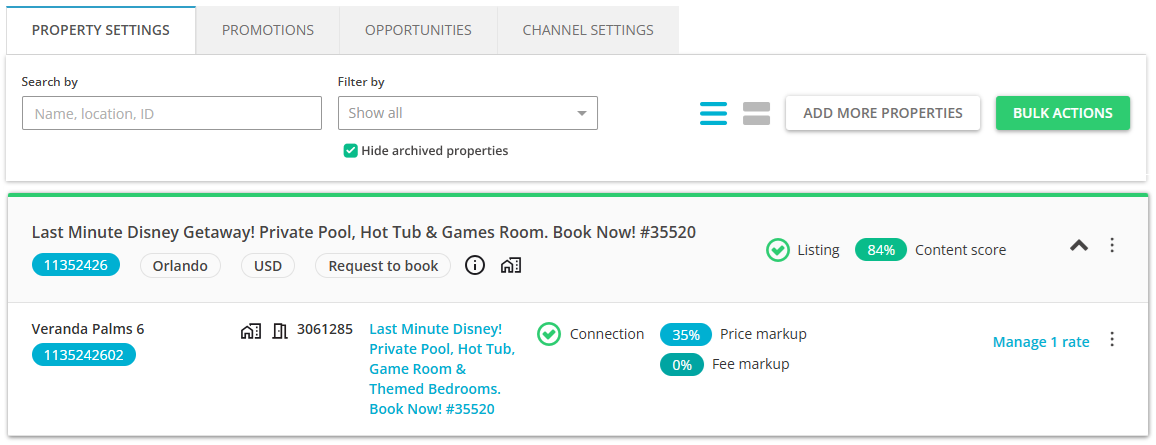
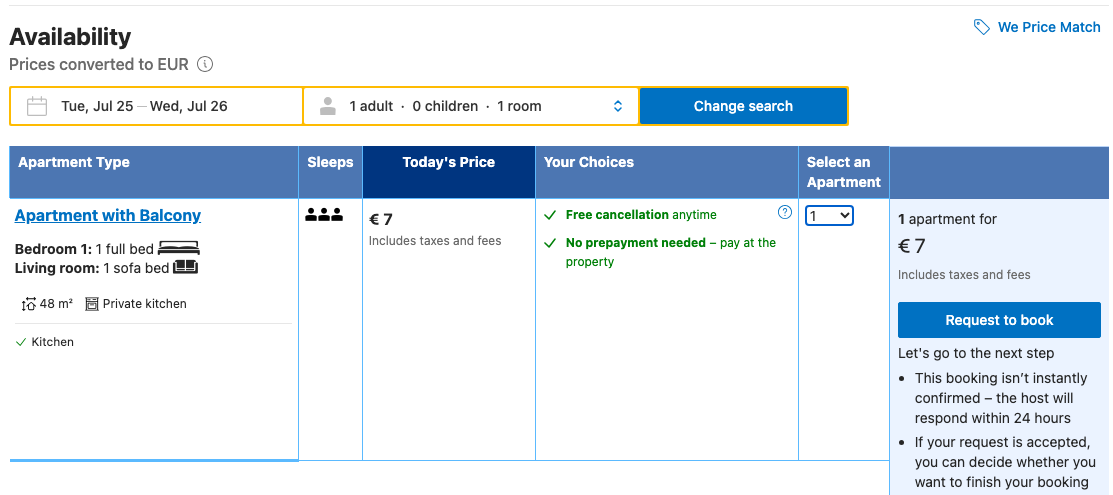
When the booking mode is set to Request to book, no instant bookings are possible. The guest will see the Request to book option in Booking.com. After they book your property via Request to book, you will receive a booking request in Rentals United (it will be marked in a blue colour). This booking will not block your calendar’s availability yet. You have 24 hours to confirm or decline a booking request. You can use this time for the guest verification purposes, for example.
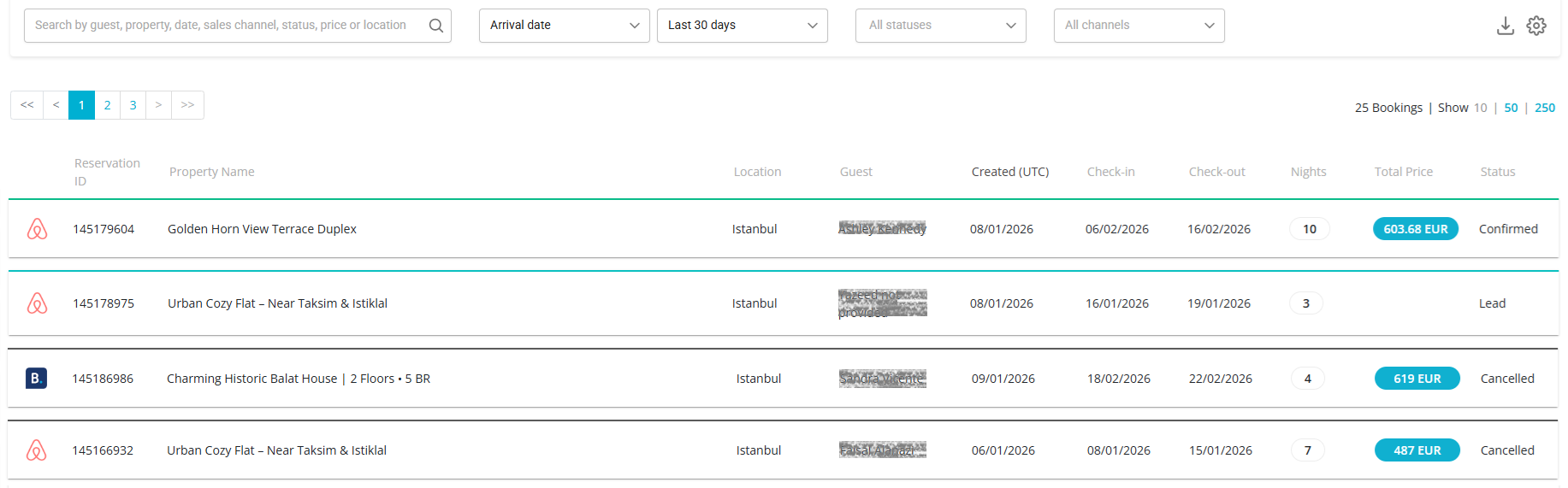
Booking requests can be confirmed or declined in the Rentals United platform and via API. You can see the step-by-step instructions on how to confirm and decline requests via API here.
Confirm a request
-
Open Guest Planner and find the request you wish to confirm. Requests have a blue label and are in the Request status.
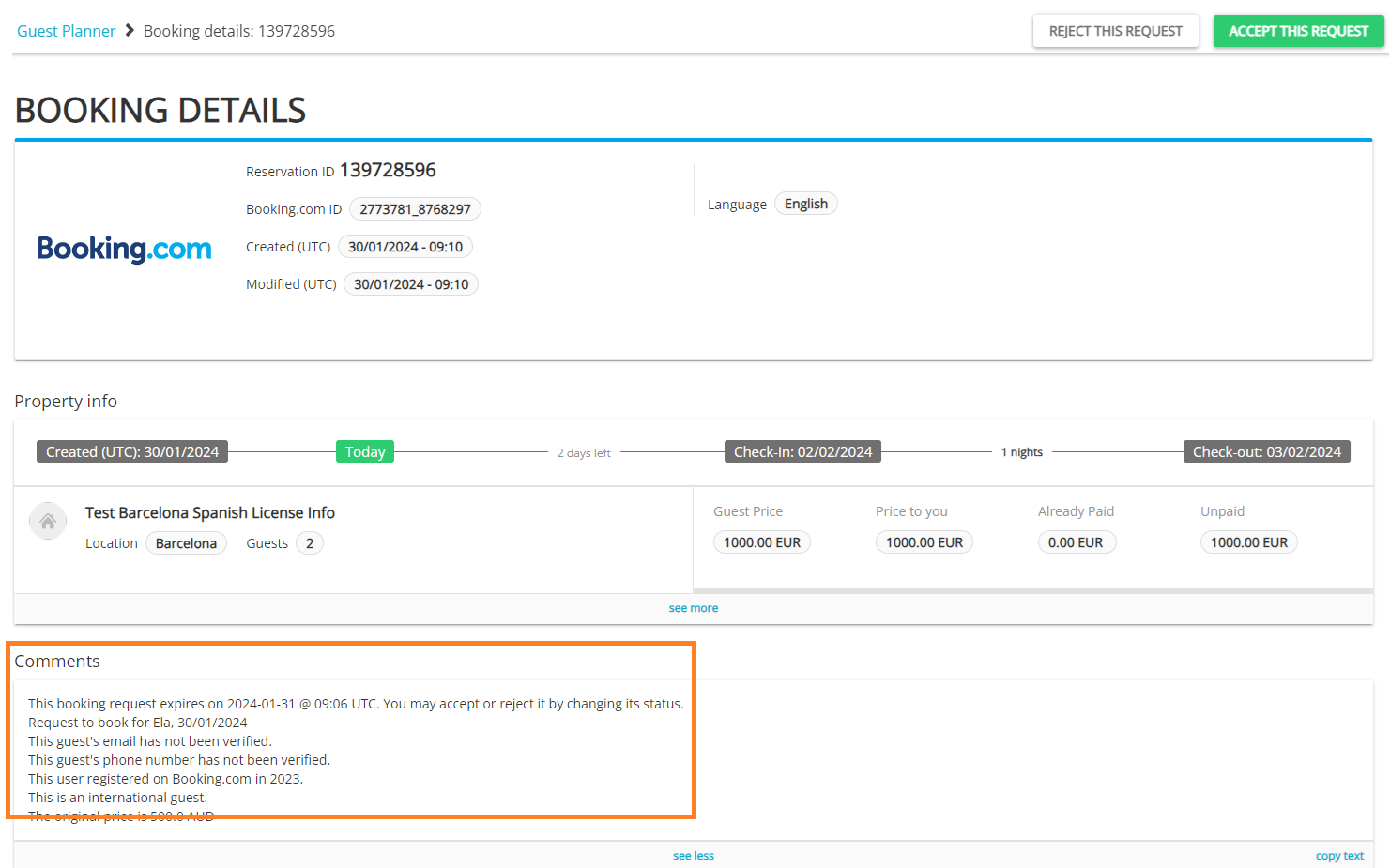
Booking.com requests do not include guest details. This is due to the Booking.com policy to avoid bookings made outside the platform. Instead, in the reservation comments they provide additional details, which may help you verify the guest, such as time the guest joined Booking.com or whether it is a verified user. Reservation comments include important information about the reservation status and actions taken.
-
Click the Accept this request button. The status changes now to Approved.
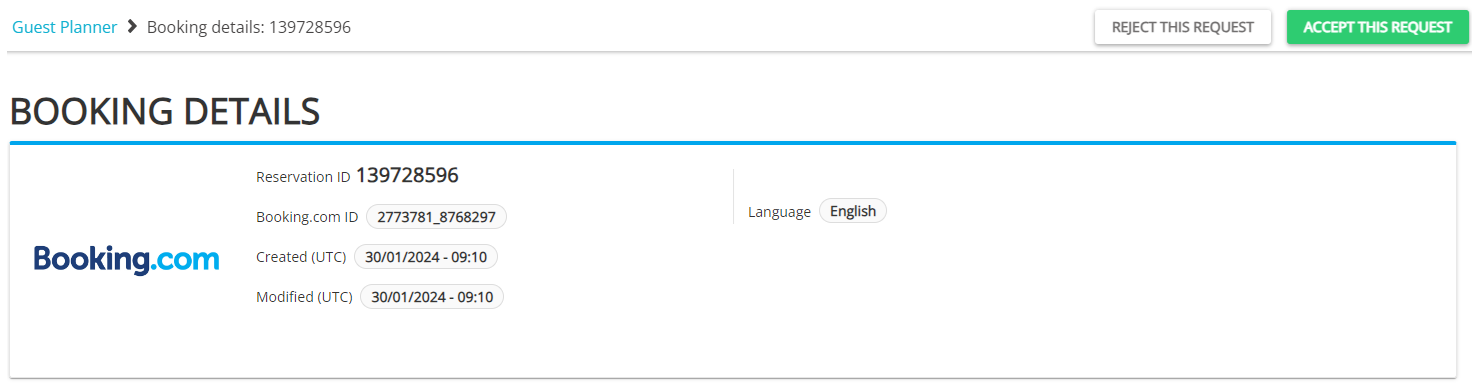
-
Wait for the guest's action. The guest has 24 hours to confirm the booking.
- If the guest completes the booking within the indicated time, the request will become a Confirmed reservation.
- If the guest does not complete the booking process, the request will change its status to Expired after the indicated time passes.
Note: Requests to book from Booking.com additionally have an expiry date on top of the comments section. It means the request cannot be confirmed or rejected after the indicated time passes.
Reject a request
-
Open Guest Planner and find the request you wish to confirm. Requests have a blue label and are in the Request status.
-
Click the Reject this request button.
-
A pop-up displays. From the dropdown, select the reason for rejection. In some cases, you need to provide an additional explanation. Confirm by clicking Reject this request.
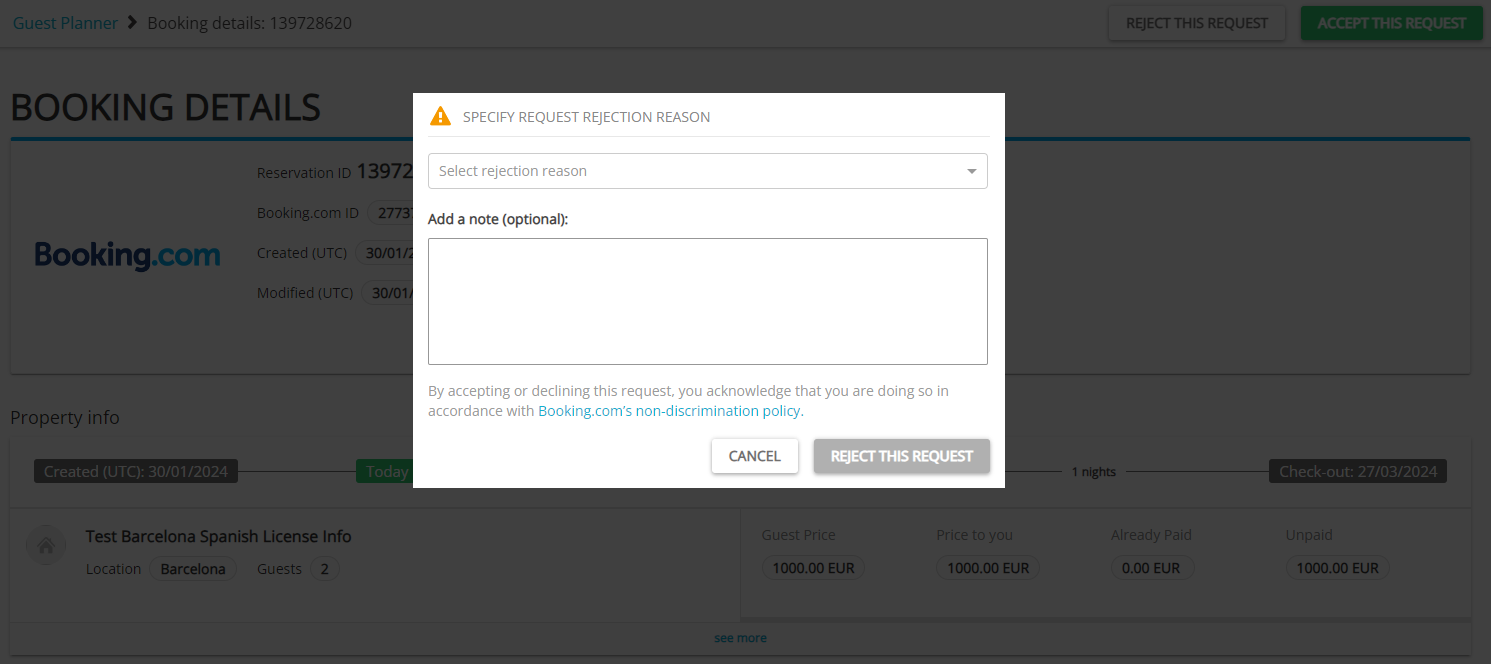
- The request will change its status to Rejected.
Inserting reservation manually
It is always possible to insert reservation manually in Rentals United Guest Planner or from the Bookings tab. In such a case, the availability is blocked and the channel is updated.
Reservation details
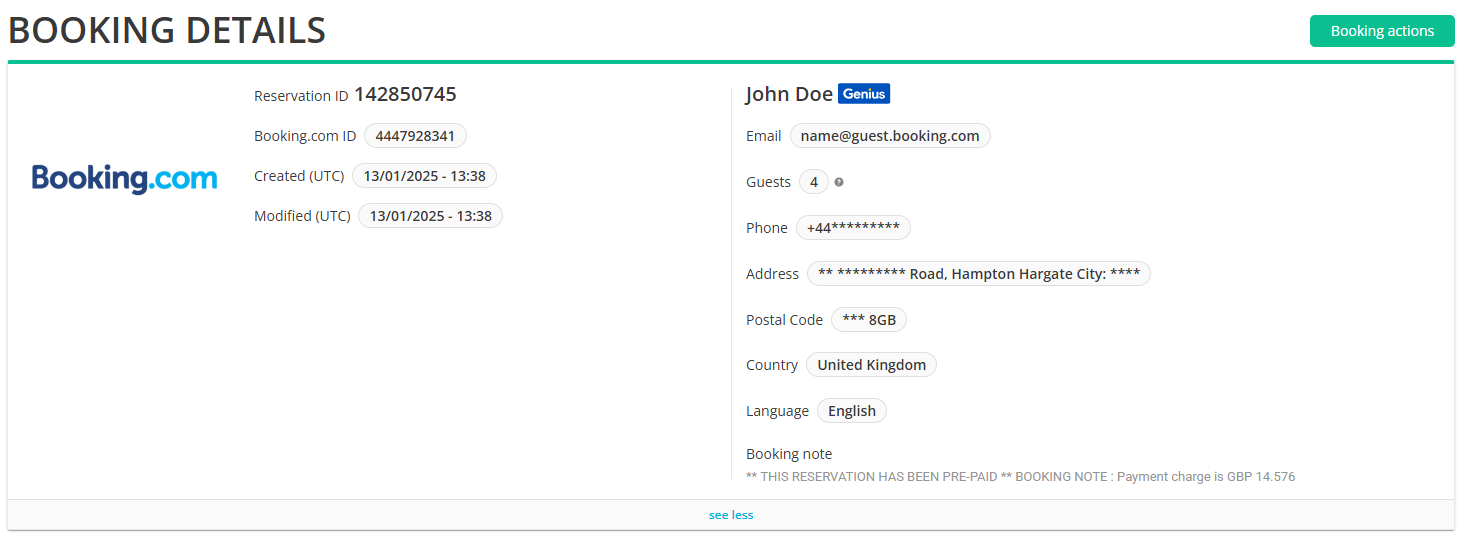
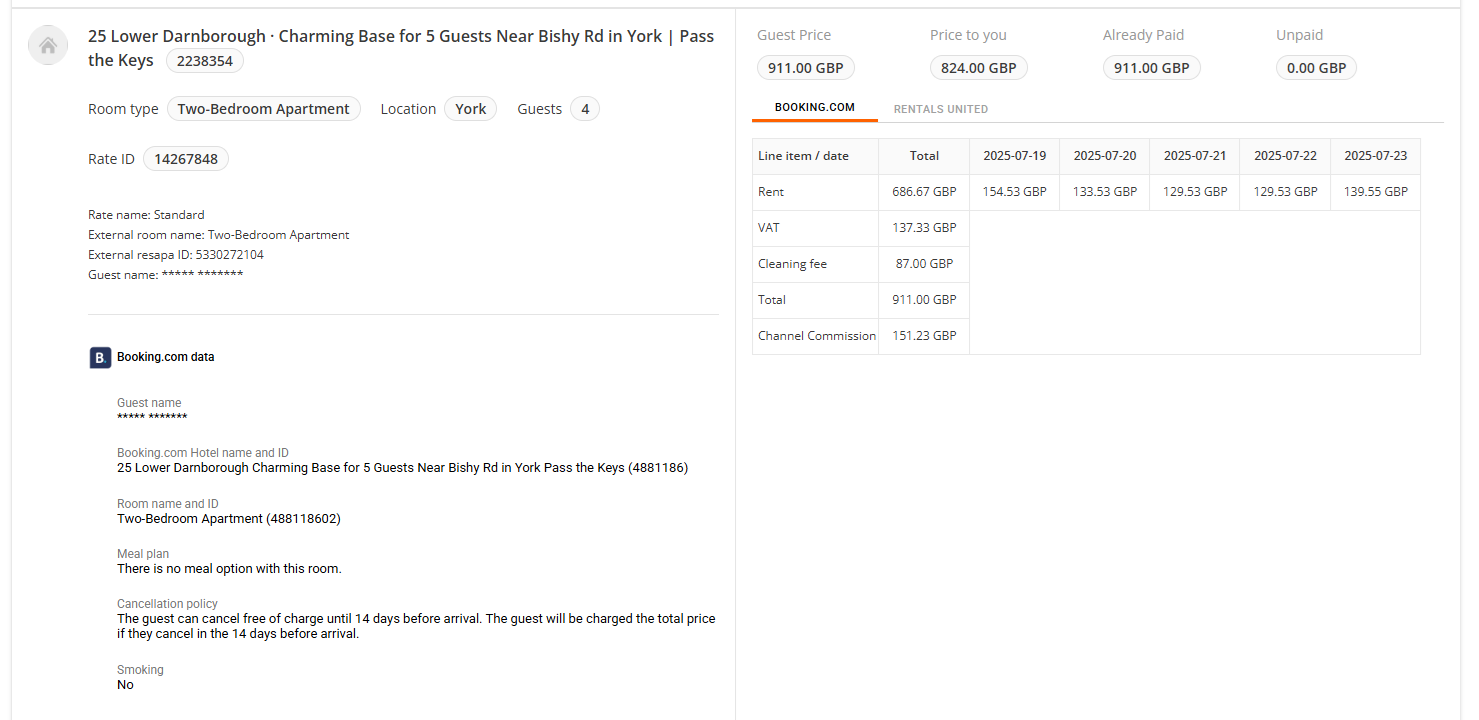
When a reservation arrives, theSales Channel provides the standard guest information (such as name, surname, and phone number) along with booking details including the property name, number of guests, stay dates, and price. All of this information is available in Guest Planner > Booking details.
If you are an API user, you can get access to this information via the following API methods:
| Item | More info | Example |
|---|---|---|
| Guest details |
|
 |
| Booking details |
|
|
| Property details |
|
 |
| Rate details according to Booking.com |
If any of the above information is not available, it means Booking.com does not provide it for this reservation. It will not be displayed in the reservation. |
 |
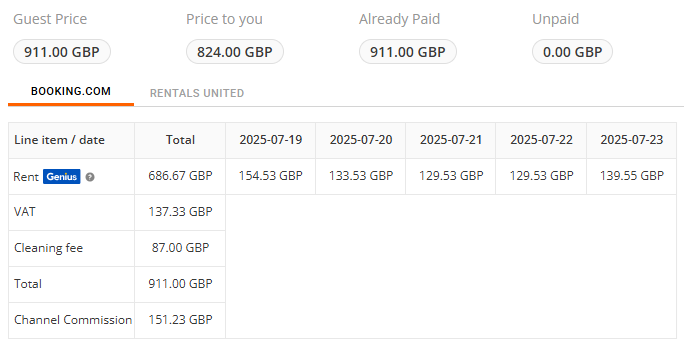
| Channel breakdown according to Booking.com |
Sales Channel provides the final reservation price breakdown. Whenever available, it should be used instead of the Rentals United breakdown.
You should follow this breakdown to access the final and most reliable information about your reservation costs. Additional information:
|
 |
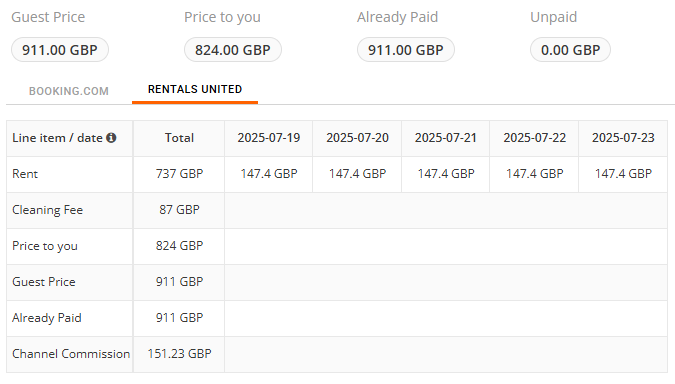
| Channel breakdown according to Rentals United |
Rentals United also provides a reservation breakdown. This breakdown follows your set-up in Rentals United. It may slightly differ from the channel breakdown due to the following reasons:
You should use it only to verify your reservation costs set up in Rentals United.
|
 |
| Payments |
Booking.com shares information on the payment. Depending on the payment method, it can be guest's credit card or virtual credit card. In case of Virtual Credit Card (VCC), Booking.com provides us with the following details:
The above details are saved in the dedicated API fields and available also in the reservation's comments. |
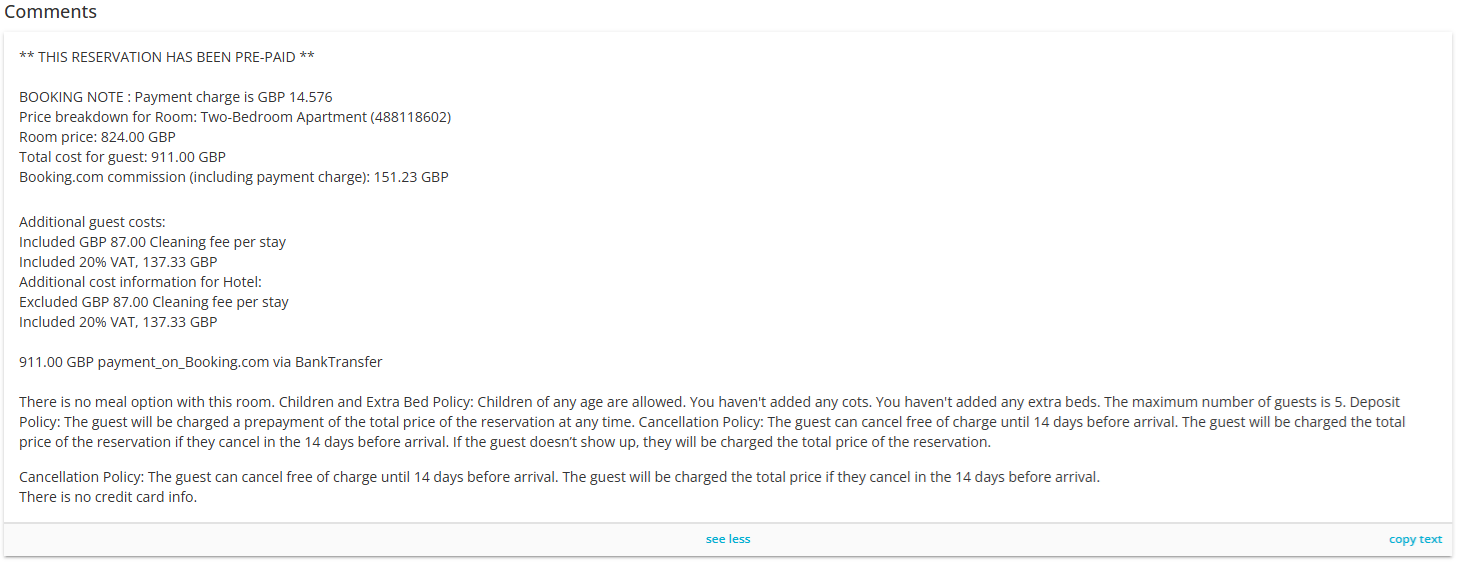 |
| Comments | Comments include additional information coming from Booking.com. This information is presented as received from Booking.com and unedited. Mostly it is a descriptive explanation of all the booking details already presented in the dedicated fields. | |
Importing bookings
In case you worked with Sales Channel and received bookings prior to connecting to it via Rentals United, it is possible to import them into Rentals United to ensure all information is in one place.
Note: Only bookings held for future Rentals United will be imported. Note that this feature will only copy your bookings from Sales Channel to Rentals United. In case of modifications or cancellations of the copied bookings, the same rules as for other bookings apply.
If you have existing bookings in Rentals United, we will update them in Rentals United with the information from Sales Channel.
Bear in mind that this is a one-time action that is supposed to import bookings which were created before you have started using Rentals United or connected to Sales Channel. Any new bookings will be automatically created in Rentals United , without any need to manually import them.
In Rentals United platform, open Property Settings. Follow the steps here.
-
Find the hotel you would like to import bookings for. Hover the mouse over the three-dot menu on the account level. Click Import Sales Channel bookings.
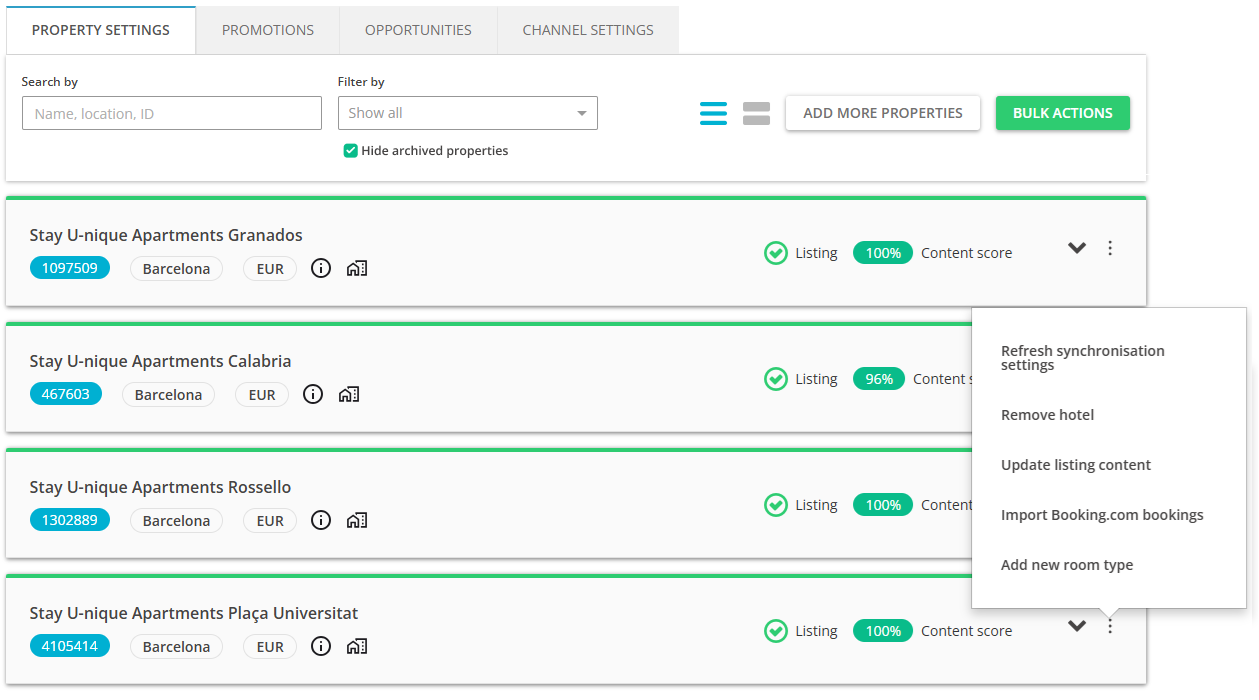 Note: You can import bookings for the whole hotel only. This means it will import bookings from all listings added to one hotel. If you have more hotels, you need to repeat it for each of them.
 - Confirmation pop-up is displayed. Click Proceed & Import to continue.
-
The process is initialized. Do not exit the page until it is finished. Depending on the number of bookings you have in your account, it may take a while to complete. Once the bookings import is complete, the page will reload. Please, verify if new bookings were successfully copied to Rentals United. You can do it directly through Guest Planner. If the process was not successful, you will see an error. In this case, try again. If the error persists, please contact the Rentals United Support Team.
Note: If some of your seasons are blocked in Rentals United and you import bookings, these imported bookings will be placed within the blocked periods anyway. They may show up as overbookings. This is only a visual issue and there's nothing to worry about.
For reservations that were created in Booking.com before the hotel was connected to Quick Connect, it is only possible to get the following data from Booking.com::
- rent price
- dates
- guest name
- meal plan
Especially, it is not possible to get additional information:
- detailed price breakdown
- payment info (e.g. card number)
- special requests (information about children)
- guest contact details
- commission
Modifying a reservation
Booking.com to Rentals United
Modifications initiated in Booking.com and synchronised to Rentals United in real time.
Rentals United to Booking.com
Modifications made in Rentals United are synchronised to Booking.com on some limitations:
- When modifying the reservation via the Report stay change flow, the changes will be synchronised to Booking.com.
- When modifying the reservation in Big Card / Edit bookings, the changes will not be synchronised with Booking.com.
Cancelling a reservation
Booking.com to Rentals United
Cancellations initiated in Booking.com and synchronised to Rentals United in real time. If you need to cancel a reservation, you can do it directly in the Booking.com extranet or reach out to your Booking.com contact directly.
Rentals United to Booking.com
Cancellations made in Rentals United are synchronised to Booking.com on some limitations:
- When cancelling the reservation via the Report no-show flow, the booking will be cancelled in Booking.com.
- It is not possible to cancel the reservation Big Card / Edit bookings.
