Minimum requirements to connect
In order to connect the Property Manager’s (PM’s) property to the Airbnb, the following requirements must be met:
- Property name contains minimum 8 characters, maximum 50 characters;
- Licence number must be filled if the property is located in certain locations, for example France or on a French-administered territory, but you may be asked to fill it in for other locations, too. Please, refer to your local law.
- Address: Country and Post code are provided;
- Geo-coordinates are provided;
- Location: Property must not be located in certain locations. For a current list of restricted locations, please, refer to Airbnb.
- Amenities: At least 5 amenities are selected;
- Description contains minimum 50 characters;
- Photos: minimum 7 photos uploaded, the minimum size is width: 800 px and height: 500 px;
- Prices and availability are provided for some seasons;
- Number of beds matches the Maximum number of guests;
Establishing connection
In order to start advertising on Airbnb, you first need to establish the connection with it. Please, follow the below steps in order to get connected.
-
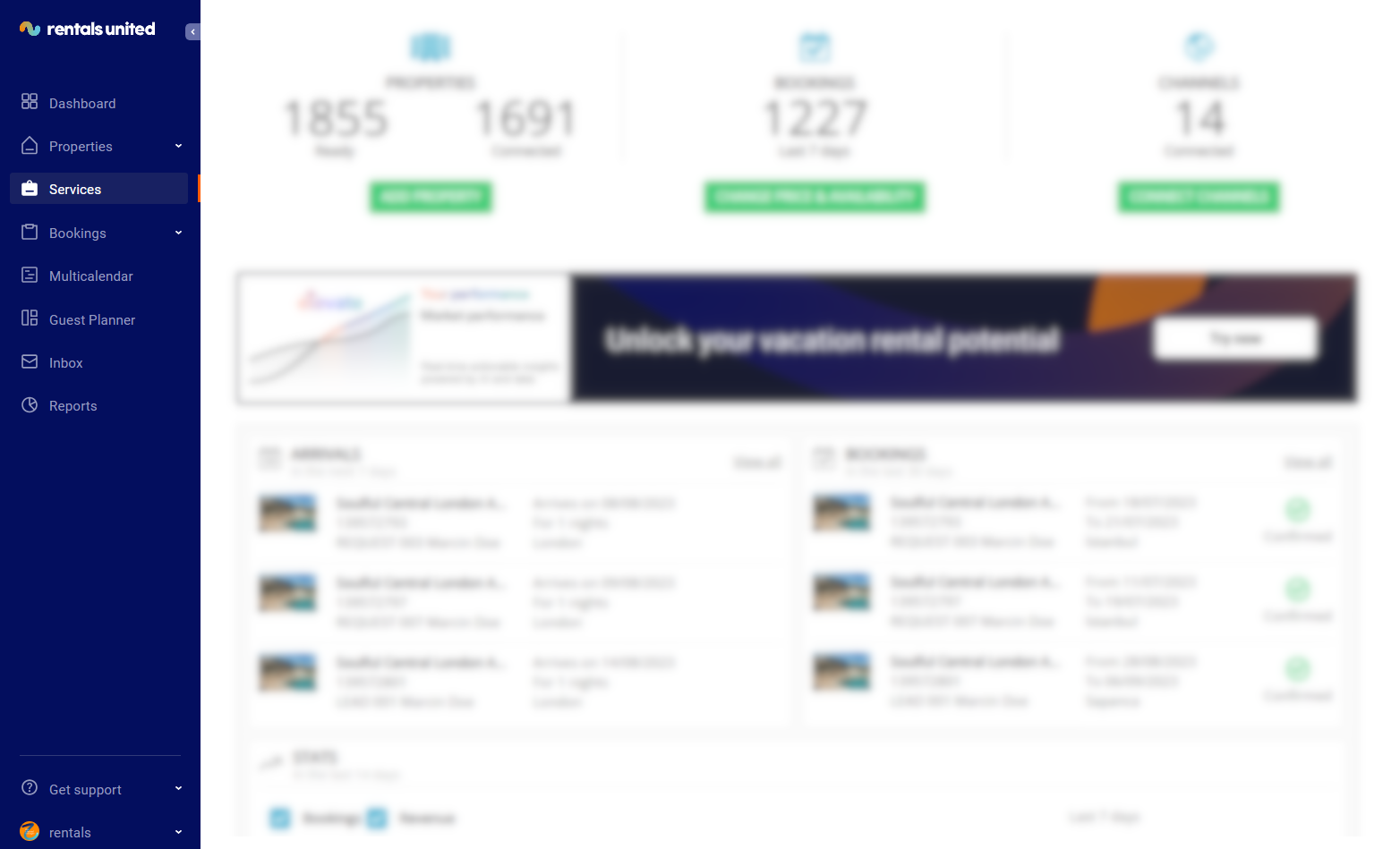
In Rentals United platform, go to the Services tab.
-
Click the Find Services tab.
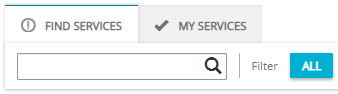
- Type Airbnb in the search box or scroll down through the list of available channels.
- Unfold the Airbnb section by clicking the Down arrow button.
-
Click the Get connected button.
-
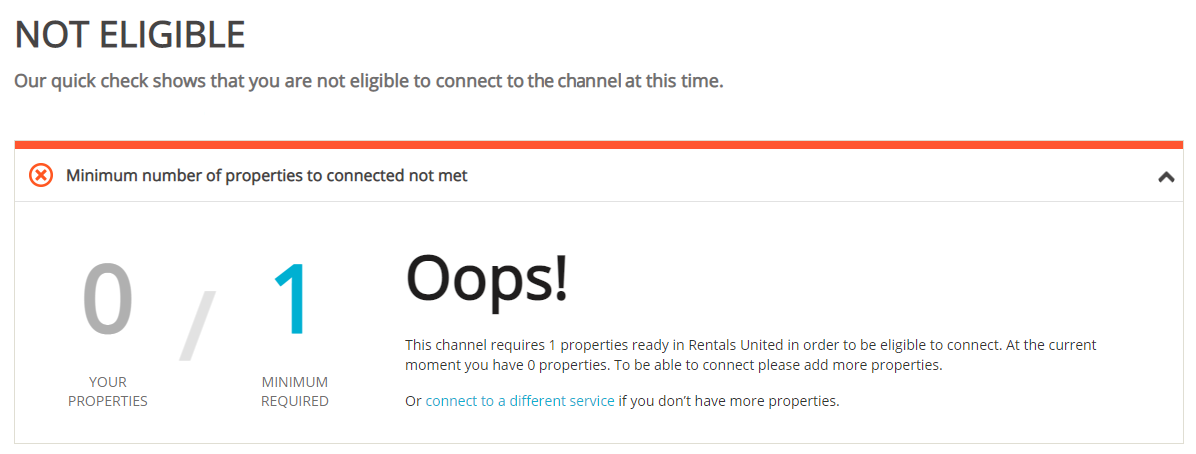
Your connection is now being validated in the background. If the validation is passed successfully, the Connection Wizard is launched and you can go to the next step. If you are not eligible to connect to Airbnb, an error is displayed.
Eligibility errors indicate violating initial channel requirements that need to be met before you establish the connection. You will not be able to go to the next step and finish the connection process unless the eligibility error is cleared away. In order to resolve it, follow the instructions displayed on the screen. Please, see an exemplary eligibility error below.
- You are presented with a brief description on how the Airbnb works. Read it carefully and confirm that you agree with it by ticking the checkbox below. Do not worry, once all the steps of the Connection Wizard are completed, you will still be able to view the How it works content again. Click the Save & Next button on the bottom of the page to move to the next step.
- Tip: On the top of the page, you can view the progress of the Connection Wizard. Depending on the channel, the number of steps may differ. You can stop anywhere along the process. Upon next time you open the Connection Wizard, you will continue at the last completed step.
- Follow the next steps displayed in Rentals United.
- Set the Default price and fee mark-up for your properties that will be added to Airbnb
- Select the Cancellation policy for all your properties that will be added to Airbnb
- Set up the Minimum stay
- Add New Listing Promotion
- Enable Automated Reviews
- Set up Non-refundable rates
- Set Preparation Time Before Arrival / Booking lead time
Setting Rentals United
In order to fully utilize the capabilities of Rentals United and make the linking of the two systems possible, you need to set Rentals United as the connectivity provider in Airbnb. For example, this is required in order to enable mapping properties to the listings in the channel. Please, perform the following.
With this procedure, you can connect to your Airbnb account for the first time and add a new Airbnb account to the already existing connection.
-
In Rentals United platform, go to the Services tab.
-
Click the My services tab.
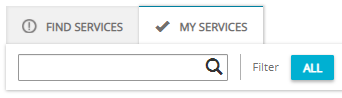
- Type Airbnb in the search box or scroll down through the list of available channels.
- Unfold the Airbnb section by clicking the Down arrow button.
-
Click the Account Settings button.

-
Select Your Airbnb account details tab.
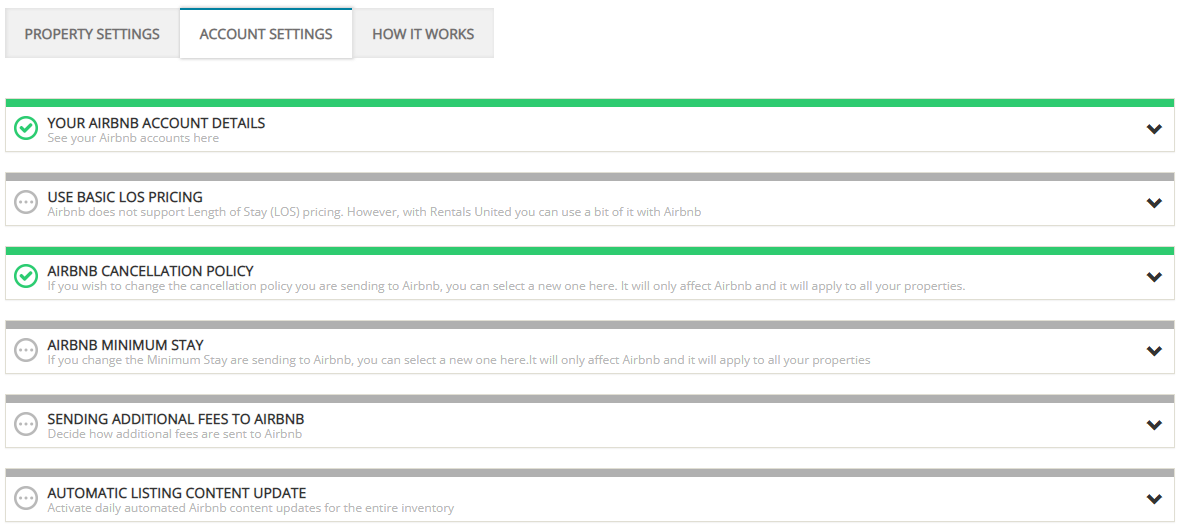
-
Click the Click here to connect Airbnb account.
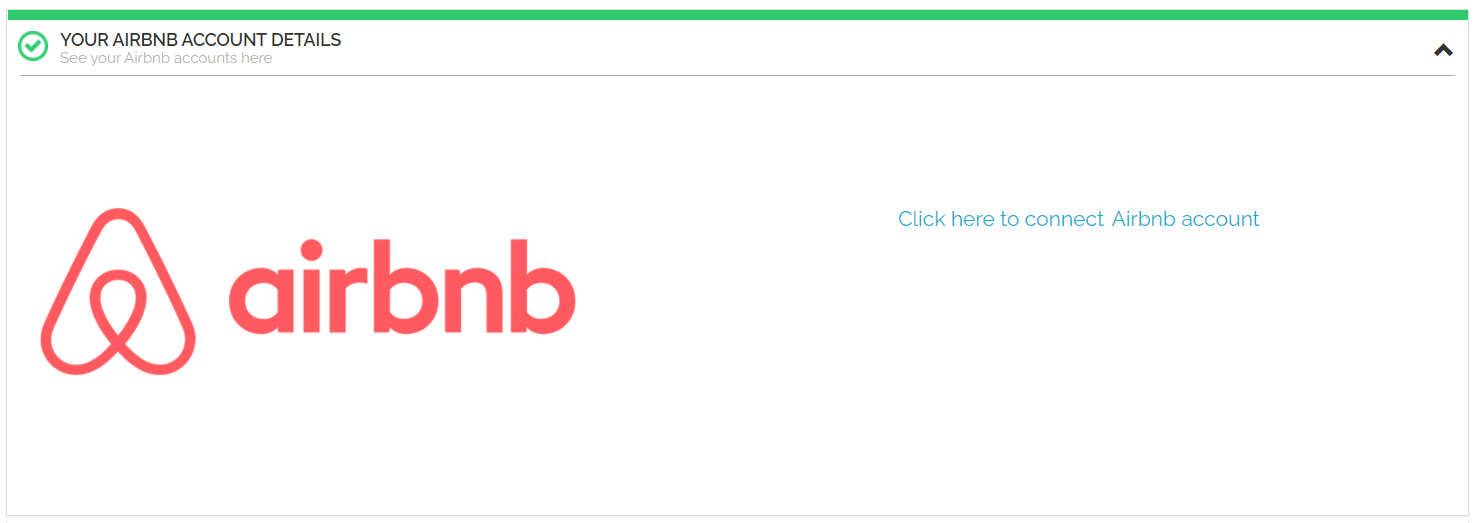
-
You are directed to the Airbnb website. While connecting to Airbnb, the system will automatically detect your connection with Airbnb in the background and connect your account with the Airbnb account that you are currently logged in. Make sure that you are logged in to the correct Airbnb account (in case you have more than one account in Airbnb). Read carefully the terms and conditions and confirm by ticking the checkbox. Click Allow.
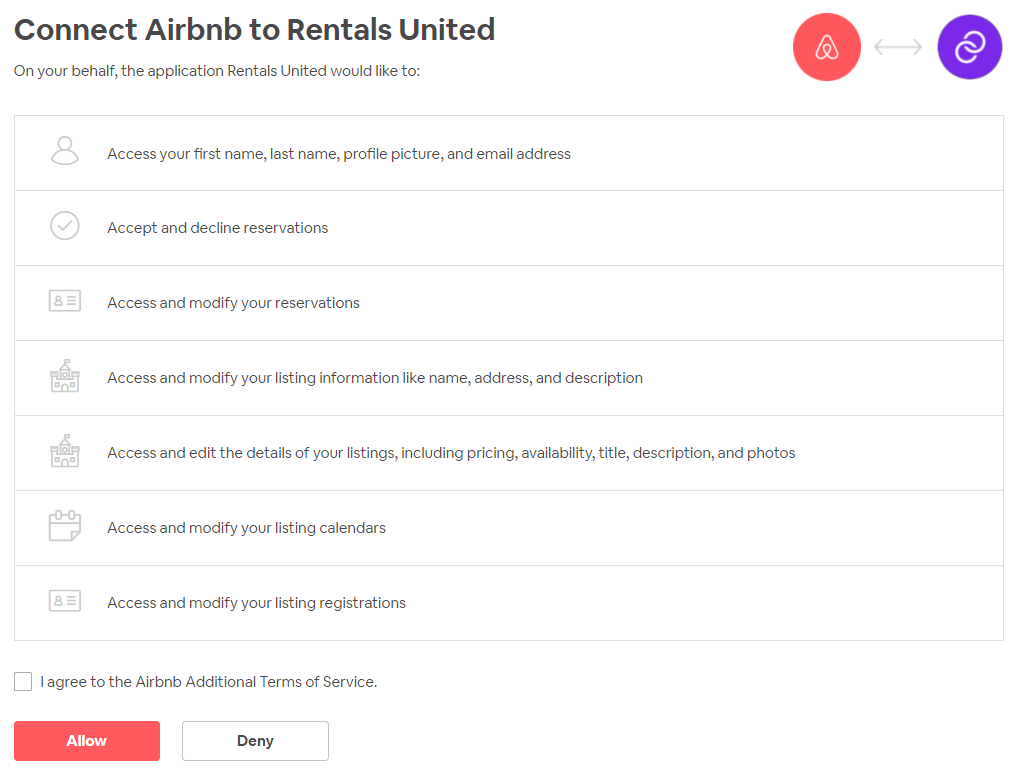
Create new listing
Follow the below procedure if you already have some properties created in Rentals United and you want to connect them to Airbnb.
In Rentals United platform, open Property Settings. Follow the steps here.
- Depending on whether you already have some properties connected to the Airbnb or not, you are presented with two different options.
-
If it is the first property to be connected, click the Connect your first property button.

-
If it is the next property to be connected, click the Add more properties button.
-
- A dialog window appears with the question if the property is already published in Airbnb.
- If the property is listed in Airbnb, terminate the process and map your properties to the Airbnb listings.
- If the property is not listed in Airbnb, click No.
-
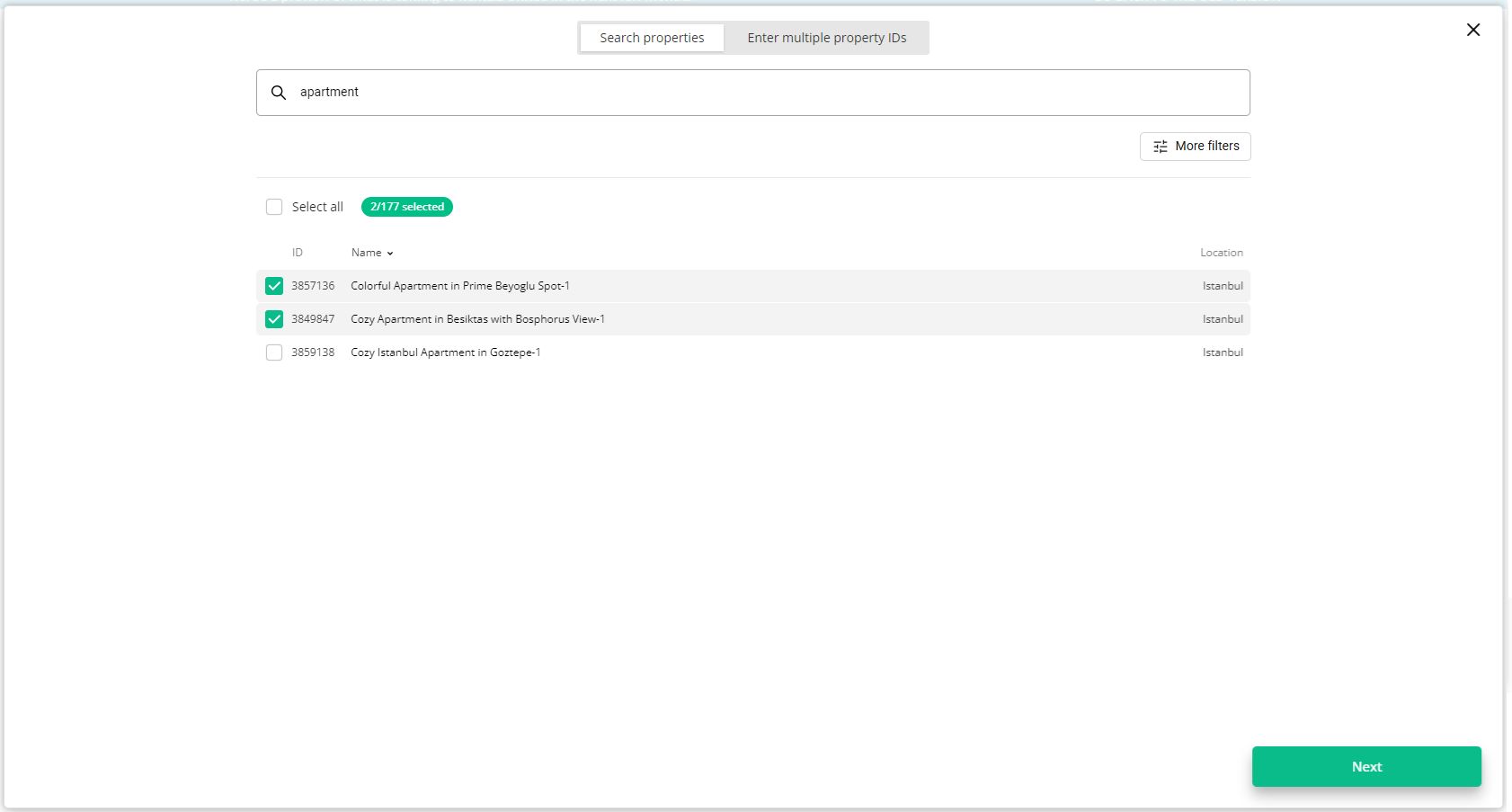
Choose the properties. You can read about the different ways of filtering and selecting properties here.
-
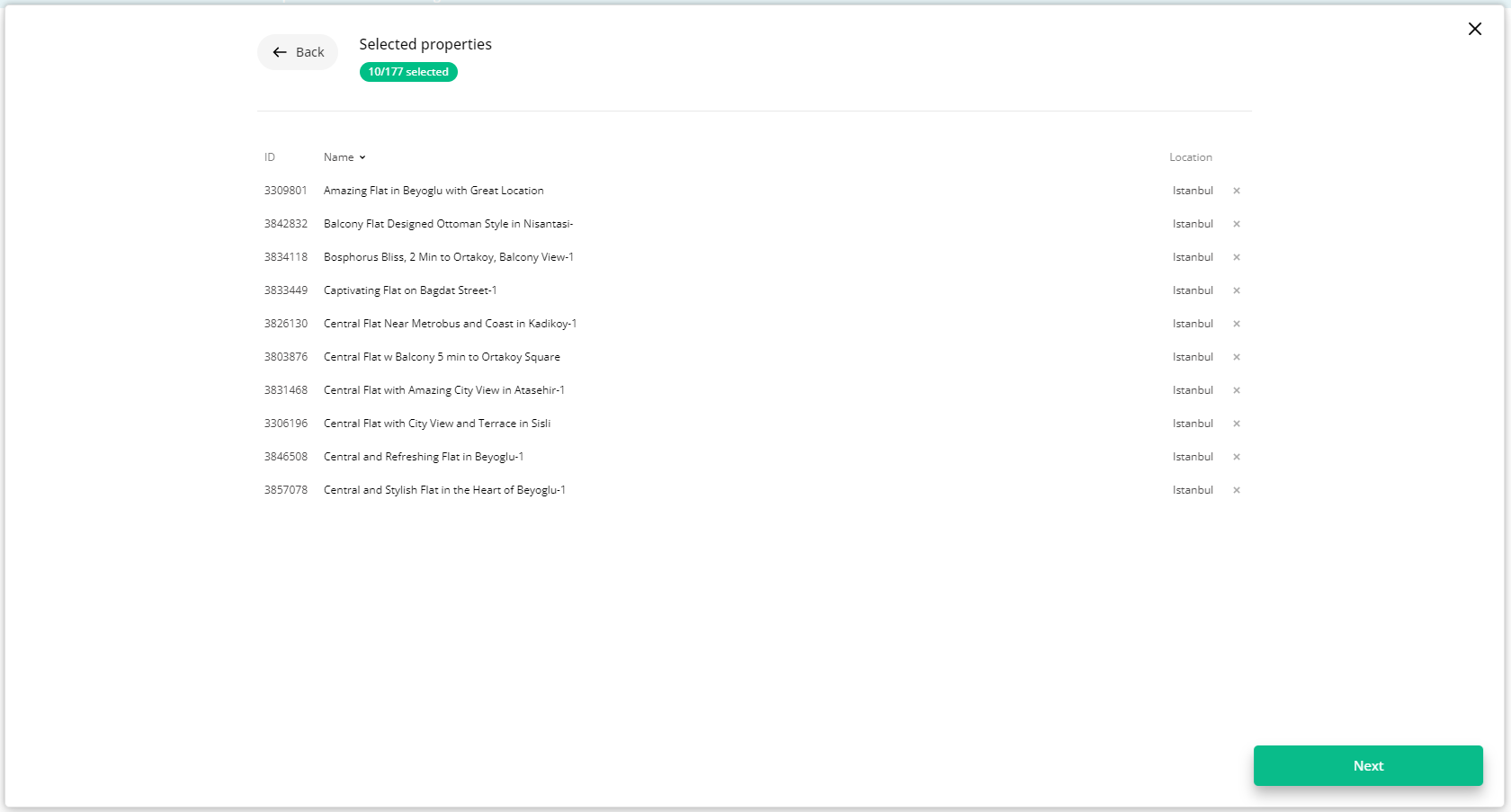
Click Next. You will see here the summary of all selected properties. Review the list and check if all properties are included.
- Click Next to proceed.
- The content quality is analysed. The process should take up to a few minutes.
-
The summary of properties’ content is displayed.
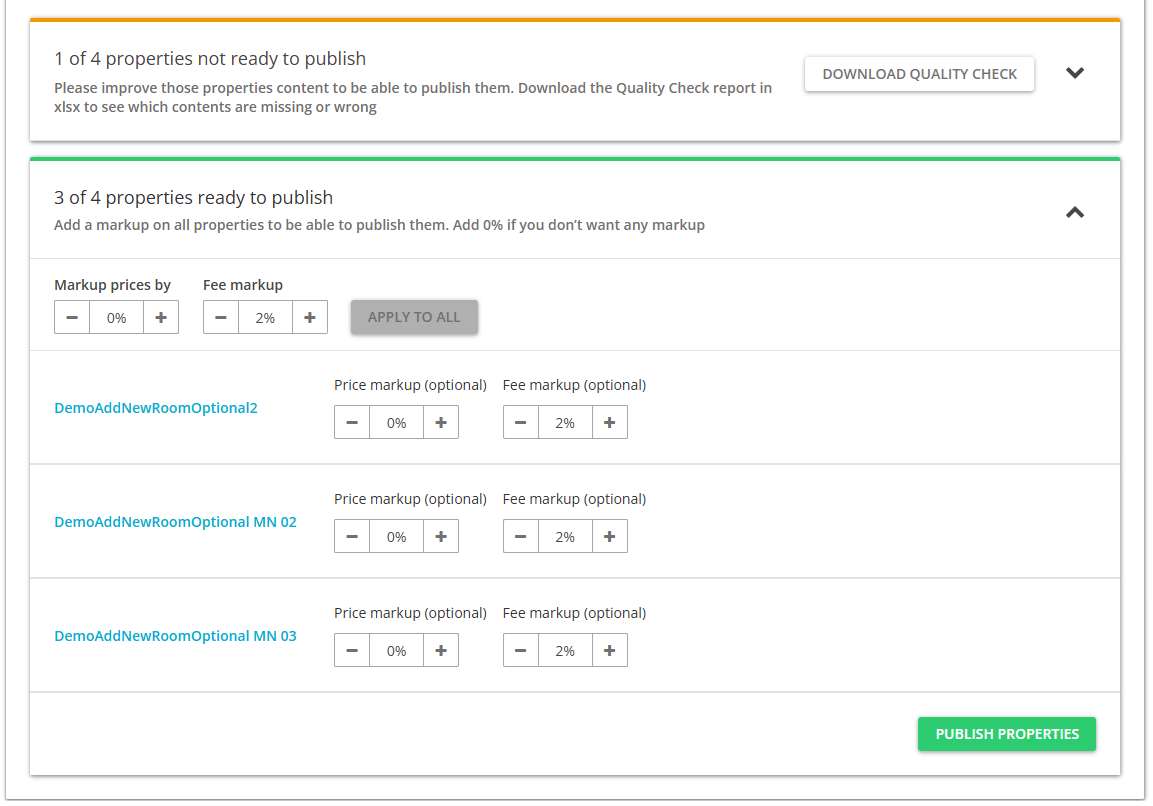 If some properties are not ready to publish, improve the content.
-
Check the content quality by unfolding the section with warning.
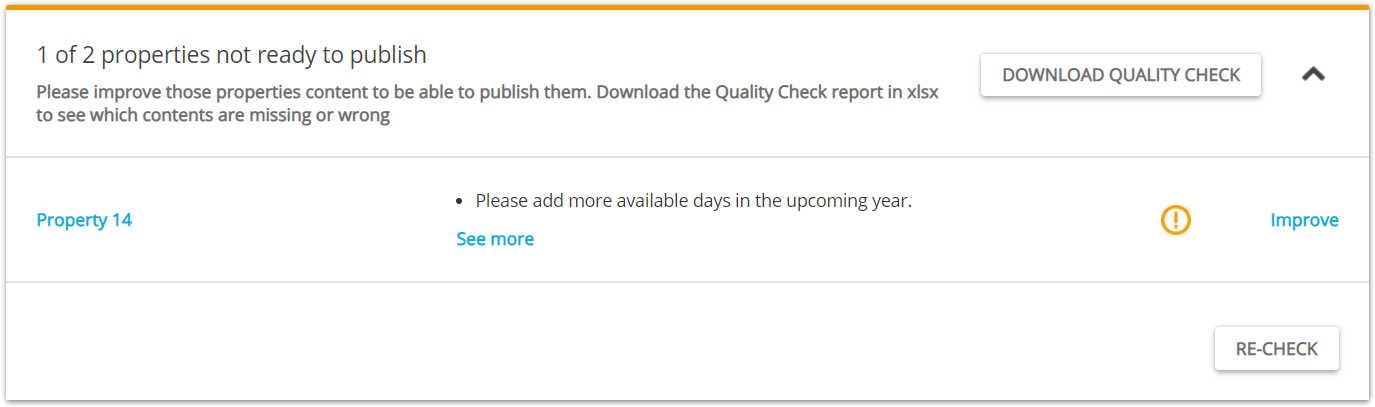
Verify if any data is missing or incorrect. It is possible to display the errors by unfolding the section. For more detailed summary of errors, download the XLSX report by clicking the Download Quality Check button.
- Click the Improve button. The Edit property page is opened in a new tab.
- Correct the content indicated in the report in the Edit property page.
-
Go back to the Property List and click the Re-check button. If no further errors are displayed, the property is ready to publish.
-
-
If the properties are ready to publish, adjust the mark-up for each of your properties.
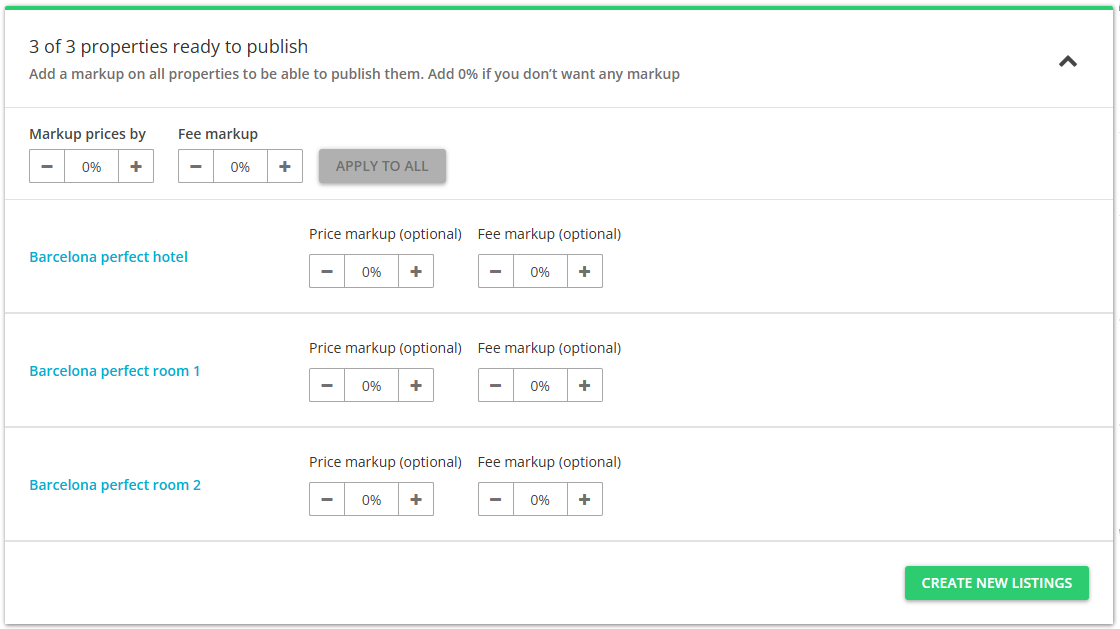
- Click the Create new listing button.
- The published properties enter the
 Pending status. The channel reviews your properties and their status will be updated automatically. The properties get available almost instantly in the Airbnb website and the status changes from Pending to
  Active. From now on, the connection is active and reservations can be made.
Importing properties from Airbnb
If you already have a number of properties created in your Airbnb dashboard, there is a quick way to take the snapshot of the data available in Airbnb and import it to Rentals United. See the details here.
Mapping properties to existing listings
If you have created properties in Rentals United (either added them manually or through Importing properties from Airbnb) and you already have corresponding properties in Airbnb, you may create a link between the two properties in these systems. Before you do this, make sure that you selected Rentals United as your Connectivity Provider, following the steps at Setting Rentals United.
In Rentals United platform, open Property Settings. Follow the steps here.
- Depending on whether you already have some properties connected to Airbnb or not, you are presented with two different options.
-
If it is the first property to be connected, click the Connect your first property button.
-
If it is the next property to be connected, click the Add property button.
-
-
A dialog window appears with the question if the property is already published in Airbnb.
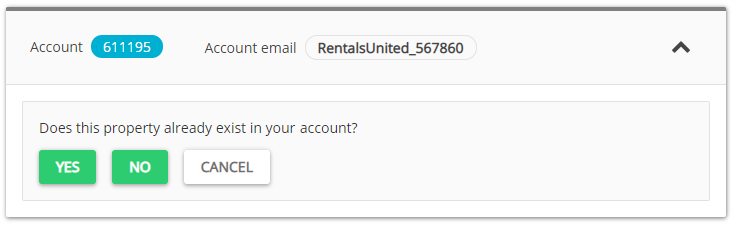
- If the property is listed in Airbnb, click Yes.
- If the property is not listed in Airbnb, terminate the process and start with connecting your properties.
-
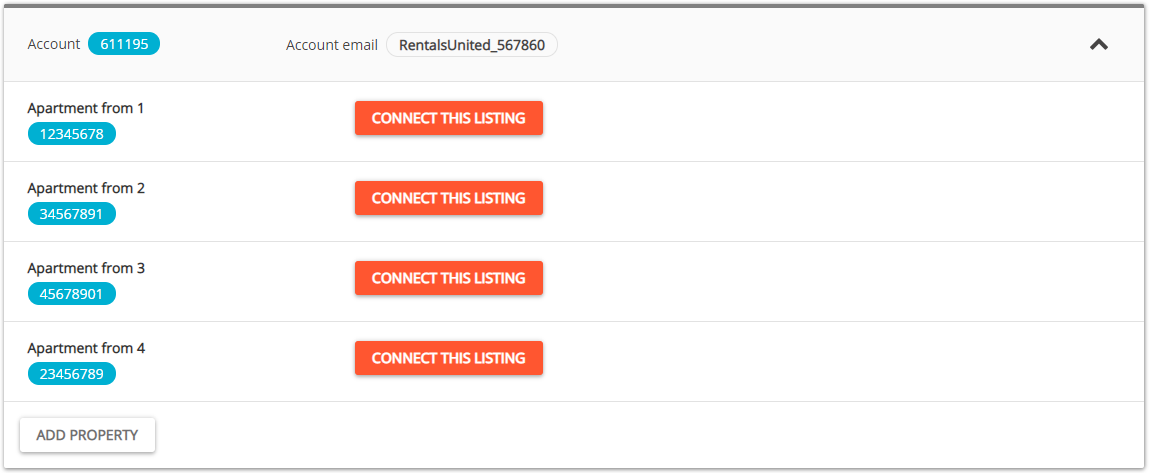
A list of unmapped listings for that cluster is retrieved from Airbnb.
Tip: Rentals United will attempt to automatically match the listings from the Airbnb site with the corresponding properties in Rentals United. Once done, you can skip manual mapping and go to this Step. If some properties were not matched together, follow the procedure along and proceed to next Step. -
Click Connect this listing button next to the listing you want to map.
-
From the list, select the property to map and click Next
Note: If the property that you are looking for is not available, it may mean that:
- The property has already been mapped to Airbnb and is not referenced in the dropdown. It is not possible to map them multiple times.
- The property has been recently added to Airbnb and is currently being process by the channel (Pending).
-
The summary of properties’ content is displayed.
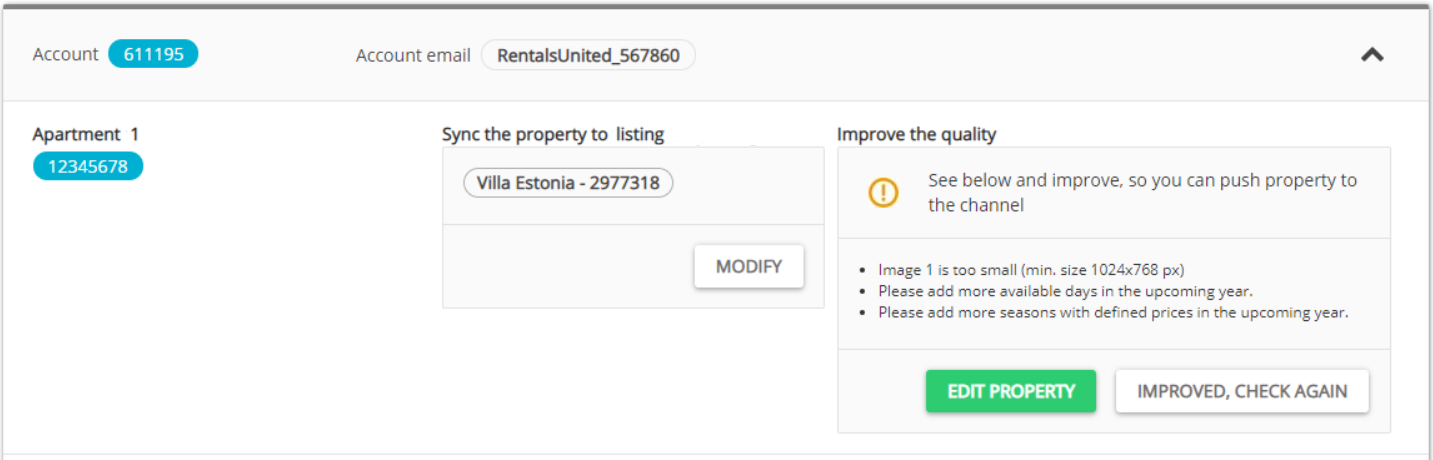
- If you want to change the property to map, click the Modify button.
- If the property is ready to map, go to next Step.
- If the property is not ready to map, improve the content.
- Verify if any data is missing or incorrect.
-
Click the Edit property button. The Edit property page is opened in a new tab.
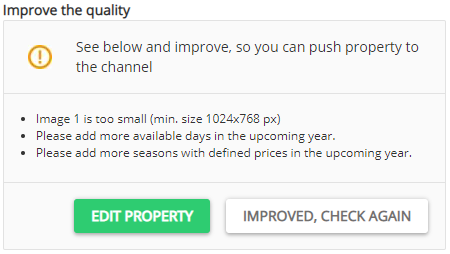
- Correct the content indicated in the report in the Edit property page. Save.
- Come back to the Property List page and click the Improved, check again button.
-
From the dropdown list, select the type of data synchronization. This is an important step - see the differences between the available synchronization types here.
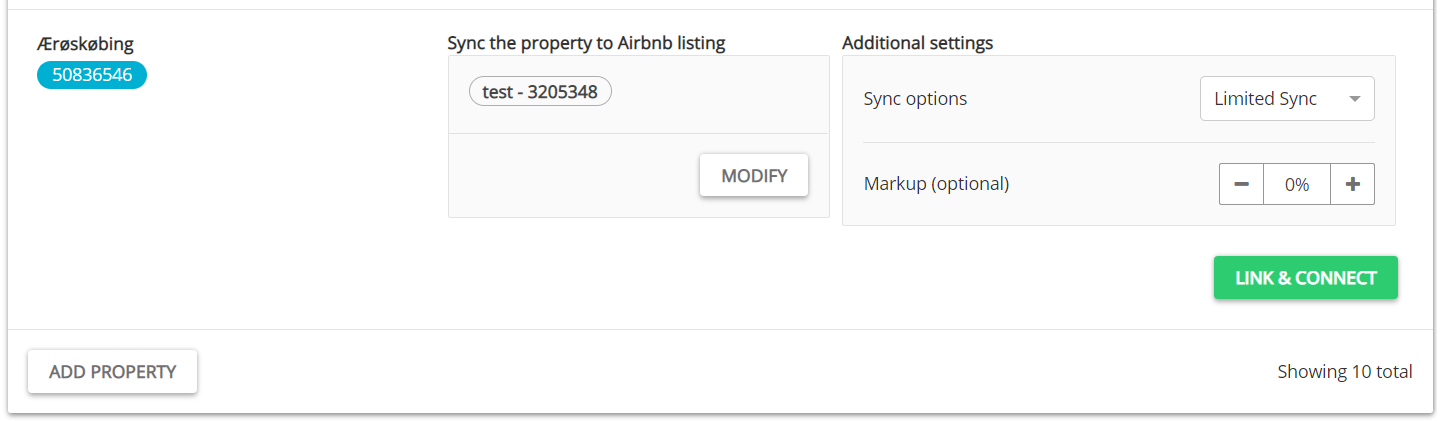
- If needed, adjust the mark-up value.
- Click the Link & Connect button.
-
The published properties enter the
Pending status. The channel reviews your properties and their status will be updated automatically. The properties get available almost instantly in the Airbnb website and the status changes from Pending to Active.Note: Your properties are now successfully mapped to the Airbnb listings and remain in synchronization. Rentals United synchronizes the prices and availability to the channel and Airbnb passes correctly all the reservations. You can always change the mapped property. To do this, click the three-dot menu and select the Change mapping option.
Manage / Manage rates
The information in this chapter is useful when you already have properties connected or mapped, but you want to introduce changes to rates that will affect only Airbnb.
Editing PTBA / Booking lead time for a property
You can now precisely control the Preparation Time Before Arrival and Request to Book settings for Airbnb listings.
- PTBA - Specify the minimum booking lead time (greater control over your reservations).
- RTB - Use this option to allow booking requests during the PTBA-restricted period (dedicated for property managers who work with instant bookings and who want to maximise booking opportunities).
These PTBA and RTB settings override your settings from Channel Settings and Step 5: Price and availability for this individual listing connected to Airbnb. For more information, please see here.
-
Click the Manage button.
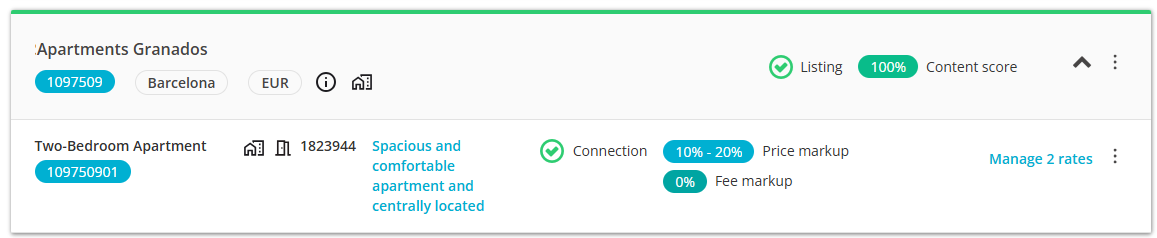
-
The Management page opens. Scroll down to the Preparation Time Before Arrival / Booking lead time settings.
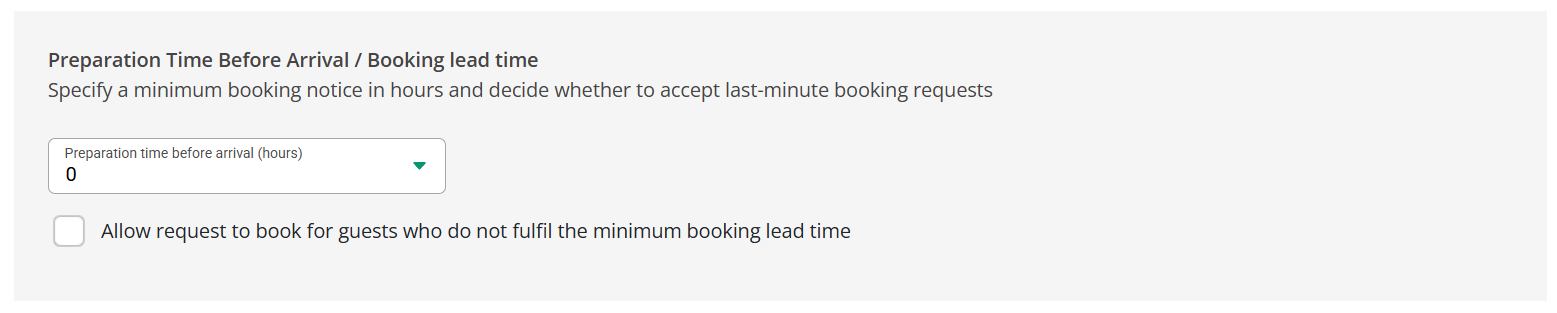
- Choose the PTBA value for all your listings connected to Airbnb.
- 0h: This option removes the PTBA restrictions.
- 24h, 48h, 72h, 168h: The property's availability will be closed on the x number of hours before the end of the check-in day (23:59), e.g. 6 hours before the end of the check-in day (18:00).
- Default: This option inherits the PTBA settings to the value set in Channel Settings - see here.
-
Allow RTB (Request to Book) option to let your guests book during the PTBA-restricted time. The guest will be able to send a booking request to be confirmed in Rentals United. Turn this option on and off by checking and unchecking the Allow requests to book checkbox. To learn more about the booking request flow - see here.
If you used the Default option in the PTBA settings (above), then:
- PTBA settings will be always inherited from Channel Settings
- RTB settings will be reset to the settings in Channel Settings and displayed for your reference, but not inherited from Channel Settings. The RTB is set according to the checkbox setting.
- Save.
Manage promotions for a listing
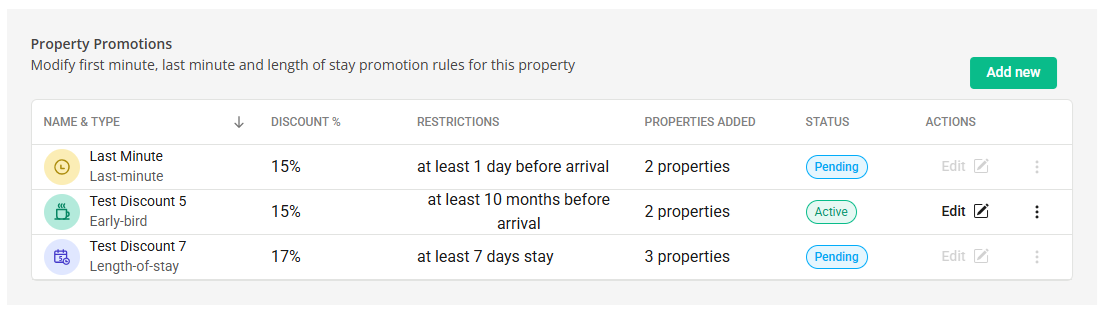
You can edit your discounts on the listing level directly on the Manage / Manage rates page.
- Create new discount
- Edit or remove a discount
- Edit or remove properties assigned to a discount
For more information how to manage your discounts, see this here.
Quick editing data for single rates
With these settings, you can override the property data you have in the Edit property page. Before the property data is sent to Airbnb, it is modified with additional configuration you can apply now. Note that whatever you set right now will apply only to this channel.
-
Click the Manage button.
-
The Management page opens. Scroll down to the Advanced settings section.
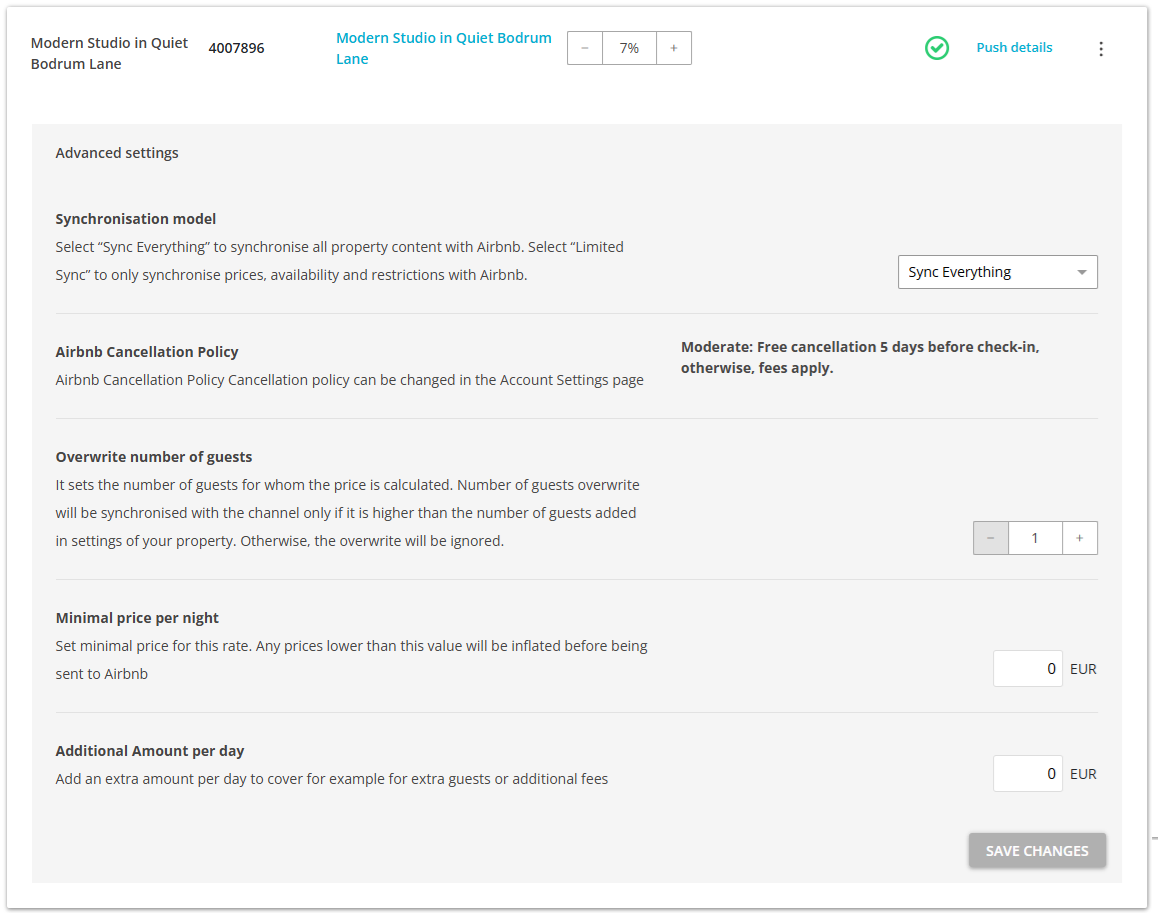
- Mark-up - indicates the value that the prices in Rentals United should be adjusted by;
- Synchronization model - it denotes the scope of data that is synchronized with Airbnb;
- Cancellation Policy - it indicates the amount to be paid by the guest in case the reservation is cancelled;
- Overwrite number of guests - it should be set to 1. Changing this setting causes recalculation of the prices for a new number of guests (only if the value from this field is higher than the value set for this property in Standard number of guests in Step 5: Price and availability).
- Minimal price per night - you can set up a minimum price for this property in Airbnb; then, in case this property's prices in Step 5: Price and availability are set below this level, they will be increased.
-
Additional amount per day - you can specify an additional amount that will be charged each day of the reservation. It may cover for additional services available at this rate.
Example: If you offer a breakfast service to your guests, you can create a rate for this purpose and cover it in the additional amount per day.
-
Click the Save changes button.
Note: Changes introduced here will not affect any other channel than Airbnb and will only apply to this rate.
Updating listings
If you introduce changes to your property's content and you want these changes to be reflected in the channel, you need to remember to trigger a content update. While ARI updates are handled automatically, the updates made to the static content are not. Hence, if you do not update the channel - your listing may display outdated information to your guests.
Depending on the synchronization mode you selected, different scope of information gets updated in the channel. Remember that it is only the descriptive content that is updated in the channel - see Static & dynamic content.
Note: Synchronization modes
- Limited Sync - synchronization of availability (availability, minimum stay and changeovers and prices (prices, fees and taxes, extra guest price).
- Sync Everything - full synchronization (availability, prices and property descriptive content). Note that this option overrides information provided in the dashboard.
For example, if you operate on Limited Sync and update the listing in the channel, then only fees and taxes will be updated, as they are the only static endpoints in this mode. On the other hand, if you operate on Sync Everything, then all property descriptive content that is synchronized with Airbnb will be updated. If you manage your property descriptive content in Airbnb dashboard, not in Rentals United, updating the listing on Sync Everything will override a lot of information in the channel's dashboard. Make sure this is what you really intend.
In Rentals United platform, open Property Settings. Follow the steps here.
-
Click the Manage rates button.
-
Click the Push details button to trigger the update in the channel.
- Rentals United synchronized the latest data to Airbnb and updates the listing in their system.
Deactivating properties
In this section, you can find more information on how to stop renting your properties on the Airbnb channel.
Remove listing from Airbnb website
In Rentals United platform, open Property Settings. Follow the steps here.
-
Click the Manage rates button.
-
Click the three dot menu button and click Unlist this property option.
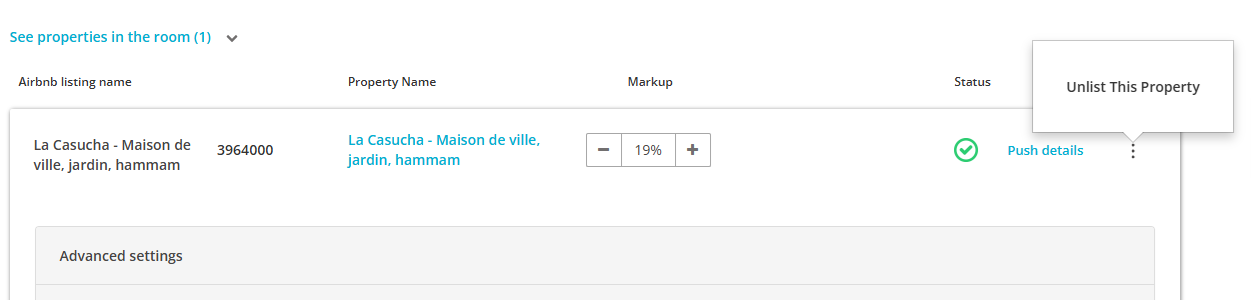
- Rentals United prompts the Airbnb to remove this listing from their website. This means that guests will no longer see your property on the Airbnb booking website and will not be able to book it. Hence, you will no longer receive any reservations for this property coming from Airbnb. Note, however, that this property will be still visible in the Property Settings in Rentals United for Airbnb and the Airbnb dashboard.
Removing the property connection
In Rentals United platform, open Property Settings. Follow the steps here.
- Search for the property you want to remove by scrolling down or filtering the property out.
-
Hover over the three dot menu on the right and select the Remove property option.
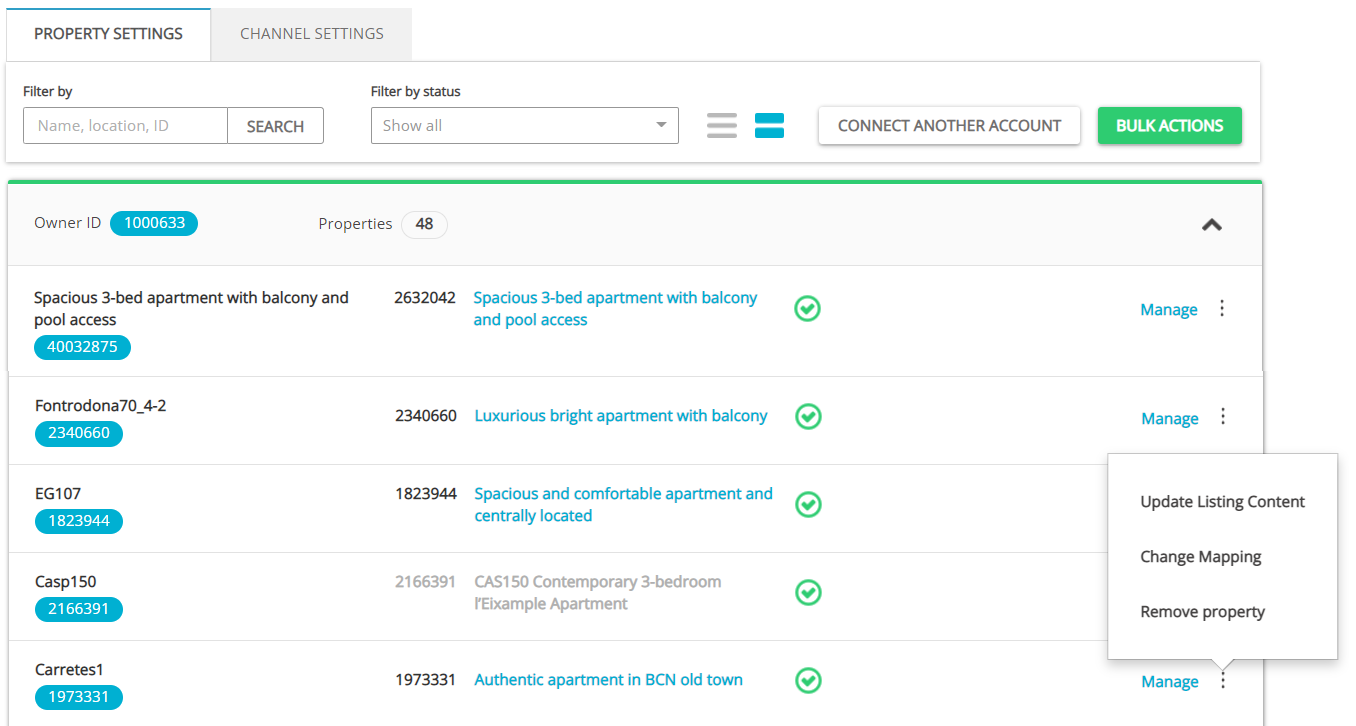
-
Confirm the action by clicking the Confirm removal button.
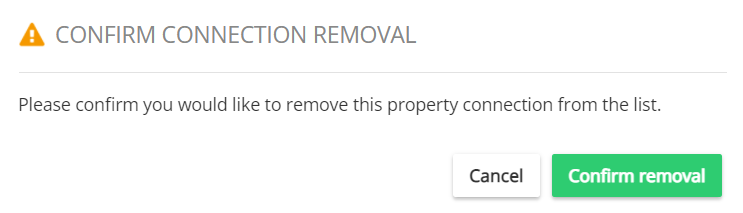
Rentals United requests a confirmation from Airbnb whether this listing exists in the channel or not. In case your listing is still available in the channel, there is a pop-up message displayed prompting you to remove the listing from Airbnb first. If you have not performed it yet, you need to contact Airbnb Support Team.
Once we confirm that this listing does not exist in the Airbnb dashboard, then the connection is removed from Rentals United database and the property is also removed from the list in Property Settings.
Archiving the property in Rentals United
Before you archive your properties in Rentals United, you should always follow the steps in Remove listing from Airbnb website. However, if you followed the steps in Archive property solely and archived an active property, it means that Rentals United will block your this property's availability in Airbnb. This will prevent you from receiving bookings, but your listing will still be listed in the Airbnb reservation website.
If you want to remove this listing from the Airbnb website afterwards, you need to do it directly in Airbnb or contact the Rentals United Support Team.
Importing properties
Import your hotels from Airbnb to Rentals United. This is an easy and quick way to add new properties to Rentals United and list them on other channels, so you maximise your booking opportunities. While importing, you create new properties in Rentals United. You need to manually map them in Rentals United to the source properties in Airbnb. Then, you can manage your connections from one platform - Rentals United. See more details here.
Importing bookings
In case you worked with Airbnb and received bookings prior to connecting to Airbnb via Rentals United, it is possible to import them into Rentals United to ensure all information is in one place. See more here.
Old Property Settings
Old Property Settings are no longer supported and we recommend using new Property Settings exclusively. New Property Settings are a robust and safe solution that offers you the newest features to manage your connections. If you need instructions related to old Property Settings, see Connecting to Airbnb in old design.
