Adding more users is especially useful if you are working in a team of individuals, who collaboratively manage your website, or hire external specialists and need to grant them access to your website. This way all of you can work together and take care of different tasks on your page. But most importantly, you can still assign your new user a role with a predefined set of rights and, this way, control their activity.
Before you add new users, make sure that you have configured your email address in the SMTP settings on My Website- see here.
-
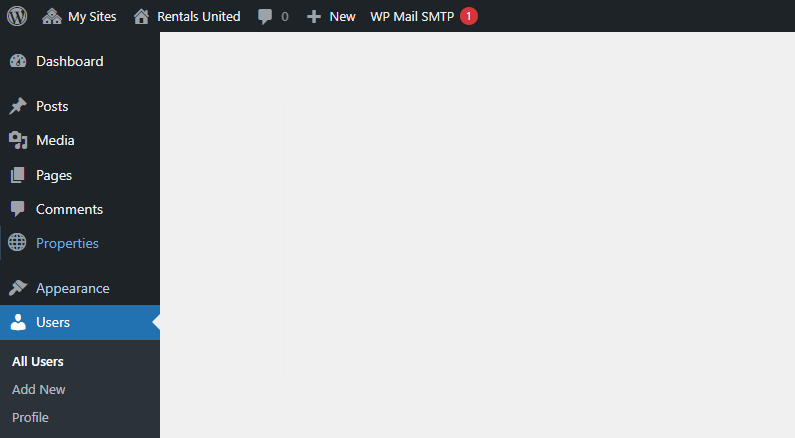
Go to Wordpress Admin and open the management menu.
-
Select Users.
-
The users menu opens. Click the Add New button.

-
Scroll down to the Add new user section. Provide the username and email address and assign a role.
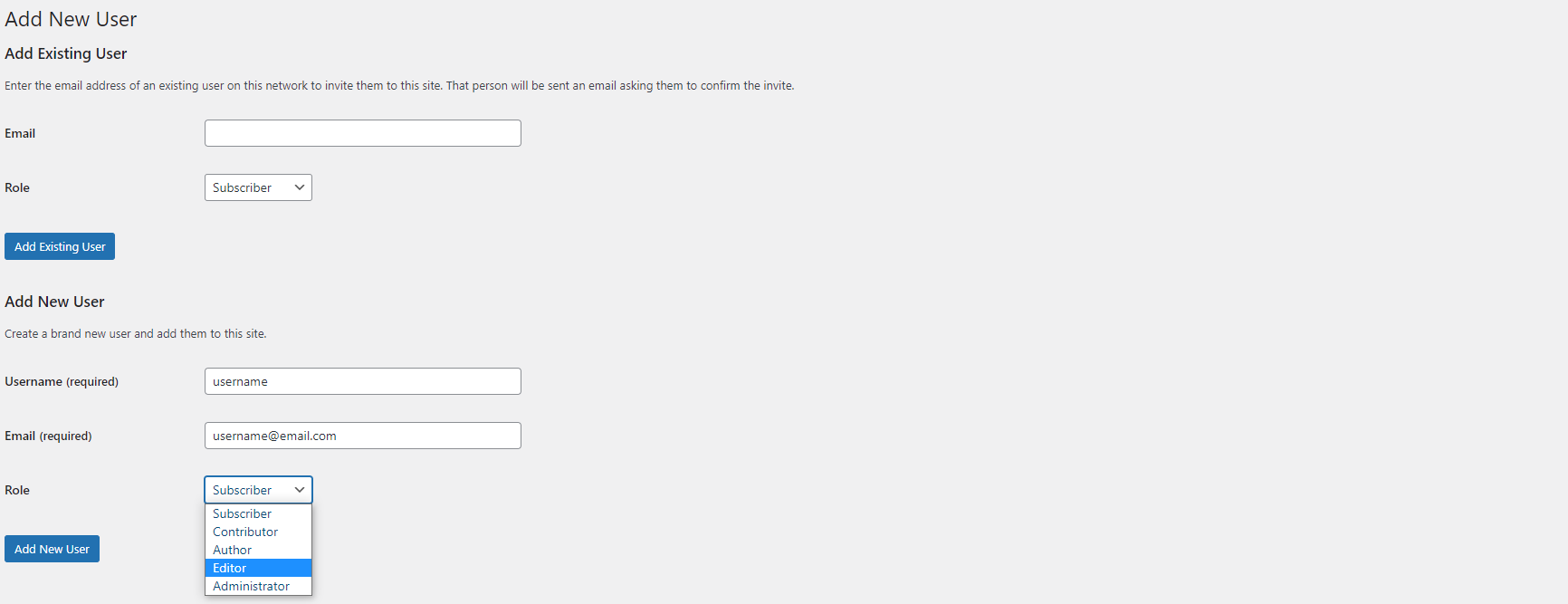 Tip: You can read the details about the user roles at Wordpress Support.
 -
The invitation is sent out to the email address you provided. The user needs to activate the account first. You, as an administrator, will receive a notification once the account is activated. The link is active for a few days. If it is not clicked, it will eventually expire.
Note: You cannot multiple invitations to the same email address. You need to wait till the most recent invitation expires. -
Once the account is activated, your user will receive credentials to your My Website website in a separate email. They need to log in and change their password as soon as possible - see here. Depending on the selected user role, your user will have access to limited options.
Tip: You can change the role of your user any time. Just check the checkbox next to their name and choose a new role from the Change role to... dropdown. Click Change to confirm.