Minimum requirements to connect
In order to connect the Property Manager’s (PM’s) property to Agoda, the following requirements must be met:
- Property name must start with an English letter;
-
Address and Geo-coordinates are provided;
The property cannot be located on certain territories58826 Afghanistan 18945 Algeria 18946 Angola 8743 Anguilla 11668 Antigua & Barbuda 11321 Aruba 11151 Bahamas 26501 Bangladesh 8745 Barbados 8872 Belize 11670 Benin 47233 Bermuda 58828 Bhutan 26494 Bolivia 26493 Bolivia 47813 Bonaire 26502 Botswana 58829 Bouvet Island 332 Brazil 58830 British Indian Ocean Territory 18940 British Virgin Islands 47814 Burkina Faso 26504 Burundi 26506 Cameroon 327 Canada 26507 Cape Verde 26577 Cayman Islands 18947 Central African Republic 18948 Chad 11455 Chile 58832 Christmas Island 58833 Cocos 47816 Cook Islands 328 Costa Rica 18949 Cote d'Ivoire 329 Cuba 11411 Curacao 18950 Democratic Republic of the Congo 26508 Djibouti 11675 Dominica 11153 Ecuador 26509 El Salvador 26579 Equitorial Guinea 26510 Eritrea 18 Estonia 26511 Ethiopia 58835 Falkland Islands 47817 Faroe Islands 47818 Federated States of Micronesia 47819 French Guiana 58836 French Southern Territories 26512 Gabon 342 Gambia 26427 Ghana 26513 Grenada 18132 Guadeloupe 26515 Guinea 26516 Guinea-Bissau 26517 Guyana 26518 Haiti 58838 Holy See 26519 Honduras 11483 Iran 18952 Iraq 11154 Jamaica 26523 Kiribati 26527 Lesotho 58839 Liberia 18951 Libya 30 Macedonia 26528 Madagascar 26529 Malawi 26530 Mali 26531 Marshall Islands 26563 Martinique 26532 Mauritania 58841 Mayotte 8764 Mexico 8874 Moldova 47822 Montserrat 344 Morocco 26534 Mozambique 26535 Namibia 58842 Nauru 47824 Netherlands Antilles 24839 New Caledonia 26536 Nicaragua 26537 Niger 58843 Niue 47825 Norfolk Island 18955 North Korea 318 Oman 58844 Palau 11682 Panama 26538 Papua New Guinea 26539 Paraguay 58847 Pitcairn 18134 Republic of the Congo 26497 Reunion 26540 Rwanda 25226 Saint-Barthelemy 27195 Saint-Barthelemy 58848 Saint Helena 14916 Saint Lucia 25594 Saint Martin 58849 Saint Pierre and Miquelon 18957 Sao Tome and Principe 17472 Senegal 26541 Sierra Leone 338 Singapore 47840 Sint Eustatius 26457 Sint Maarten 26542 Solomon Islands 18959 Somalia 58850 South Georgia and the South Sandwich Islands 56472 St Barthelemy 47842 St. Kitts & Nevis 47845 St. Vincent & the Grenadines 18960 Sudan 26543 Suriname 26544 Swaziland 18961 Syria 26545 Tajikistan 8869 Tanzania 26546 Togo 58853 Tokelau 26547 Tonga 46039 Trinidad and Tobago 9502 Tunisia 58854 Turkmenistan 8875 Turks & Caicos Islands 26548 Tuvalu 15024 U.S. Virgin Islands 26550 Vanuatu 26499 Venezuela 47832 Wallis & Futuna Islands 18357 Yemen 26551 Zambia 14489 Zimbabwe - Licence number is provided;
-
Amenities: At least one hotel-level amenity is required. Below you can find a list of most popular amenities. Choose at least one. If you need a full list of required amenities, you can contact the Rentals United Support Team.
- Parking: Valet parking (ID: 795), Parking (ID: 793), Private parking (ID: 504), Free parking (ID: 702), Paid parking on the street (ID: 804)
- Pool: Indoor pool (ID: 738), Childrens pool (ID: 739), Hot tub (ID: 391), Sauna (ID: 365), Steam bath (ID: 760), Outdoor pool (ID: 740)
- Internet: Free wireless internet (ID: 368), Paid wireless internet (ID: 809), Free cable internet (ID: 807), Wireless internet (ID: 792)
- Pets: Pets are welcome (ID: 595), Pets paid (ID: 842)
- Smoking: Designated smoking area (ID: 1002), Smoking not allowed (ID: 1735), No smoking rooms/facilities (ID: 725)
- Description cannot contain more than 5000 characters;
- Photos: at least 3 photos are uploaded;
- Availability: Your property must be available in the next 365 days;
Establishing connection
In order to start advertising on Agoda, you need to establish the connection with this sales channel. You can do this by adding it to the list of services in your account. Follow the below steps in order to get connected.
-
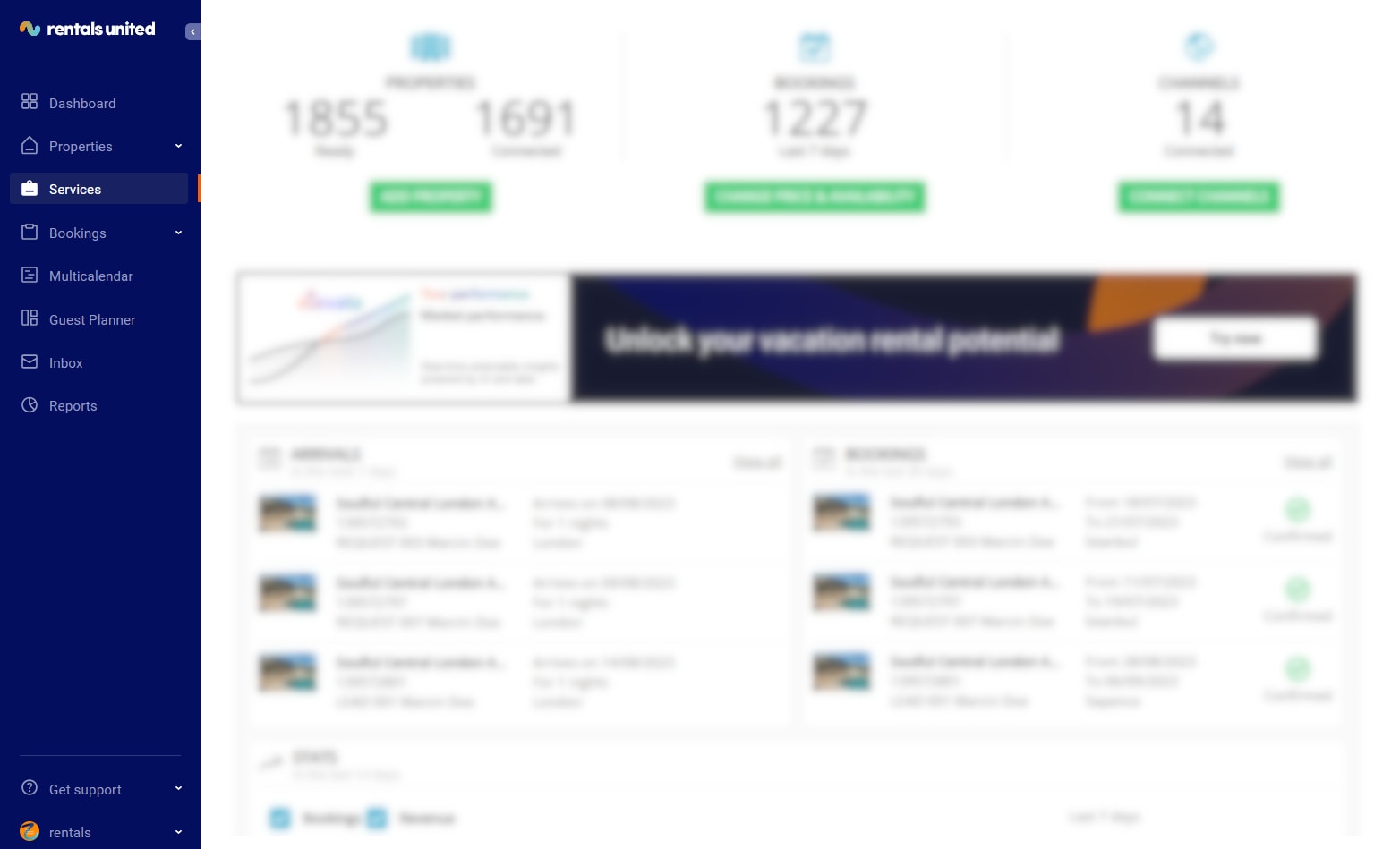
In Rentals United platform, go to the Services tab.
-
Click the Find Services tab.
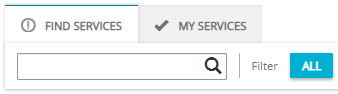
- Type Agoda in the search box or scroll down through the list of available channels.
- Unfold the Agoda section by clicking the Down arrow button.
-
Click the Get connected button.
-
Your connection is now being validated in the background. If the validation is passed successfully, the Connection Wizard is launched and you can go to the next step. If you are not eligible to connect to Agoda, an error is displayed.
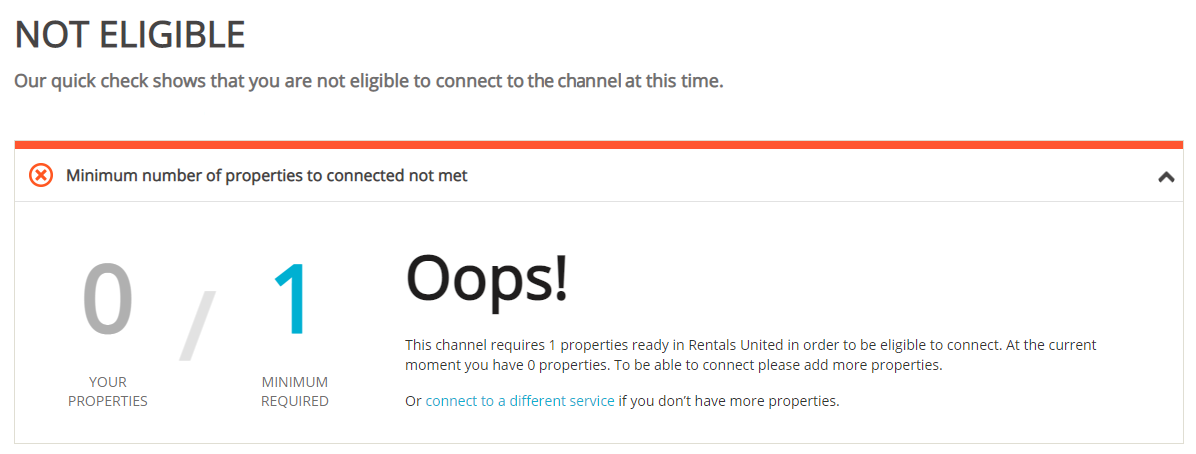
Eligibility errors indicate violating initial channel requirements that need to be met before you establish the connection. You will not be able to go to the next step and finish the connection process unless the eligibility error is cleared away. In order to resolve it, follow the instructions displayed on the screen. Please, see an exemplary eligibility error below.
 You are presented with a brief description on how the Agoda works. Read it carefully and confirm that you agree with it by ticking the checkbox below. Do not worry, once all the steps of the Connection Wizard are completed, you will still be able to view the How it works content again. Click the Save & Next button on the bottom of the page to move to the next step.Tip: On the top of the page, you can view the progress of the Connection Wizard. Depending on the channel, the number of steps may differ. You can stop anywhere along the process. Upon next time you open the Connection Wizard, you will continue at the last completed step.
 - Follow the next steps displayed in Rentals United.
Create new listing
Follow the below procedure if you already have some properties created in Rentals United and you want to connect them to Agoda.
In Rentals United platform, open Property Settings. Follow the steps here.
-
Connect the property.
Depending on whether you already have some properties connected to the Agoda or not, you are presented with two different options.
- Click
 if it is the first property to be connected.
 - Click
 if you already have some properties connected.
- Click
- A dialogue window appears with the question if the property is already published in Agoda.
- If the property is listed in Agoda, terminate the process and map your properties to the Agoda listings.
- If the property is not listed in Agoda, click No.
-
Provide the required information and click Next.
Note: Different channels require different information to successfully identify your account:
- For Agoda it is Chain ID.
If you cannot find this information in your agreement with the channel, please contact the channel directly.
-
Choose the properties. You can read about the different ways of filtering and selecting properties here.
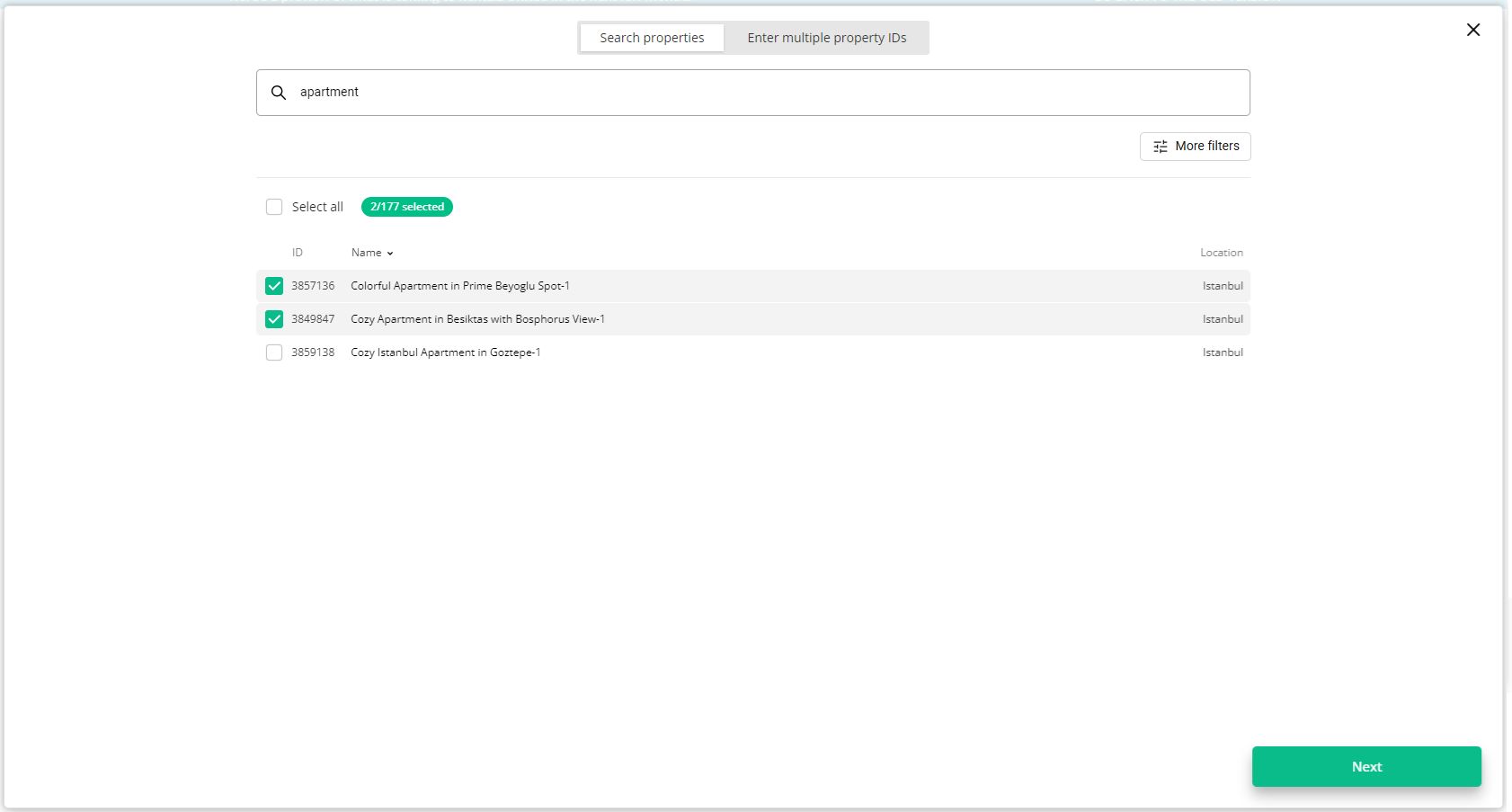
-
Click Next. You will see here the summary of all selected properties. Review the list and check if all properties are included.
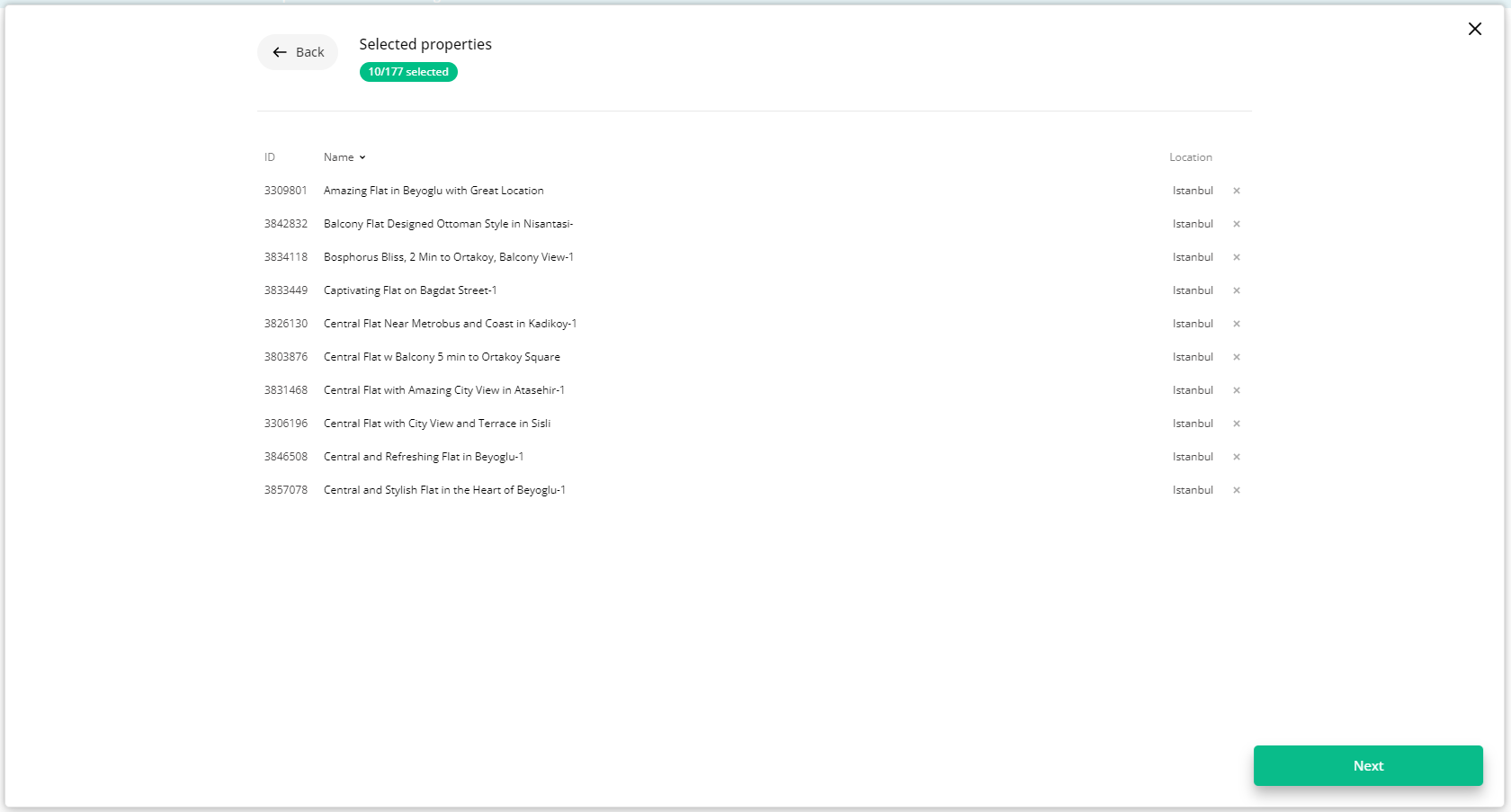
- Click Next to proceed.
- The content quality is analysed. The process should take up to a few minutes.
-
The summary of properties’ content is displayed.
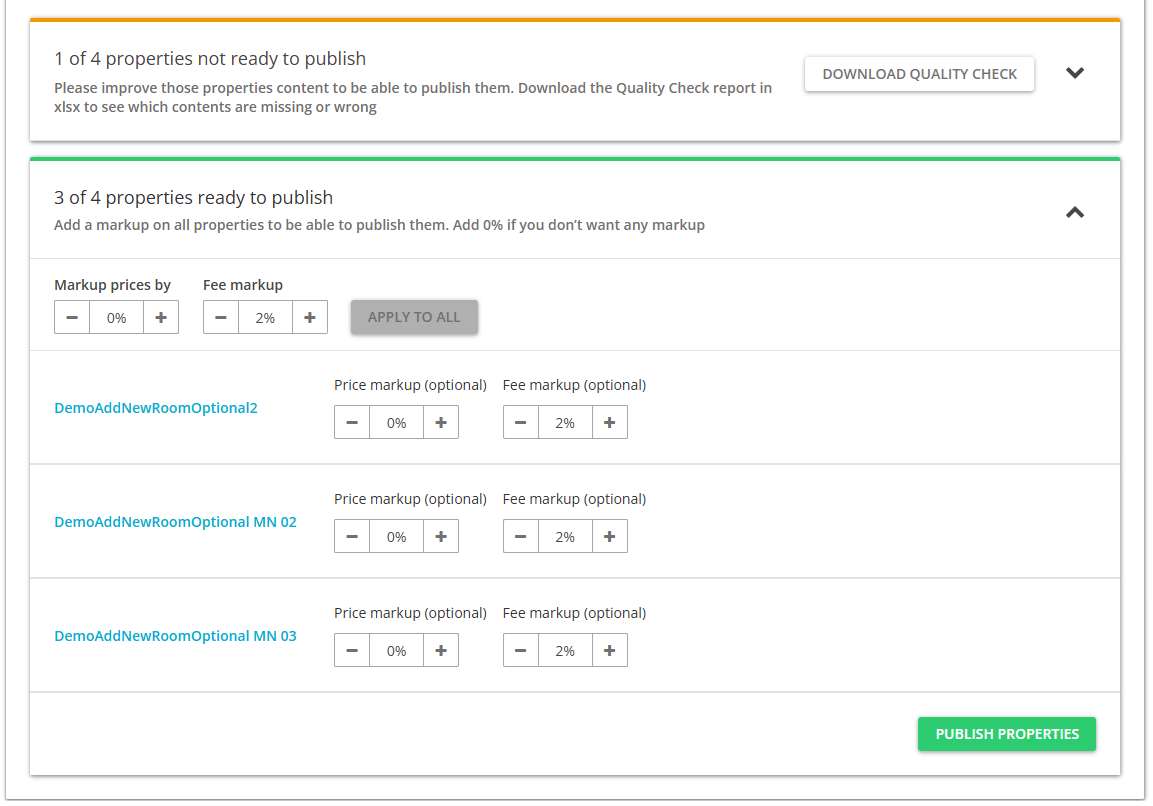 If some properties are not ready to publish, improve the content.
-
Check the content quality by unfolding the section with warning.
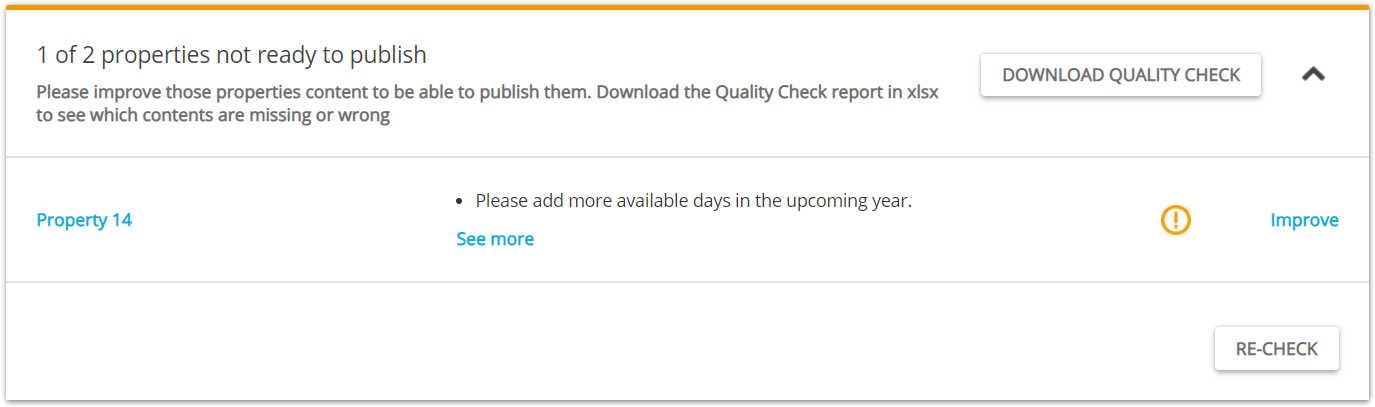
Verify if any data is missing or incorrect. It is possible to display the errors by unfolding the section. For more detailed summary of errors, download the XLSX report by clicking the Download Quality Check button.
- Click the Improve button. The Edit property page is opened in a new tab.
- Correct the content indicated in the report in the Edit property page.
-
Go back to the Property List and click the Re-check button. If no further errors are displayed, the property is ready to publish.
-
-
If the properties are ready to publish, adjust the mark-up for each of your properties. You can additionally set up the booking mode for each property: Instant booking or Request to book. See here.
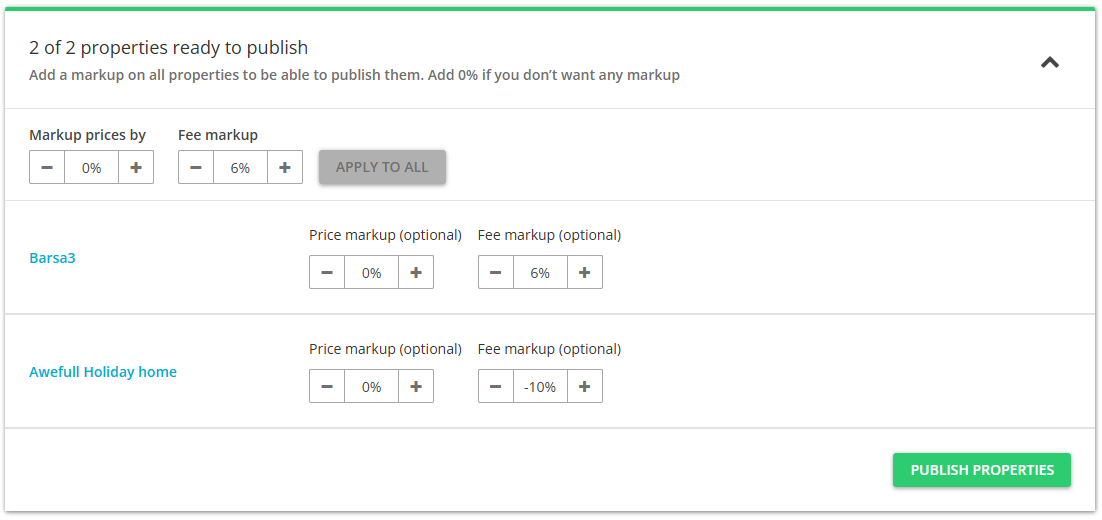
- Click the Publish properties button.
- The published properties enter the
 Pending status.
Setting Rentals United
In order to fully utilize the capabilities of Rentals United and make the linking of the two systems possible, you need to set Rentals United as the connectivity provider in Agoda. For example, this is required in order to enable mapping properties to the listings in the channel. Please, perform the following.
In case of Agoda, please send an email to agodahomes_cm@agoda.global with your Rentals United username, Agoda log-in email and sample Agoda property ID and inform them that you intend to work with Rentals United. The Agoda team will set up the connection for you.
Mapping properties to existing listings
If you already have properties in Agoda and only want Rentals United to manage prices and availability, you may map properties between the two systems. Make sure that you have already set Rentals United as the Connectivity Provider, following the steps at Setting Rentals United.
In Rentals United platform, open Property Settings. Follow the steps here.
-
Connect the property.
Depending on whether you already have some properties connected to the Agoda or not, you are presented with two different options.
- Click if it is the first property to be connected.
- Click if you already have some properties connected.
- Click
- A dialogue window appears with the question if the property is already published in Agoda. Click Yes.
-
Provide the Hotel ID of the property you want to map. Then, click Next.
Hotel ID can be found in the Agoda dashboard. If you are unable to find it, contact the Agoda Support Team.
-
Click the Connect this room button.

-
Select the properties you want to map to this room type. One or more properties may be mapped to one Agoda listing.
Tip: Multiple properties should be selected only if they share the same characteristics (amenities, photos, pricing etc.). If you do so, you will create a multi-unit group in Agoda. You can learn more on multi-unit groups here. - Click Next.
-
The summary is displayed. You can set the rate mark-up now.
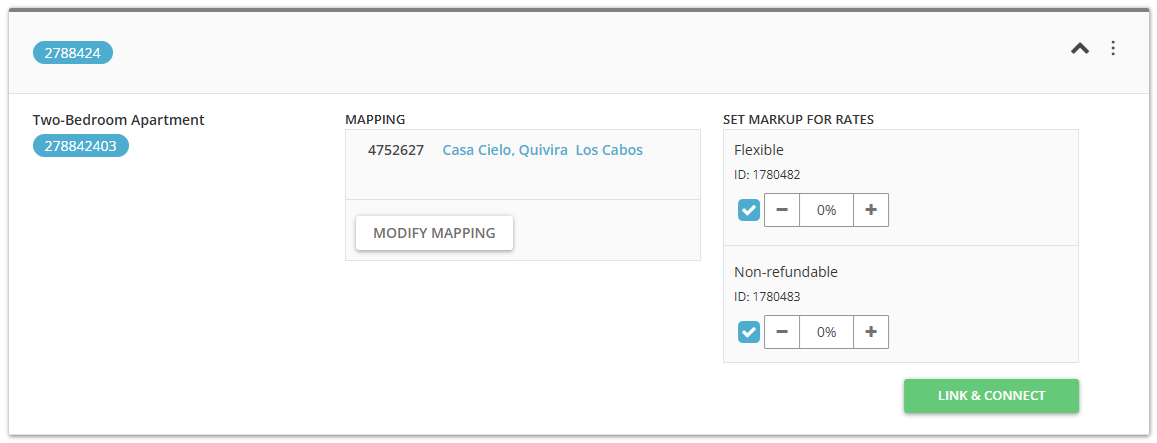
- Click the Connect property button.
Note: Due to a strong Agoda policy to prevent duplicates, it is not possible to re-create the property's connection with the channel (archive and connect again). Archiving a property does not resolve this, as the connection between Rentals United and Agoda is still maintained in the background.
Refreshing the synchronization settings
If you make any changes in the channel or notice any discrepancies between how your properties are displayed in the channel dashboard and in Rentals United, you may want to refresh the view. This action will update your inventory in Rentals United and show you the most up-to-date set-up.
In Rentals United platform, open Property Settings. Follow the steps here.
-
Choose the hotel you would like to refresh the inventory set-up for and hover over the three dot menu. All room types and rates in this hotel will be refreshed.
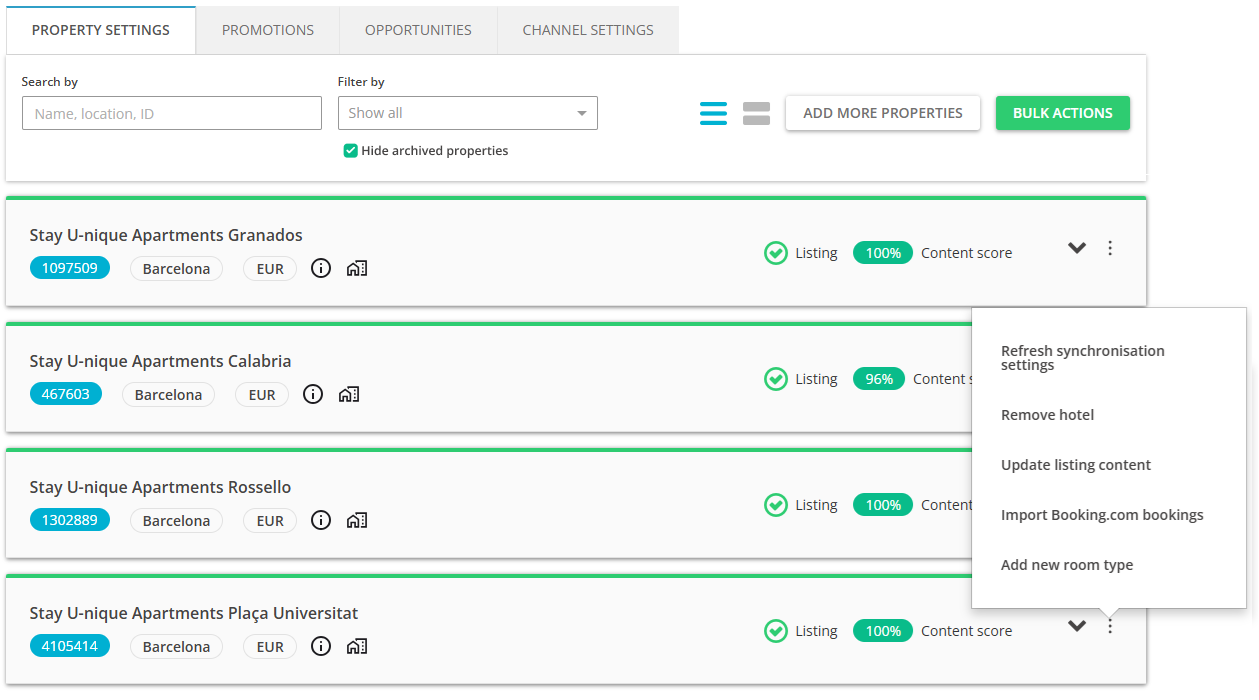 Note: Use the three dot menu of the hotel, not room.
 - Confirm the process by clicking the Proceed button.
- Rentals United retrieves the configuration of rates from the channel.
- if there are more rates in the channel, then the new rates are created in Rentals United and mapped to the corresponding ones; the newly created rates enter the inactive state
- any rates that do not have any corresponding channel rates are removed from Rentals United
- rates for which configuration has not changed remain intact
-
After the changes are performed, a pop-up with the summary of changes is displayed. Click the I understand button.
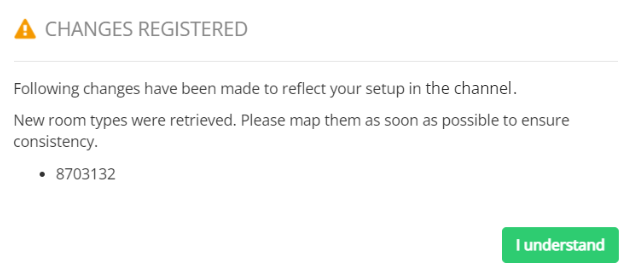 Note: If you attempt to refresh the inventory set-up, but Rentals United does not have access to the hotel in Agoda or finds no active rates for a given room type, then you will be prompted with a relevant information. Please, follow the steps displayed in the pop-up.
Tip: If you do not want to refresh the set-up of a hotel (all room types and rates), you may as well refresh the rates of an individual room type only. In this case, select the hotel and click the Manage rates button. The list of available rates is opened. Click the Refresh rate info button. The process follows as above.
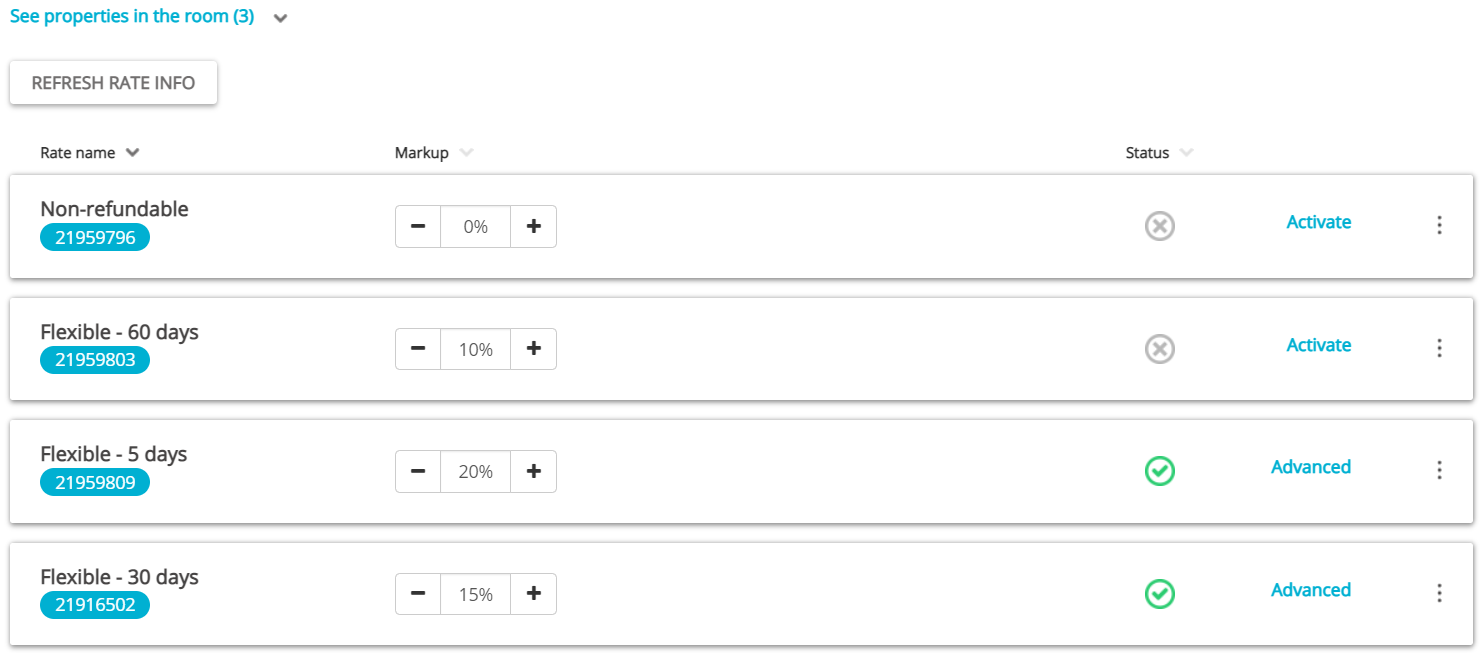
Manage / Manage rates
The information in this chapter is useful when you already have properties connected or mapped, but you want to introduce changes to rates that will affect only Agoda.
Updating listings
If you make changes to your property's content, e.g. update descriptions or photos, you need to remember to update the listing, too. If you do not update the listing - your recent changes will not be visible on the sales channel and the listing will display outdated information.
Remember that price and availability (ARI) updates are handled automatically and there is no need to update the listing if you change e.g. prices. The details that require updating the listing are static data updates and these include descriptions, photos, property data, fees and taxes and more. For details, see here.
For Agoda, updates are possible only in the following configuration:
- one hotel - one room - one rate
If you need to update the channel for properties in a different set-up, please contact the Rentals United Support Team and we will carry this on for you.
- You have changed content of your property. Find the cluster to which this property is assigned.
-
Hover over the three-dot menu on the cluster level. Click the Update listing content option.
-
Decide whether you want to update the entire property content or selected areas only. You can update the entire property content. Click the Update selected button.
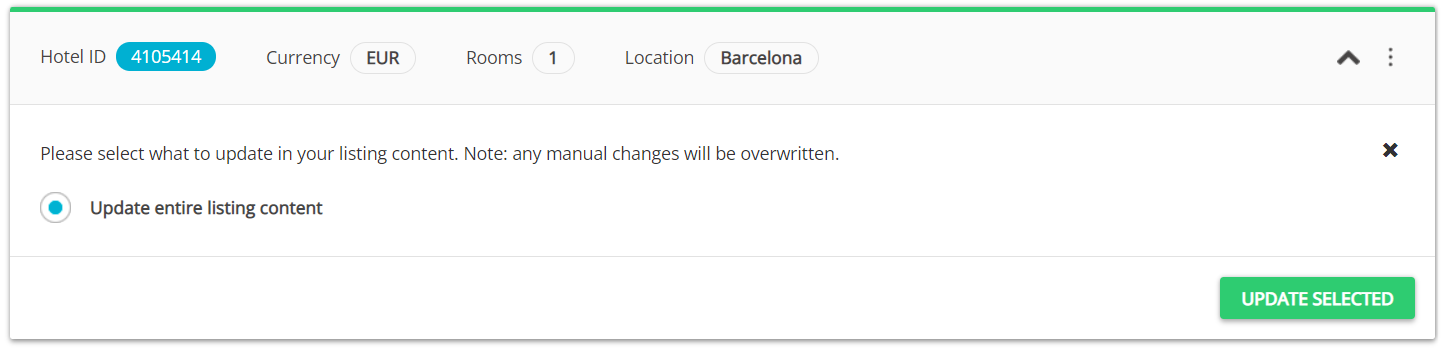
-
Confirm by clicking the OK button. Wait until the process is finished. You may preview the listing on the Agoda website after the indicated time is passed.

- The property status enters the Pending state. Once the operation is successful, the status updates to
 Active. You may preview these changes in the Agoda dashboard or already on the Agoda website.
Deactivating rates
In Rentals United platform, open Property Settings. Follow the steps here.
- Search for the property you want to deactivate rates for by scrolling down or filtering the property out.
-
Click the Manage rates button.
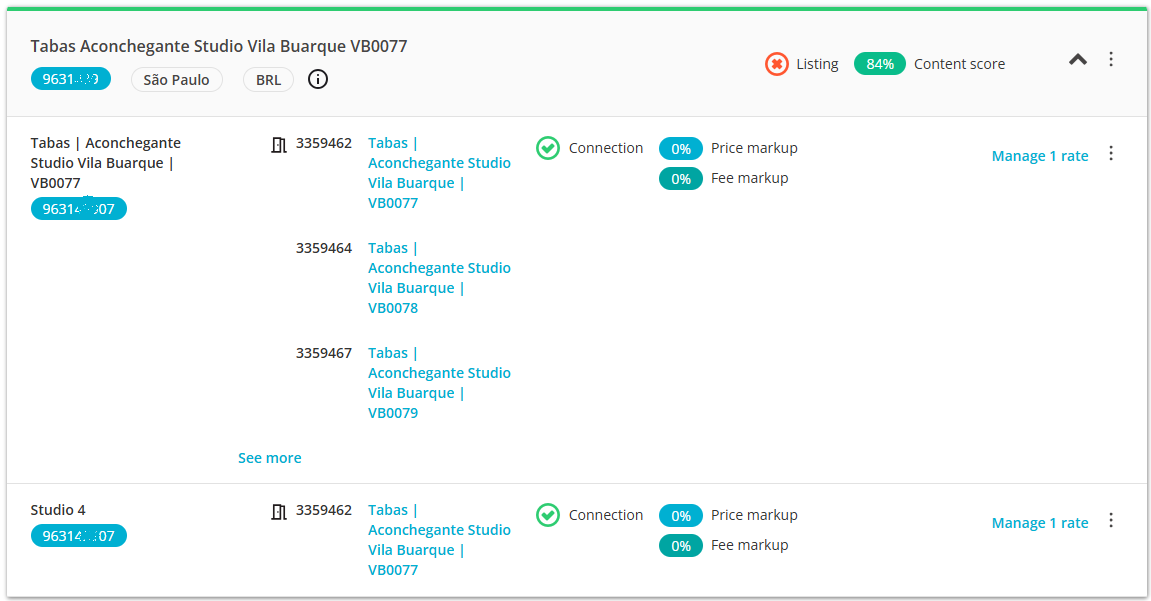
- A property management page is opened.
-
Click the Deactivate button.
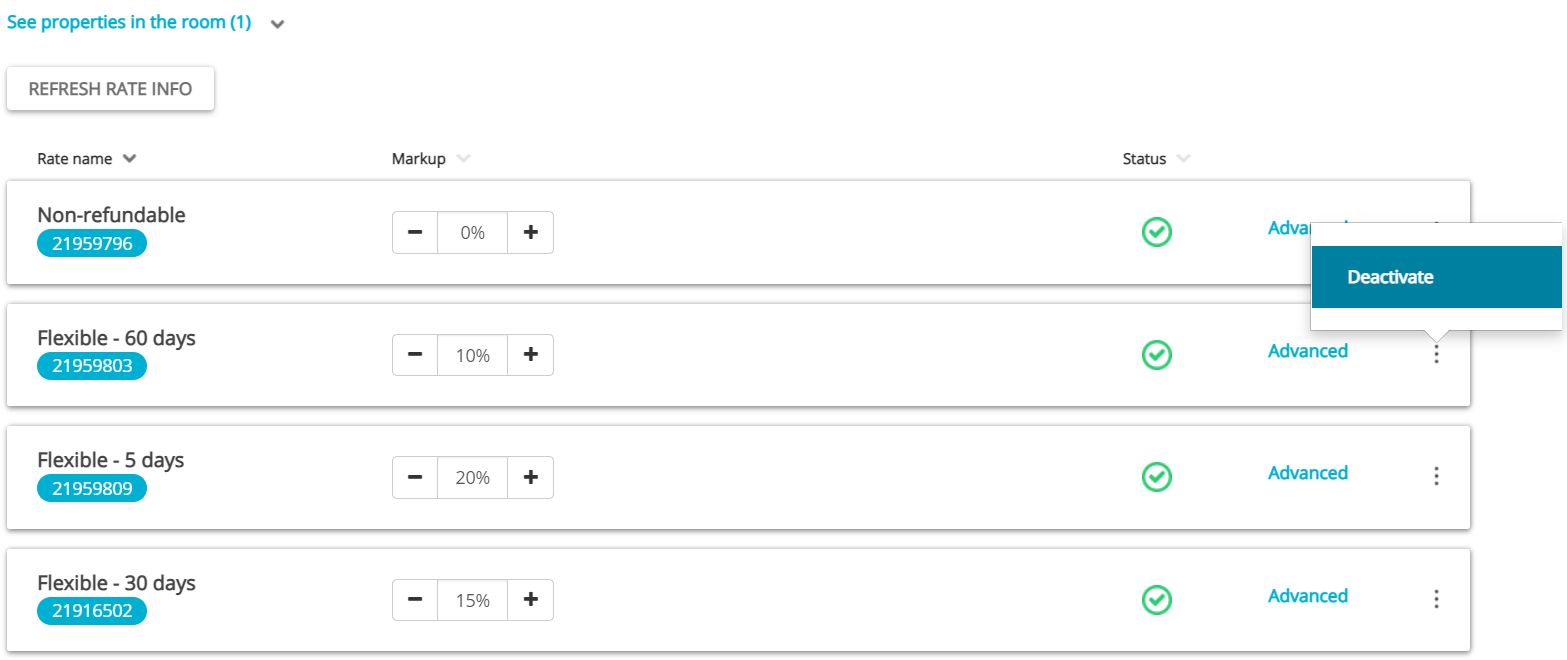
Note: Deactivating rates
- If there are multiple rates in a group and you deactivate one - you stop sending availability and prices to Sales Channel, leaving the property open to new reservations on the Agoda channel. This means that new reservations can be made through Agoda, but the channel will not receive the updates in availability and pricing from Rentals United.
- If there is only one rate in the group or you deactivate the last rate, you need to choose if you want to either stop sending availability and prices to Agoda, leaving the property open to new reservations on the Agoda channel, or to close the availability. If you close the availability, it means you will not receive reservations from Agoda any more.
Availability can be always re-opened by clicking the Activate button next to the rate.
Once the rate has been deactivated, it will still be visible in the Property Settings. If you want to remove it from display, you should follow the below steps. Note that rates can be deleted only if there are no existing reservations that use this rate.
- From the three-dot menu, select the Confirm removal option.
- The rate is removed. No additional confirmation is required.
Removing hotels and room types from Property Settings
If you have some properties that are no longer listed in Agoda, but still appear in Property Settings in Rentals United and pollute your view, you may remove them from Property Settings. After deactivating the hotel or room type in Agoda, just use the Remove options available in Property Settings to make the property list in Property Settings identical in Agoda and Rentals United. There are two options available now:
- Remove the whole hotel
- Remove room type
Note, however, that these options can be used only to remove the hotels and room types from the Property Settings list. They do not stop your properties from being rented on the Agoda website.
In Rentals United platform, open Property Settings. Follow the steps here.
- Search for the property you want to remove by scrolling down or filtering the property out.
- Once found, decide whether you want to remove the entire hotel or particular room types only. Make sure that you have already removed the same properties in Agoda dashboard.
-
If you want to remove the whole hotel, hover over the three-dot menu on top of the cluster and select the Remove hotel option. Hotels stuck in the Pending state can be deleted from the Property Settings, too.
-
If you want to remove specific room type only, unfold the hotel cluster and hover over the three-dot menu next to the room type to be removed. Click the Remove room type option.
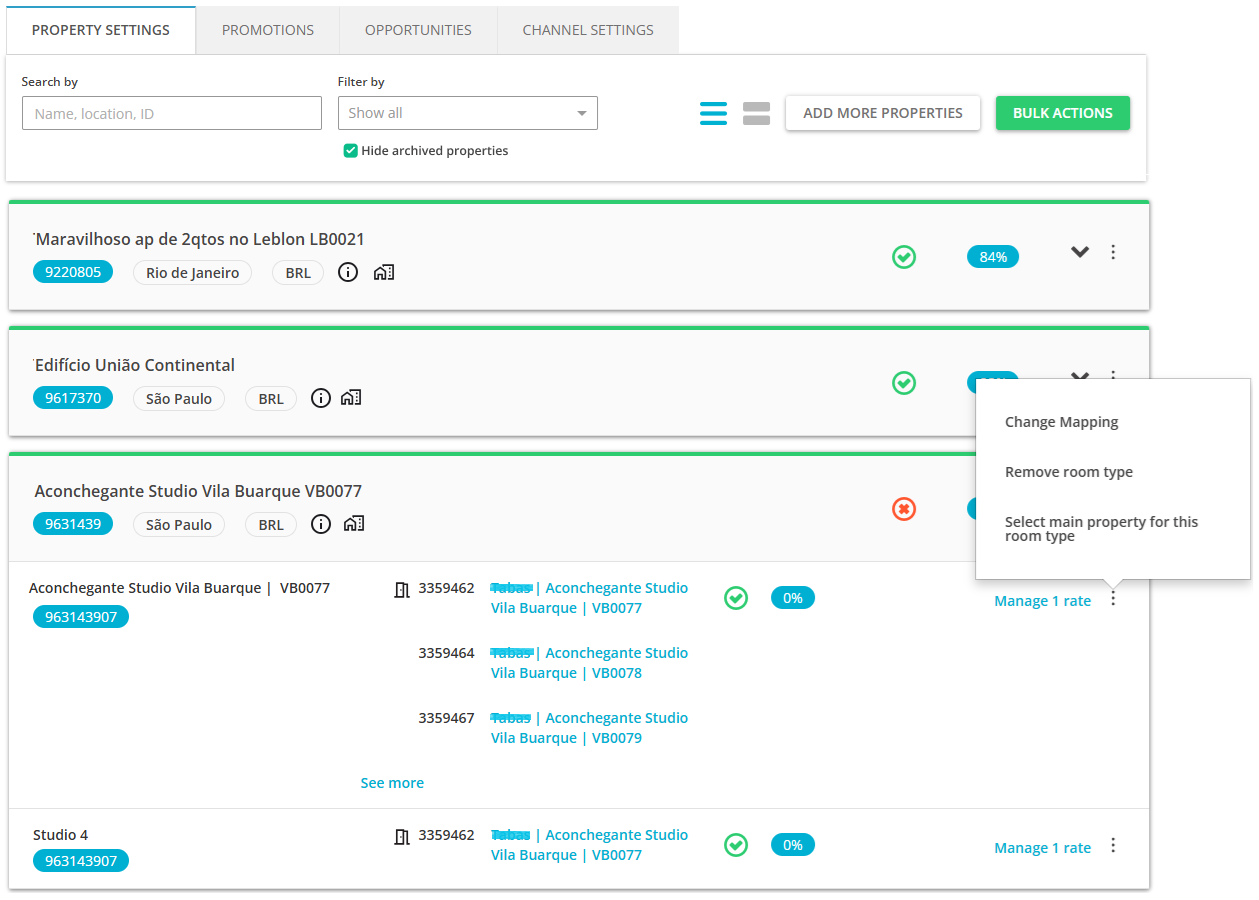
-
-
A notification is displayed. Click the Refresh synchronization settings button to confirm.
-
If you wanted to remove an entire hotel, the following notification is displayed:
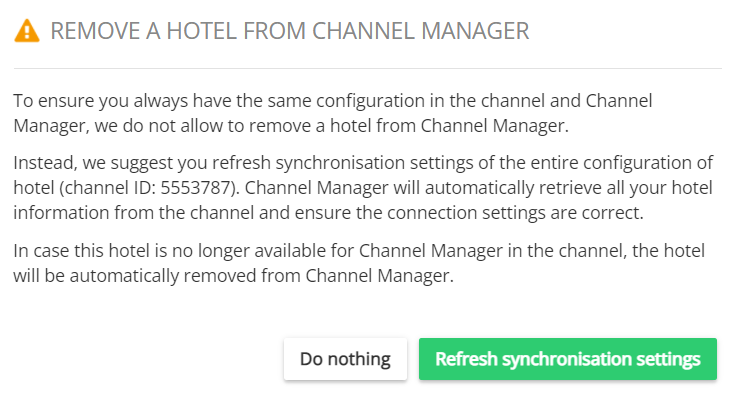
-
If you wanted to remove a room type, the following notification is displayed:
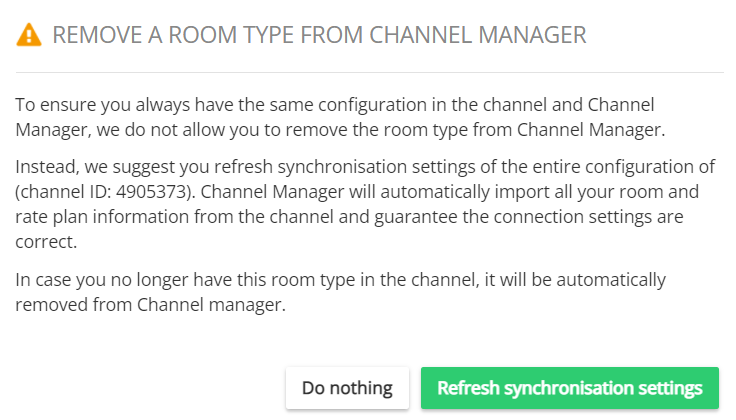
Note: The Remove option will usually point you to refresh the property set-up in order to maintain synchronization with Agoda. Hence, make sure to remove the hotel or room type in Agoda dashboard before attempting to remove it in Rentals United. If you need more information how to proceed with hotel or room deletion in Agoda, you may want to contact the Agoda Support Team directly and request detailed instructions. -
- Confirm the process by clicking the Confirm button.
- The summary of changes is displayed. If you removed the hotel or room type correctly in Agoda, you should see this change in the pop-up.
Importing bookings
In case you worked with Agoda and received bookings prior to connecting to it via Rentals United, it is possible to import them into Rentals United to ensure all information is in one place. See more here.
