The Bookings section is your go-to place to view all reservations, including past, current, and future ones. Here, you can easily check details like reservation dates, guest info, and payment status. It's a convenient way to manage your bookings in one spot, making it simple to stay organized and in control of your accommodation schedule.
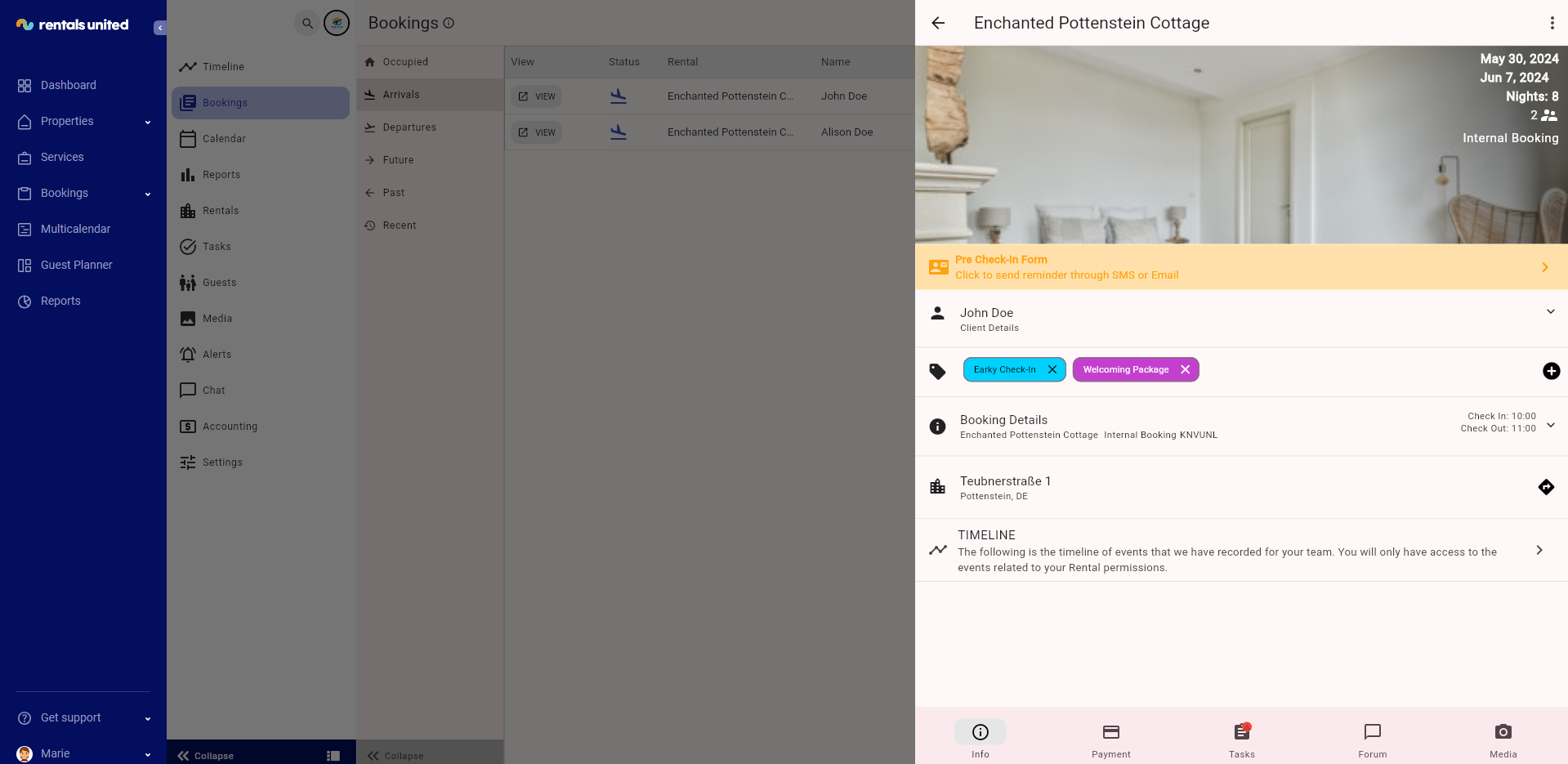
Note that the Bookings tab within Operations Management works similarly to the Bookings tab within Rentals United, however there are substantial differences. We recommend using the Bookings tab or Guest Planner for all actions related to the booing management (confirming, cancelling, modifying and managing). All changes made in the Bookings tab in Rentals United will be reflected in the Bookings tab in Operations Management.
The Bookings tab within Operations Management should be used to perform tasks related to the bookings: cleaning, charging, accounting etc. Note that your team members will not have access to the Bookings tab within Rentals United, hence this interface is primarily for them.
You can view the following information in the Bookings tab in Operations Management;
-
Booking number
-
Guest details
-
Check-in and check-out day and time
-
Booking tags
-
Booking price breakdown
-
Timeline of the booking
-
Notes and comments
-
All jobs related to the booking
-
All photos uploaded to the booking
Note that the Bookings tab within Operations Management lists only Confirmed bookings. Bookings in other statuses (Request, Cancelled etc.) will not be referenced here.

Calendar
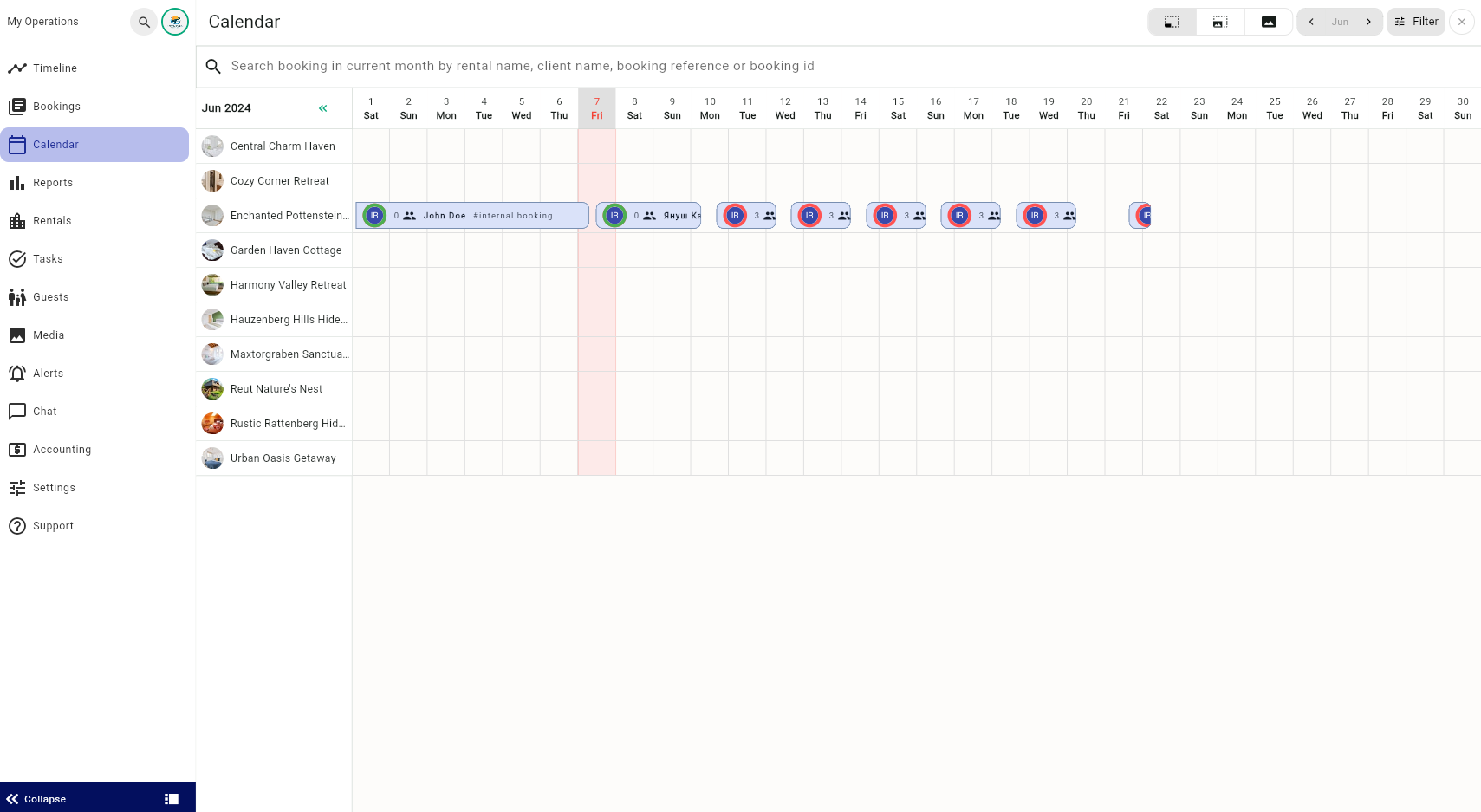
The Calendar tab shows the occupancy for each property, making it easy to see when they're booked and when they're available. It gives you a bird's eye perspective on your property's availability and is a go-to place for the everyday work, such as performing tasks. It helps you plan better and communicate effectively.
Rentals
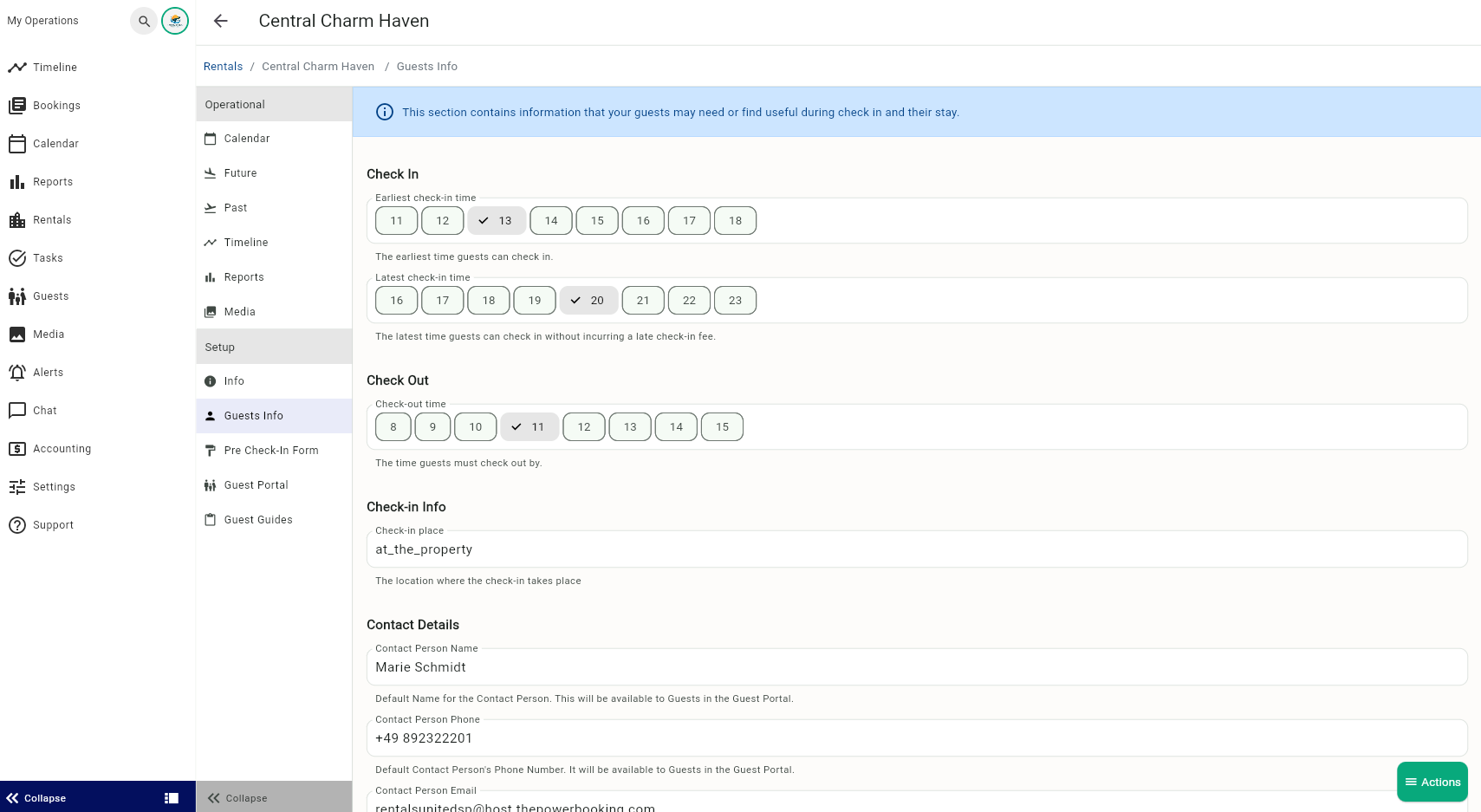
In the Rentals tab, you will quickly access your inventory, view bookings per property, edit property's details as well as enable additional features.
-
View all your properties from one place
-
View bookings per property
-
View events per property
-
View accounting reports per property
-
View all uploaded media per property
-
Access and edit property contact details
-
Access and edit property check-in and check-out details
-
Adjust the Pre-check in form
-
Adjust the Guest Portal
-
Adjust the Guest Guides
Media
The Media tab summarises all the media files (videos and photos) uploaded via Operations Management. Media can be uploaded in Rentals, Bookings, Payments or in the Task sections. The files can be filtered per media type and rental.