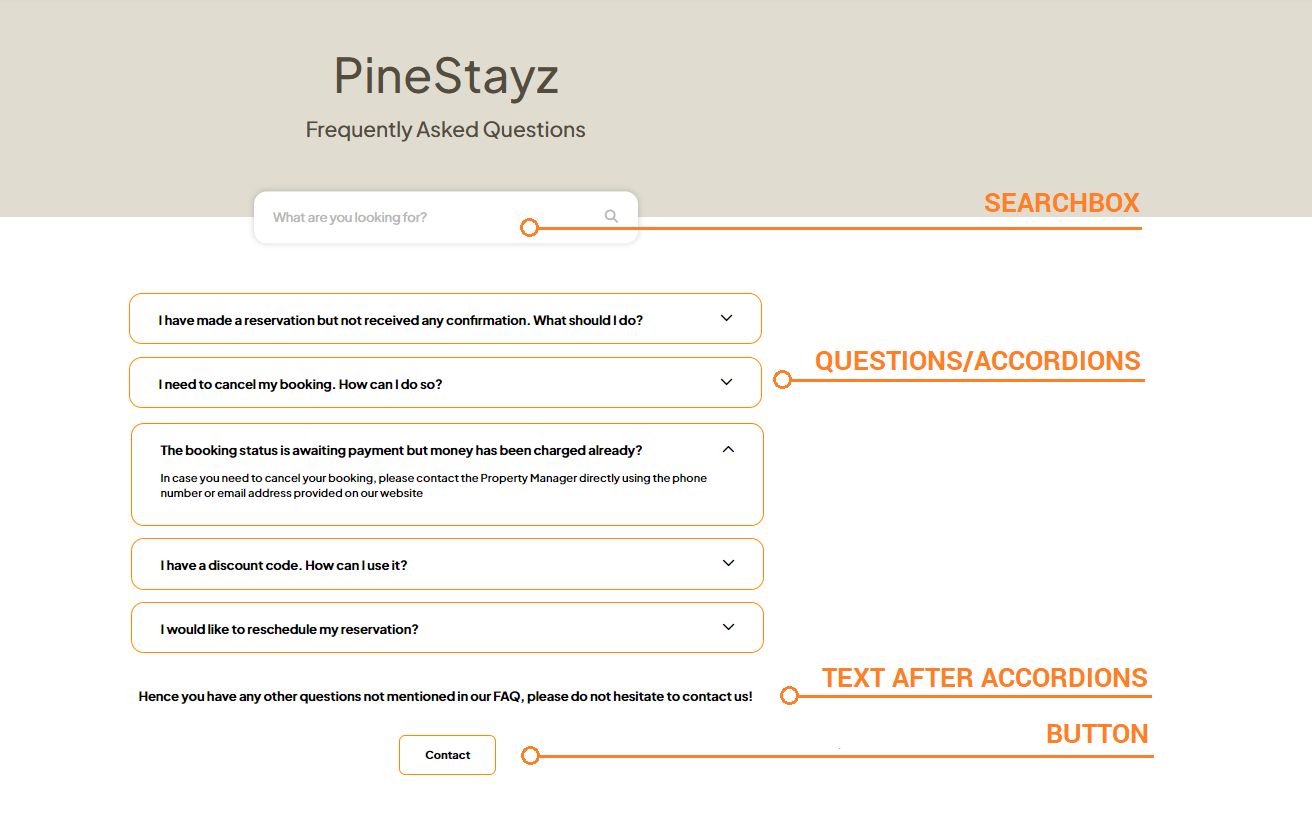
In the FAQ section, you can answer the most commonly asked questions your guests have. The FAQ template page comes with a functional and attractive design. Sections do not take much space and can be unfolded and folded back. On top of that, there is an active searchbox that lets your guests filter through the FAQs by keywords.
Edit page
-
Go to Wordpress Admin and open the management menu.
-
Select Pages.

-
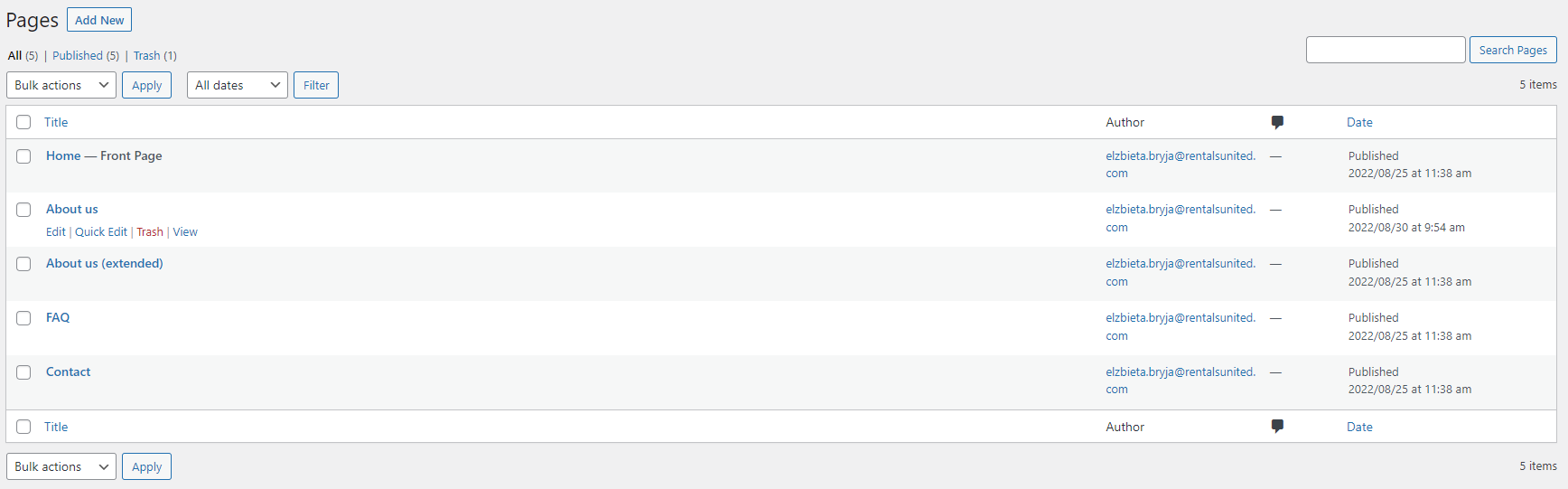
You can see now all the pages created for your website. Hover over FAQ page. Management options appear: Edit, Quick Edit, Trash, View. Click Edit.
-
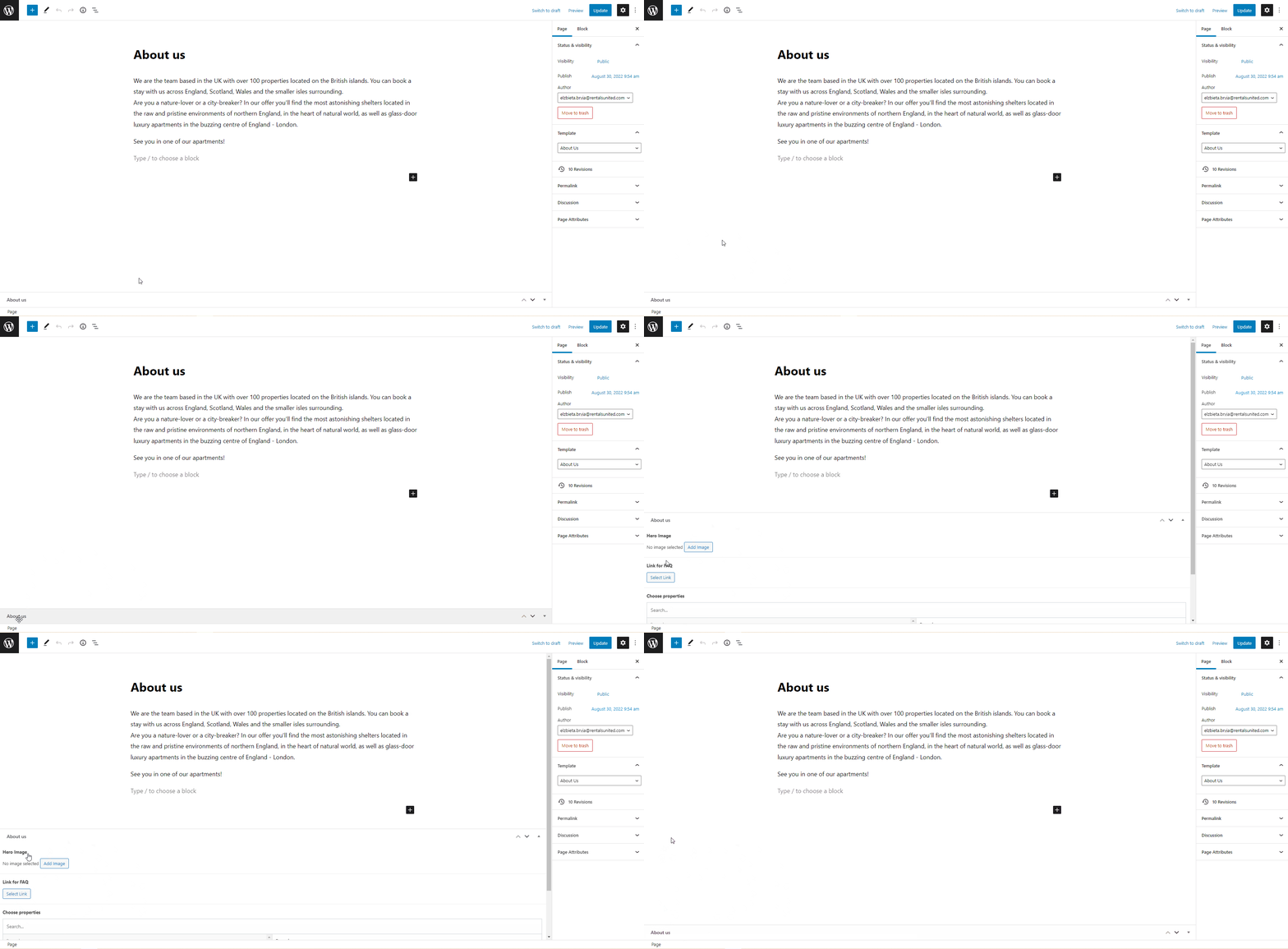
You are taken to the FAQ edit page.
Note: If you can't see additional options on the bottom of the Edit page, it means that it may be folded. Scroll to the bottom and find a long tab with the page name. Click on its name to expand it. Then, you will see the relevant options.
Accordions
-
Open FAQ Edit page as described here.
-
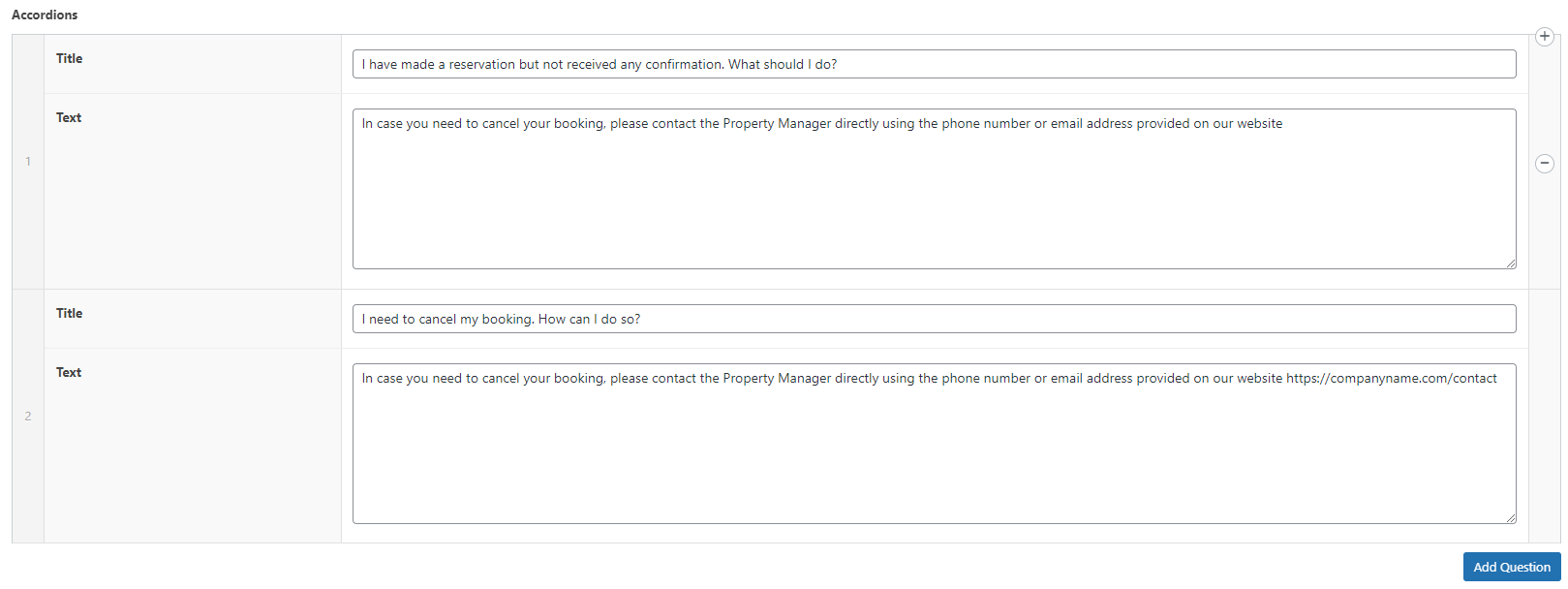
Scroll down to the Accordions section.
-
Each tile consists of two elements: Title and Text. Put the question in the Title text, e.g. "Can I reschedule my reservation?" Add your answer in the Text field. Edit the remaining fields in the same way. You can add as many FAQs as you want.
Tip: You can remove the tiles if you wish. Hover over the tile. The minus icon appears next to it. Click it and confirm the deletion. Remove all tiles and the section will disappear from your website. If you want to add more tiles, click the Add Question button on the right. -
Click
 to save the changes!
 -
Changes are immediately visible on your website.
Text after accordions
Here you can provide some general instructions in case your potential guests would not find answers in your FAQ.
If there is a dedicated department in your company that takes care of your guests' inquiries, you can provide the contact details already in this section. You can also provide some general text and redirect your guests to the Contact us page with the use of Button. Edit the section according to your individual needs.
Button
It is possible to place an additional button at the very bottom of the FAQ page. You may use it to redirect your guests to you main company website, homepage, FAQ or many more. Just make sure that the button is logically related to Text after accordions.
-
Open FAQ Edit page as described here.
-
Scroll down to the Button section.
-
Click the edit icon (pencil) or the Select link button (if there is no button created).
-
Insert/edit link menu opens. Select the page you would like the button to link to.
-
provide the URL of an external page and the text that will be displayed
-
select the Wordpress page from the list or start typing its name to narrow down the results
-
-
Click
to save the URL changes. -
Again, click
in the top right corner to save the changes. -
Changes are immediately visible on your website.