Email forwarding (or email proxy) facilitates the guest communication between property managers and guests in case the sales channel do not offer API-based guest communication service.
Majority of sales channels do not provide API-based guest communication (except for Airbnb, Booking.com, Vrbo and Expedia). Therefore, if you are connected to any other sales channels, you need to set up email forwarding in order to smoothly communicate with your guests.
In detail, Rentals United acts as an email proxy. It forwards all incoming and outcoming messages, so that:
-
Property manager can read the messages and respond to them in Rentals United
-
Guest will receive messages from your email address and can answer them
-
Property manager does not need to log in each channel separately
In order to achieve that, Rentals United needs to be granted access to your email account to send messages on behalf of your account.
|
Sending a message |
Receiving a message |
|---|---|
|
|
Step 1: Connect your email in Rentals United
This step is required to grant Rentals United access to your email.
Before you start
-
(Recommended) Brand new email account or an email account used solely for guest communication purposes. This is because all newly received emails are forwarded to Rentals United.
Set up
-
Go to Guest Planner. Click the Settings icon.
-
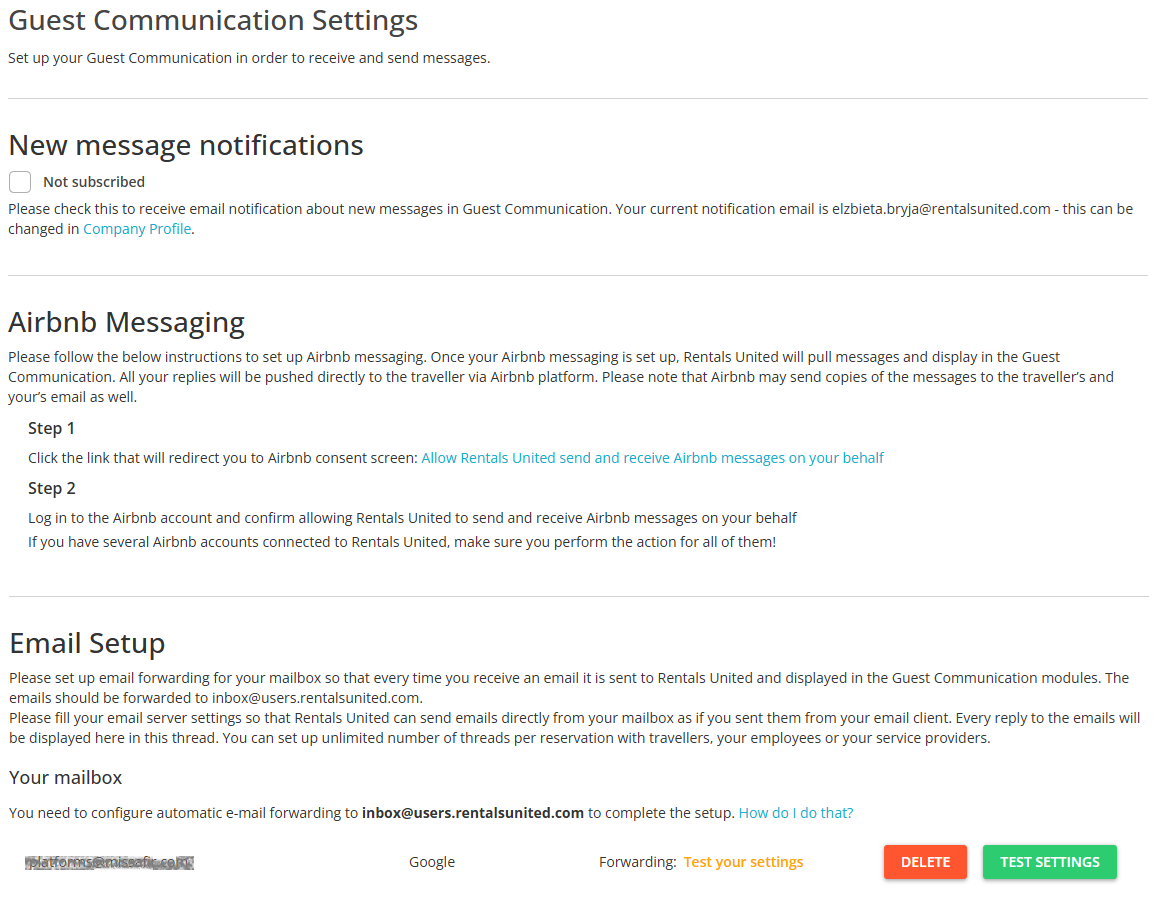
In Control Panel find the Email setup section.
-
Select your mailbox provider (Gmail / SMTP).
-
Gmail: Click Connect. You are moved to the Google log-in page. Follow the steps on the screen and log in to your email account in order to give us access to your email address.
-
SMTP (in case your provider is different): Provide the required information that is your email address, mailbox password and the SMTP server address. Click the Connect button. In order to provide what to input in each field, see SMTP details.
-
-
The setup in Rentals United is complete.
-
Provider: SMTP
-
Email: [full email address e.g. john.doe@exampleprovider.com]
-
SMTP Server: smtp.[providername].com
-
Username: [full email address e.g. john.doe@exampleprovider.com]
-
Password: [app-specific password]
Common SMTP Server Addresses:
-
Gmail: smtp.gmail.com
-
Outlook: smtp-mail.outlook.com or smtp.live.com
-
Yahoo: smtp.mail.yahoo.com or mail.yahoo.com
-
iCloud/Apple: smtp.mail.me.com
Additional information:
-
Make sure that MFA is turned on your Apple account in order to generate app-specific password. Detailed instructions can be found here.
Step 2: Set up forwarding in your mailbox
This step is required in order to forward messages to Rentals United. Thanks to this setup, we can display messages in Rentals United platform and API.
-
In your email account, go to Settings and find the forwarding options.
-
Configure automatic forwarding to forward all messages to: inbox@users.rentalsunited.com.
Tip: Setting up a forwarding option in Gmail
Note that while adding the email address where the messages will be forwarded, Google will prompt you to provide a verification code that has been sent to inbox@users.rentalsunited.com. See the screenshot.

The verification code is managed automatically and there is no need to provide any information here. So, please, disregard this notification, refresh the Gmail website and the prompt will disappear.
Tip: MFA
If you are using MFA in your inbox, you can continue using Guest Communication as MFA does not influence it.
-
Come back to Control Panel and Test your settings. If you experience unexpected behaviour, please contact the Rentals United Support Team.
-
Make sure the same address you granted Rentals United access to is set in all sales channels you are connected to.
If you are using a different email address in the channels, the Guest Communication will not have access to them. See how to update email address in some channels here.
