In order to connect your PMS and Rentals United account, follow the below steps. If you have doubts about the process, contact your Rentals United representative to guide you through the process.
Connecting to MEWS
In order to connect your MEWS and Rentals United account, perform the below steps.
-
Log into your Rentals United account.
-
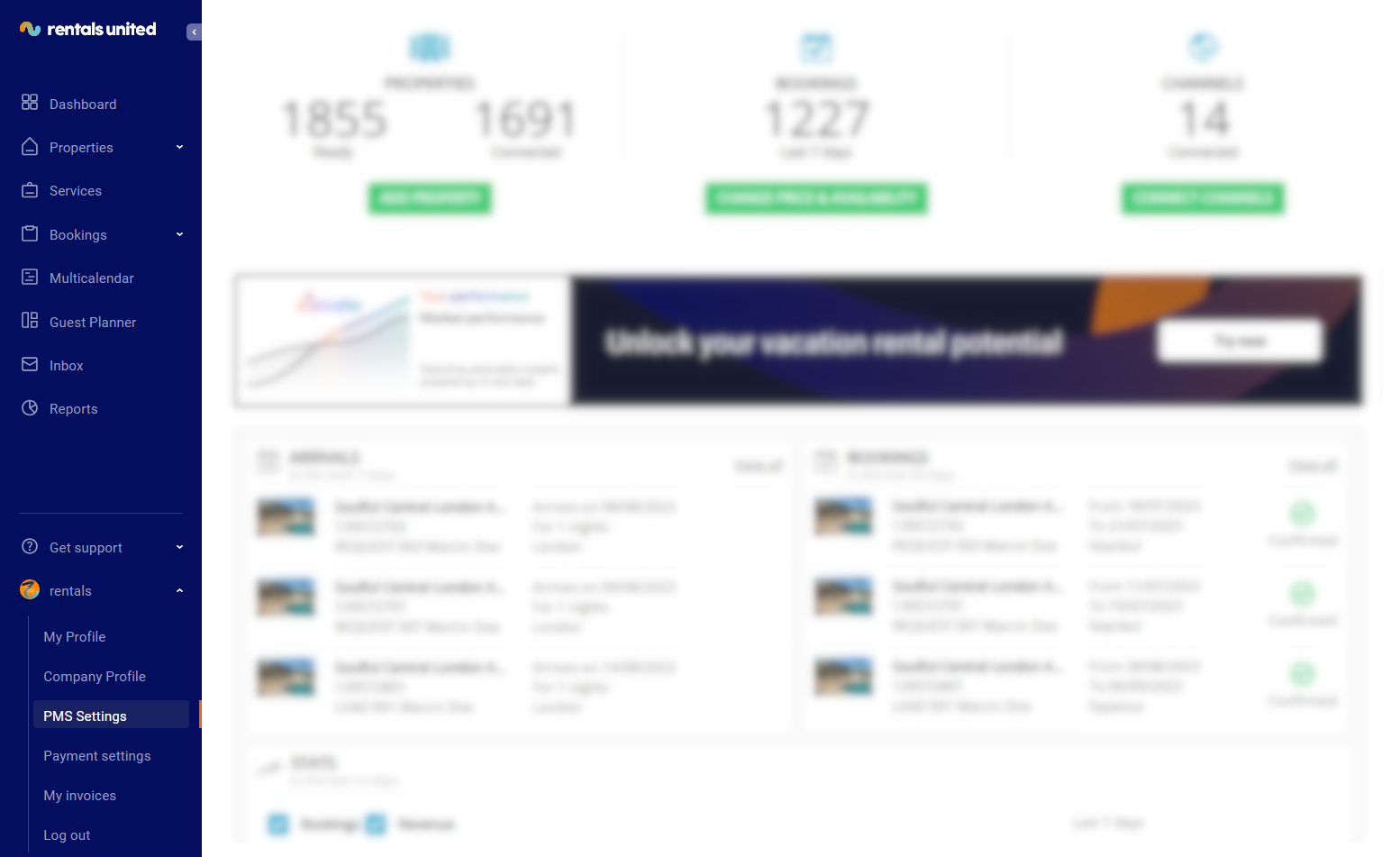
Hover over Your profile in the main menu and select PMS Settings
-
In the Choose a PMS field, select MEWS.
-
Provide the required information: Connection tokens and click Add connection token button.
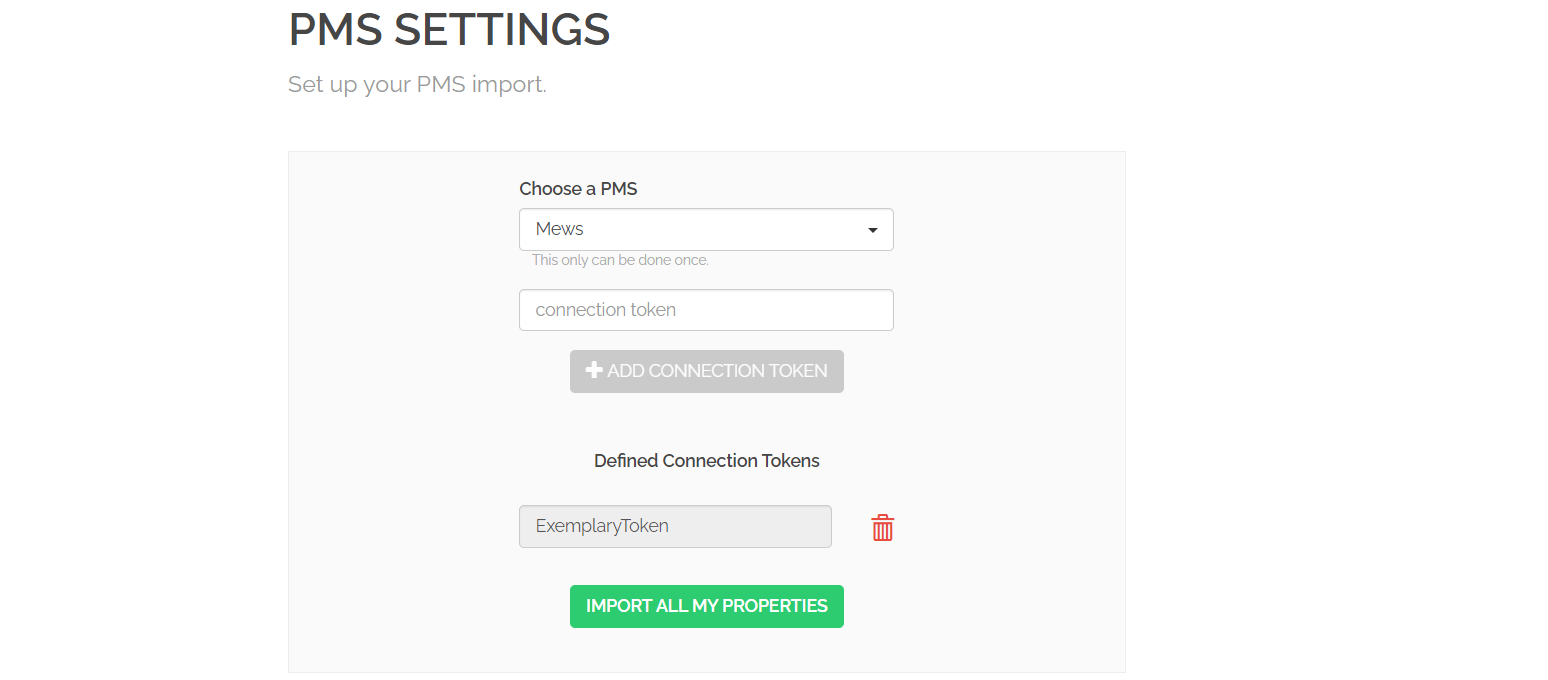 Tip: The connection tokens can be found in the MEWS dashboard. Click the Three lines menu in the top right corner > Marketplace > My subscriptions > Settings > Channel manager ID. If you cannot find the required information, please contact MEWS Support. See [%=Chapters.ContactDetails%].
 -
Click the Import all my properties button. All properties that fulfil Rentals United requirements to connect will be now imported from MEWS into your Rentals United account.
Connecting to Rentals United
MEWS allows to define many rate plans per property. To integrate with Rentals United, you need to define a rate plan called exactly RUID. Only properties having the RUID rate plans will be imported into Rentals United.
To enable a new property, perform the below steps:
-
Log in to the MEWS dashboard.
-
Go to Marketplace > My subscriptions > Settings > Channel manager rates > RUID.
-
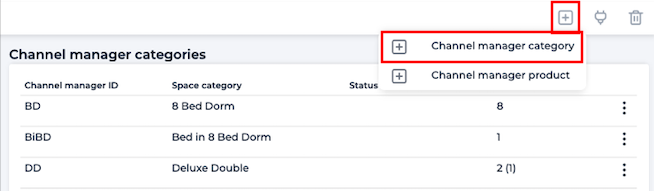
Click the "+" symbol and select Channel manager category.
-
Select the new space category from the drop down list.
You can also see the MEWS Help.
MEWS is called for its inventory and Rentals United verifies if the "code": "RUID" is defined. Then, it is also verified if "RatePlanCode" associated with "SpaceTypeCode" contains “RUID” in order for the property to be synchronized with Rentals United.
|
|
|
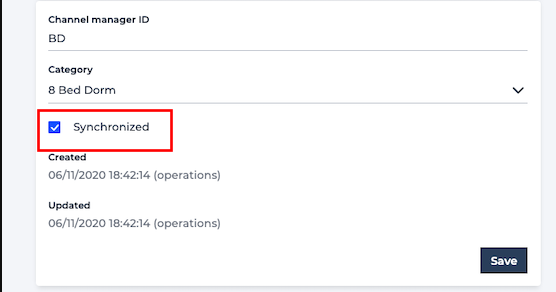
Tip: To remove a property from Rentals United feed, go to Marketplace > My subscriptions > Settings > Channel manager categories. Click the space category from the channel manager ID column and untick the Synchronized checkbox.
Minimum requirements to connect to Rentals United
-
Property name needs to be provided.
-
Geo-coordinates need to be provided.
-
Standard number of guests needs to be provided.
-
Maximum number of guests needs to be provided.
-
Property type needs to be provided. If not provided, it will be automatically set to Apartment.
-
Normal check-in and check-out times: need to be provided. If not set, they are automatically set to Check-in: from 13:00 to 17:00, Check-out: 11:00.
-
Check-in place: If not set, it is automatically set to At the property.
-
Arrival information: If not set, the Landlord's name and Email address are taken from My profile and/or Company profile.
PMS Settings
PMS Settings page is visible fo you only if you are a PMS user. It gives you a possibility to adjust the integration scope with your PMS. Thanks to the custom settings in PMS Settings, you can choose which data gets synchronised to Rentals United from your PMS. Note, that these settings are on the account level and will affect all your properties.
You need to log in to your Rentals United account, click on User profile and select PMS Settings from the list.
Scroll down to the checkbox-list. The list references all areas that are available to import the data from.
-
Ticked checkbox
 means that this part of data is being synchronised from PMS. If you introduce any changes to this data directly in Rentals United it will be overwritten by the data from PMS.
 -
Unticked active checkbox
 means that this part of data is possible to synchronise, but currently it is not. In this case, you can manually add or change data in Rentals United.
 -
Greyed-out ticked checkbox
 means that this part is obligatorily synchronised from PMS and you cannot stop this synchronisation.
 -
Greyed-out unticked checbox
 means that this part is not received from PMS at all and you need to manually fill this information in the Edit property page accessed from the Properties tab.
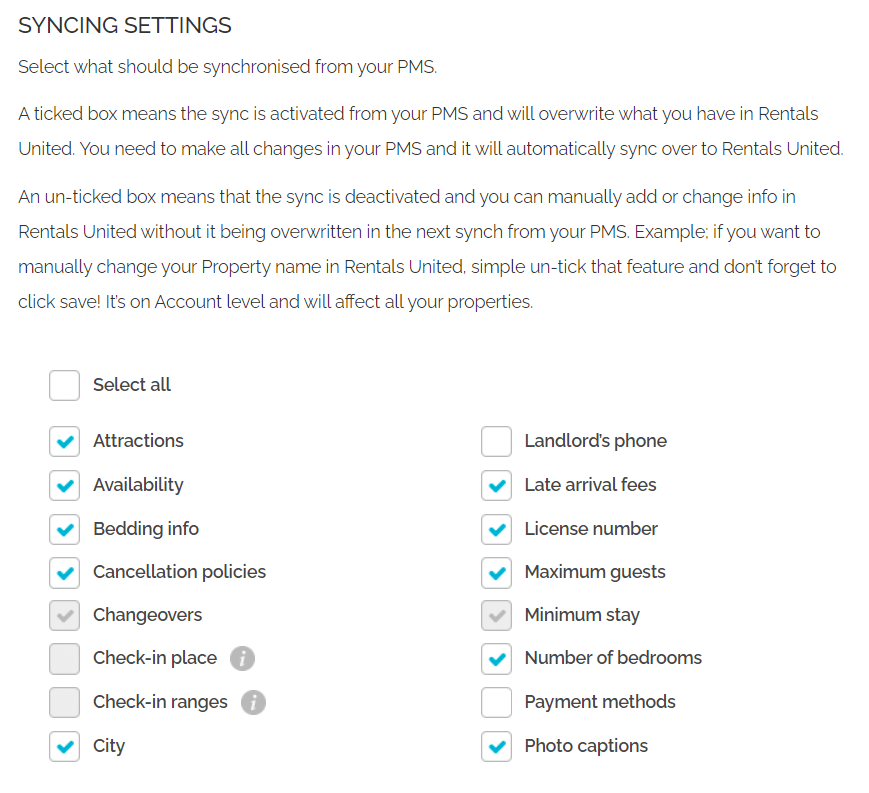
If you want to know what data is exactly synchronised to Rentals United by each checkbox, see here.
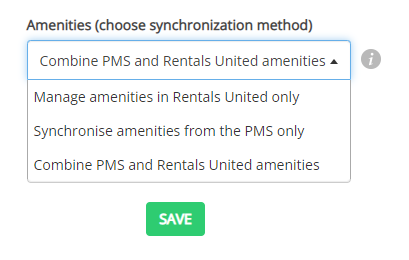
You may noticed that the checbox list does not provide possibility to synchronise amenities. In order to adjust the amenities sync, you need to scroll down to the next section. You have three options available in the dropdown list:
-
Manage amenities in Rentals United only means that Rentals United will never import amenities you have in PMS. You will need to manually introduce each amenity for each property to Rentals United. If you decided to select this option, you can avoid repetitive tasks and make this process a little more effective by updating amenities for multiple properties at once. For more information, please see Editing properties in batch.
-
Synchronise amenities from the PMS only means that only amenities from your PMS are synchronised. In case there ever occurs a need to add or change any amenity, you will have to go directly to PMS and introduce changes there. These changes must be done in accordance with the amenity mappings done for this integration. For more information, please see the Step 2: Amenities chapter. Note that in case of PUSH PMS integrations, Rentals United may not be able to provide you with the full list of mapped amenities and you need to contact PMS directly.
-
Combine Rentals United and PMS amenities means that Rentals United enables the import of amenities from your PMS, as well as gives you a possibility to add new amenities directly in Rentals United platform. If you select this option and the synchronisation is finished, go to the Properties tab, select the property you want to view and click Edit / Improve.
If you change the synchronisation of amenities from Manage amenities from the PMS only to Manage amenities in Rentals United, all amenities that have been previously synchronised from your PMS will not be automatically removed.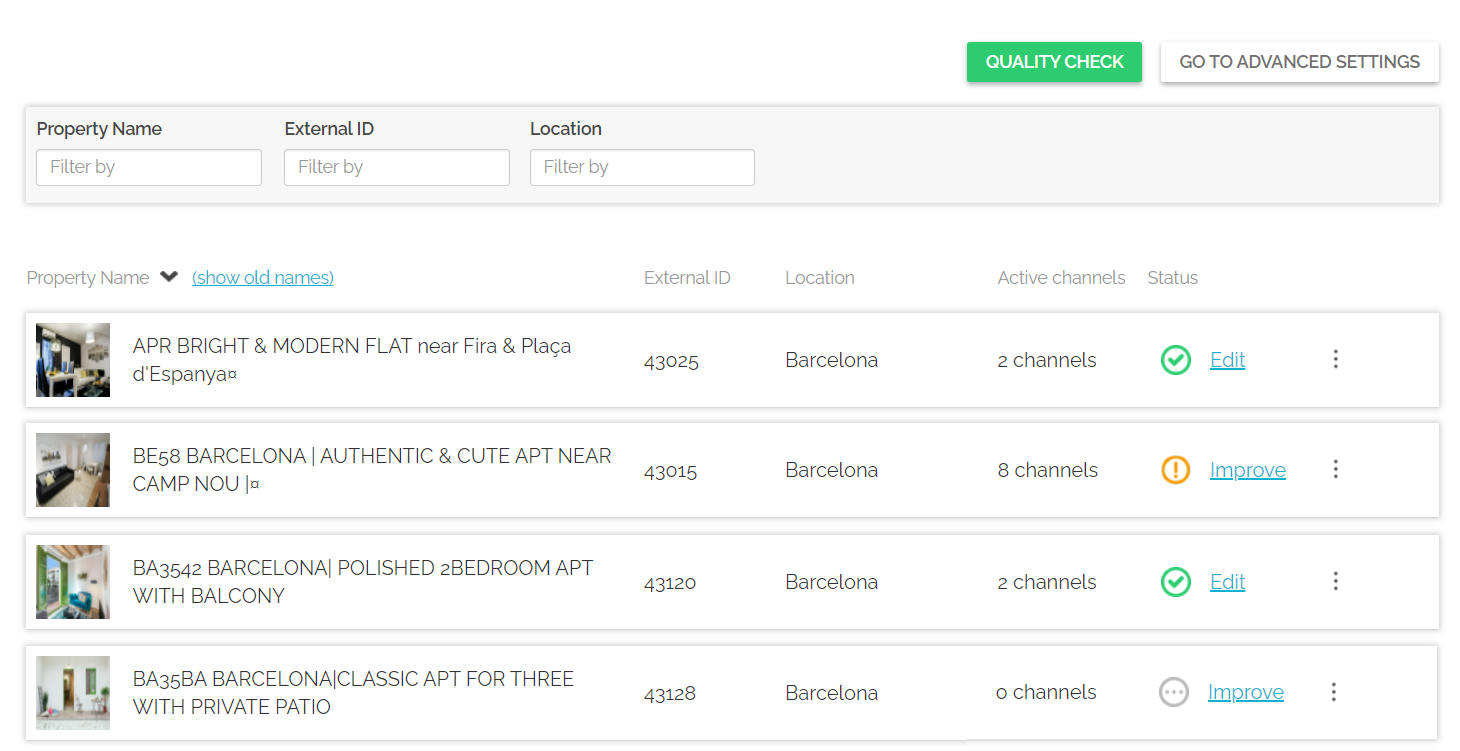
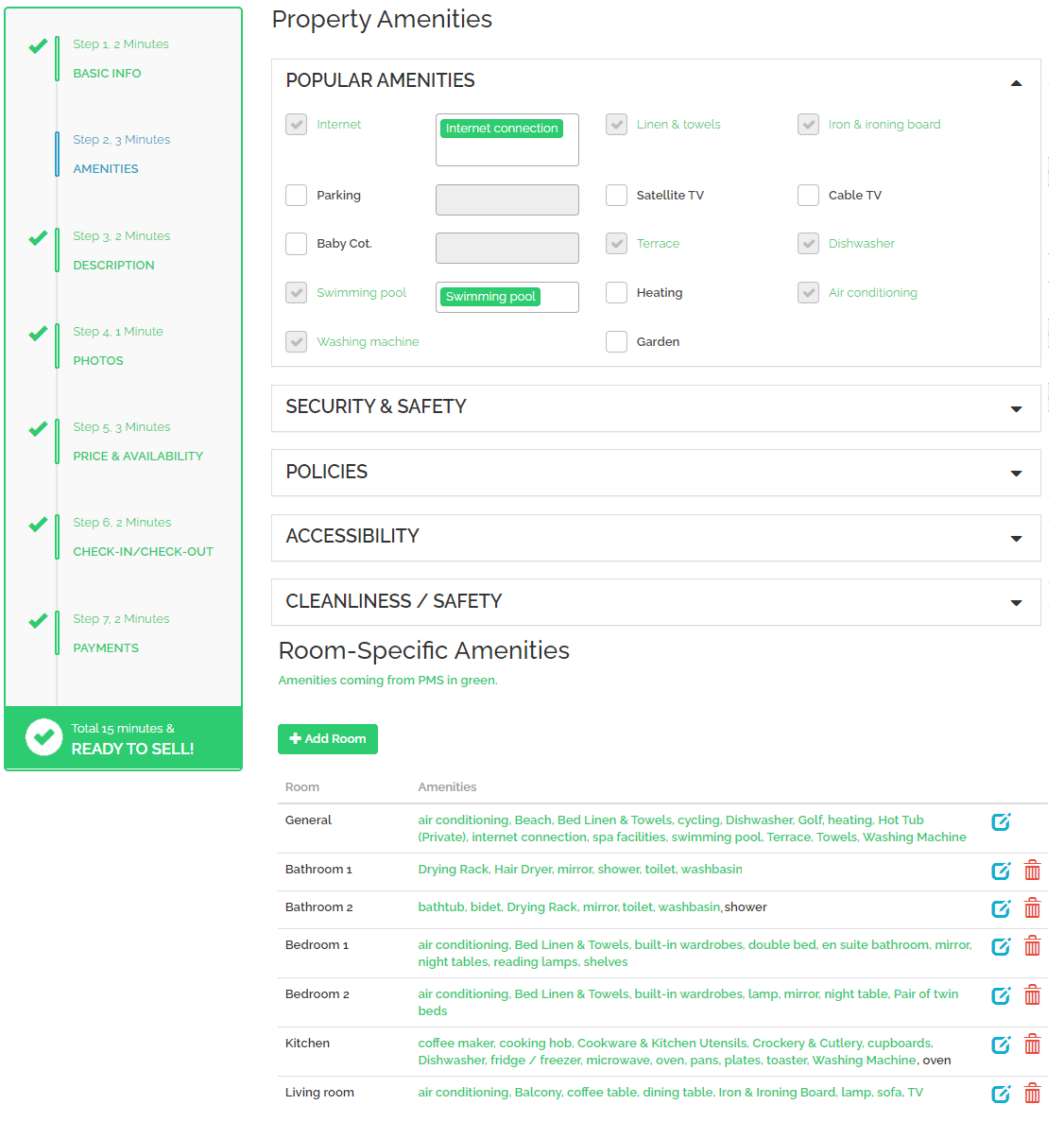
Go to Step 2: Amenities. In this section, the amenities that are pulled from PMS will be marked in green and cannot be edited or removed. You can add additional amenities on the property level by selecting them from the list. And, you can even add custom amenities on the room level under Room Specific Amenities by clicking the Edit button and typing them into the field next to the name of the room. The extra amenities that you add in Rentals United will show in black.
After any changes to PMS Settings, do not forget to click the Save / Synchronize button on the bottom of the page in order for the changes to take effect!
You can also check out the video below and see the above live.
