Channel Settings is a dedicated tab available for each channel that allows to define some additional settings, specific only for this particular channel. Hence, not all channels will have this tab visible. Additionally, any setting that is defined within the Channel Settings tab will be applied exclusively for this particular channel. Other channels will not be affected.
Minimum guest age
Minimum guest age is a setting that can be specified in Rentals United for properties shared with Vrbo. It allows for making reservations where at least one guest meets the minimum age requirements. Minimum guest age settings are part of the static data.
Hence, it is possible to set the minimum guest age for each property by adjusting the minimum age value per Advertiser ID. Each Advertiser ID has a dedicated section, as can be seen in the screenshot.
-
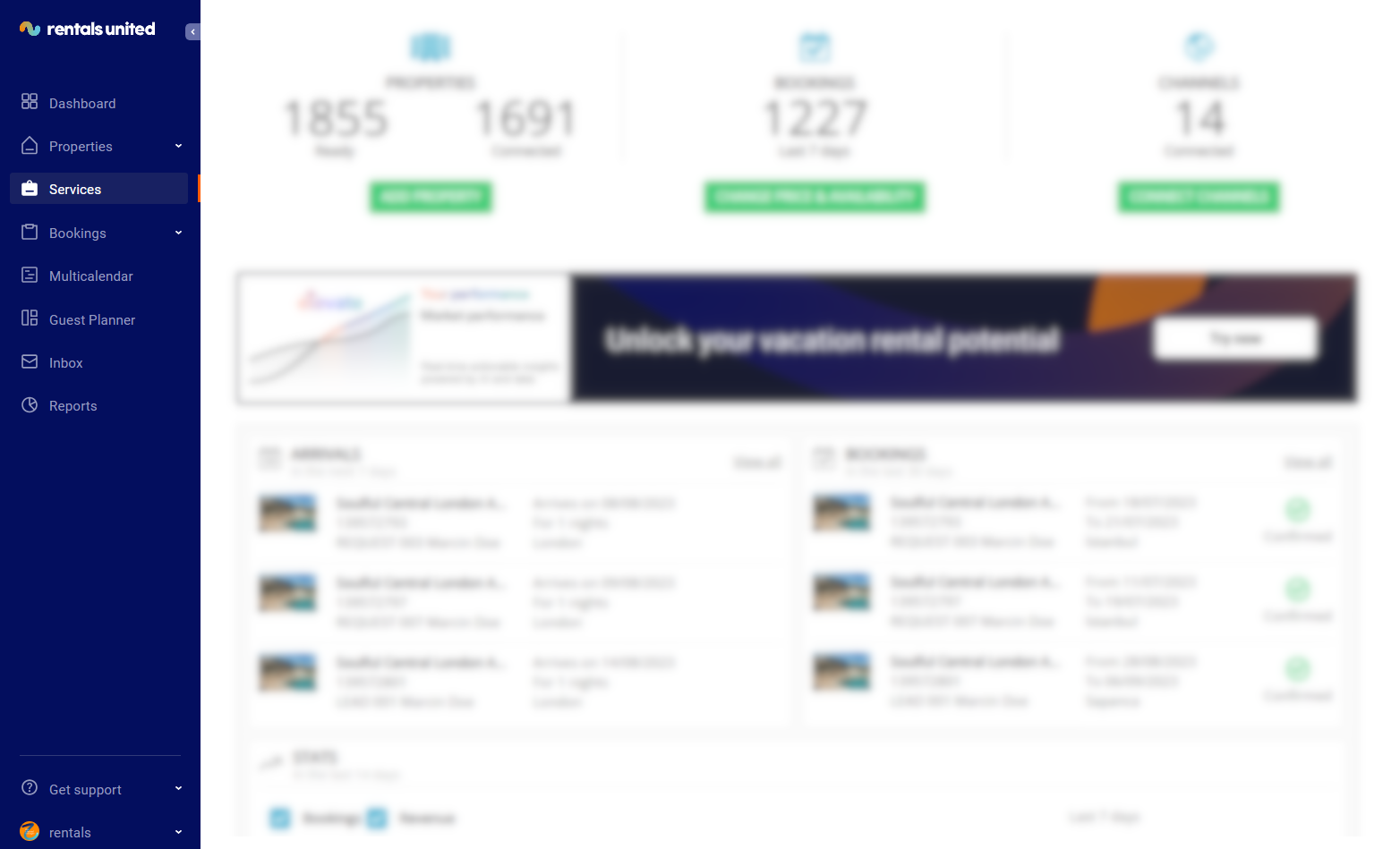
In Rentals United platform, go to the Services tab.
-
Click the My services tab.
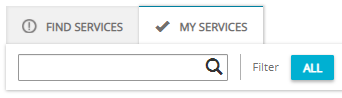
- Type the Sales Channel name in the search box or scroll down through the list of available channels.
- Unfold the Sales Channel section by clicking the Down arrow button.
-
Click the Account Settings button.

- Select the Minimum guest age option.
-
Adjust the minimum guest age for each Advertiser ID by setting the correct value.
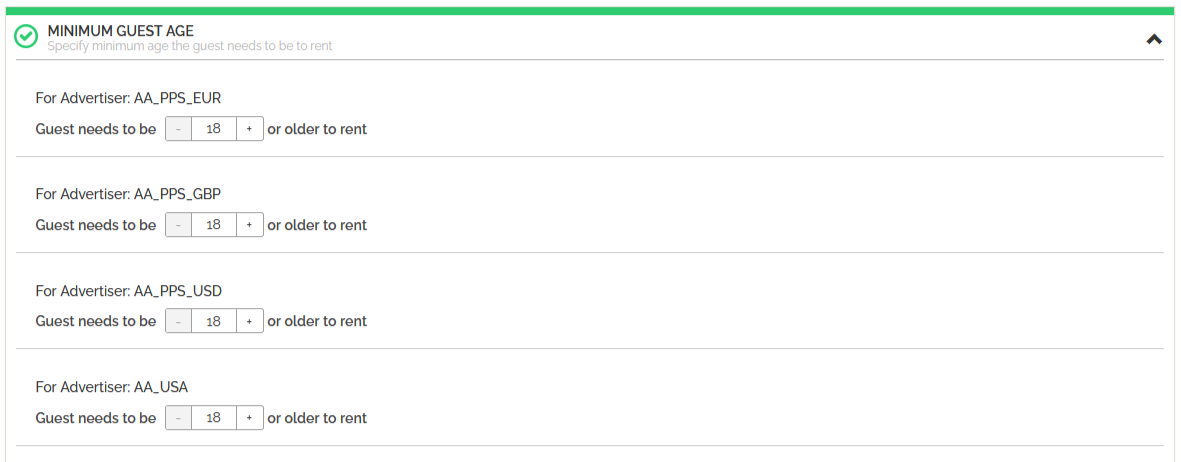 Example: If the minimum guest age is set to 26, the reservation will not be possible unless at least one of the guests meets the condition.
 - Click the Save button. Changes are visible in Vrbo after a few hours, not later than 24 hours.
Vrbo Booking Policy
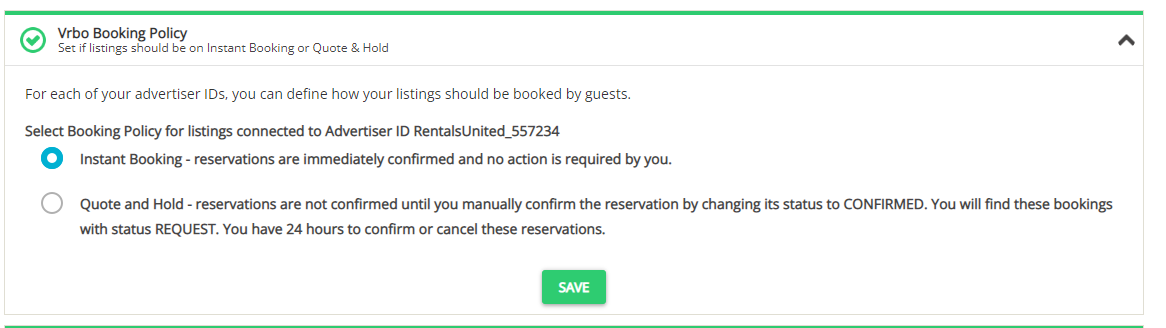
Vrbo allows you to select the way you would like to receive your future bookings:
Use the instructions below to change the booking policy for your property.
In Rentals United platform, go to the Services tab.
-
Switch tab to My services.
- Type Sales Channel in the search box or scroll down through the list of available channels.
- Unfold the channel section. Click the Down arrow button in the channel box.
-
Click Property Settings.

-
Switch the tab to Channel Settings.

- Select Vrbo Booking Policy.
-
Select Advertiser ID for which you would like to change the booking policy. Then, choose the option you wish to use. If you want to change it for multiple Advertiser IDs, you need to repeat this step for each individual Advertiser ID.
- Click Save.
Vrbo Cancellation Policy
Cancellation Policy (CP) describes the charges applied if a reservation is cancelled within a specific period of time.
For Vrbo, there are two ways to set the Cancellation Policy.
- During the Connecting to Vrbo or Establishing connection in new design procedure you are prompted to select a Cancellation Policy.
- Cancellation Policy can be specified anytime in the Account SettingsChannel Settings.
Below, you can read in a greater detail about the available options and also read how to set the Cancellation Policy for Vrbo. Bear in mind that whatever Cancellation Policy is selected, if a guest does not show up, this will always result in a 100% cancellation penalty.
-
In Rentals United platform, go to the Services tab.
-
Click the My services tab.
- Type the Sales Channel name in the search box or scroll down through the list of available channels.
- Unfold the Sales Channel section by clicking the Down arrow button.
-
Click the Account Settings button.
-
Select one of three ways to set the Cancellation Policy for properties connected to Vrbo.
Vrbo predefined Cancellation Policy- A list of available custom policies opens.
-
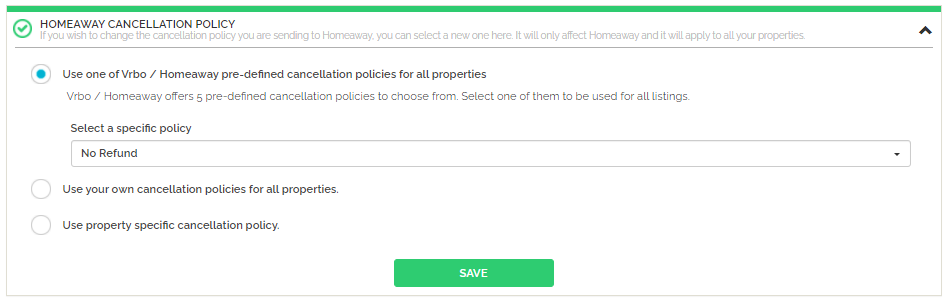
Select the Vrbo predefined policy for all properties option.
-
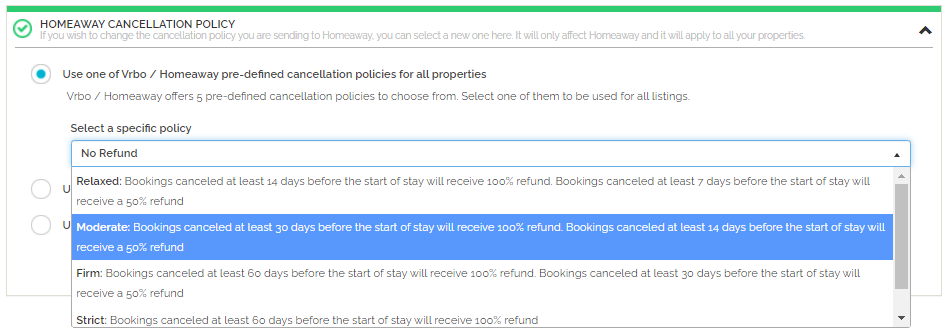
From the dropdown list, select one of five available options.
Read more
- Relaxed
If a booking is cancelled at least 14 days before the arrival - 100% refund; if a booking is cancelled at least 7 days before the arrival - 50% refund;
- Moderate
If a booking is cancelled at least 30 days before the arrival - 100% refund; if a booking is cancelled at least 14 days before the arrival - 50% refund;
- Firm
If a booking is cancelled at least 60 days before the arrival - 100% refund; if a booking is cancelled at least 30 days before the arrival - 50% refund;
- Strict
If a booking is cancelled at least 60 days before the arrival - 100% refund;
- No refund
If a booking is cancelled, no refund is provided.
- Click the Save button.
- A list of available custom policies opens.
-
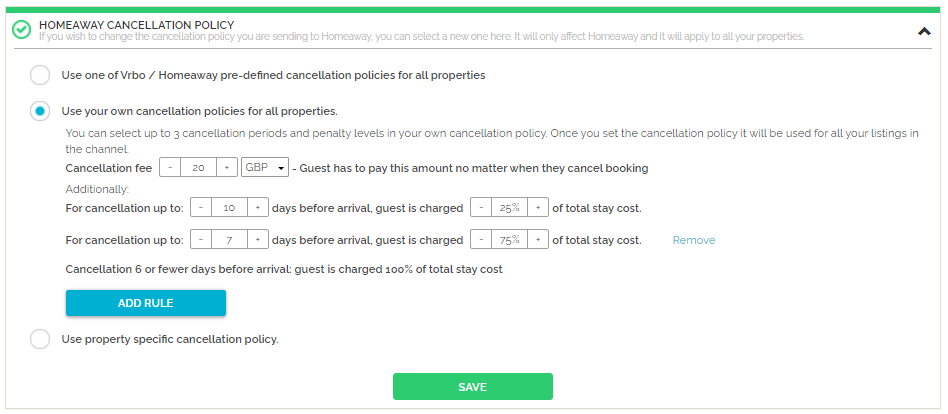
Set the details of the Cancellation Policy.
-
If needed, specify the cancellation fee.
Cancellation fee is the amount to be paid if the reservation gets cancelled. Regardless of the fact if the cancellation was done within the refundable period or not, cancellation fee will be always applied. It is possible to set its value to 0; then, cancellations are free of charge.
- Set the currency in which cancellation fees will be paid.
- Define up to three cancellation rules.
-
- Click the Save button.
- A list of available custom policies opens.
-
Select the own property-specific Cancellation Policy option.
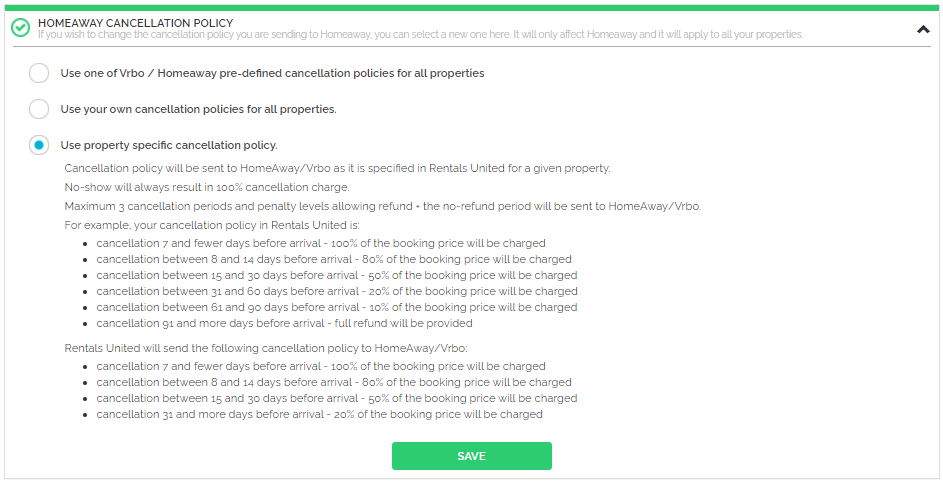 Note: Even though more Cancellation Policies may be defined, the maximum number shared with Vrbo is 4. Specifically, 3 shortest cancellation periods with the penalty levels allowing refund + 1 no-refund period.
 - Click the Save button.
- Set the Cancellation Policy in Rentals United platform following the Cancellation Policy procedure.
Custom payment schedule
For Vrbo, there are two ways to set the Down payment.
- During the Connecting to Vrbo or Establishing connection in new design procedure, you are prompted to select one of the available Down payment policies.
- Down payment policy can be specified any time in the Channel Settings.
In Channel Settings, the you can decide whether Down payment should be enabled or not. If enabled, note that it will be identical for all your properties advertised on Vrbo. Then, it is possible to define at least minimum 2 and maximum 5 levels of Down payment policy.
-
In Rentals United platform, go to the Services tab.
-
Click the My services tab.
- Type the Sales Channel name in the search box or scroll down through the list of available channels.
- Unfold the Sales Channel section by clicking the Down arrow button.
-
Click the Account Settings button.
-
Select the Custom Payment Schedule option. By default, the setting is disabled.

-
Enable the Custom Payment Schedule option. Specify the percentage of the total price to be paid upon booking.
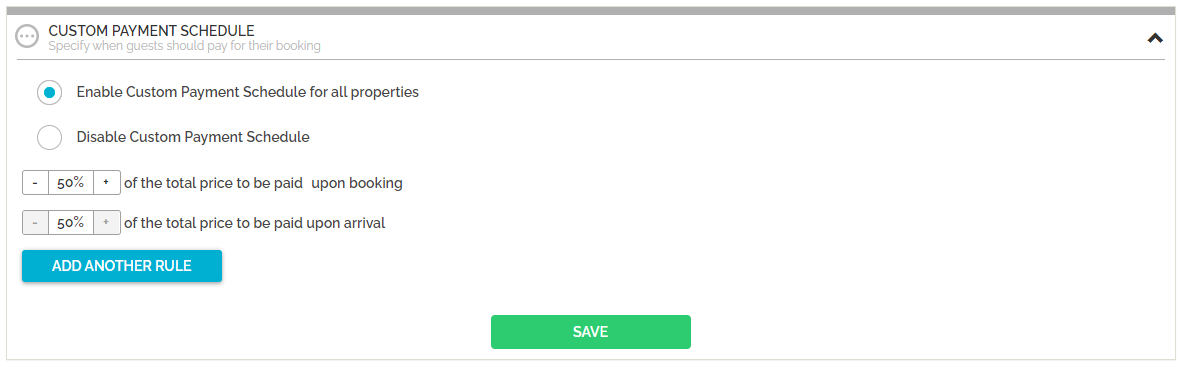 Note: The outstanding percentage to be paid upon arrival is updated automatically.
 -
If needed, add more levels to the Custom Payment Schedule. Click the Add another rule button. Provide the percentage and the number of days before the arrival when the payment must be made.
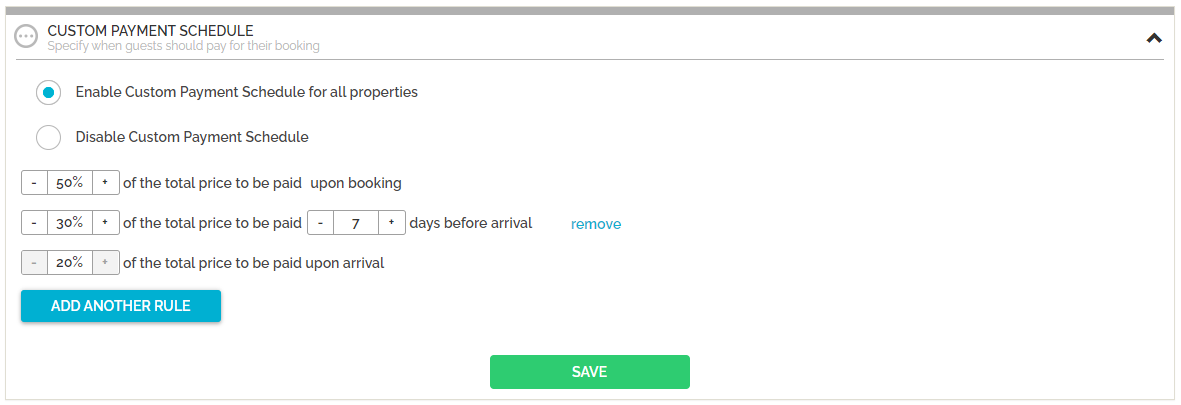 Note: It is possible to have maximum 5 rules defined for Vrbo.
 - Click the Save button.
Advertiser Manager
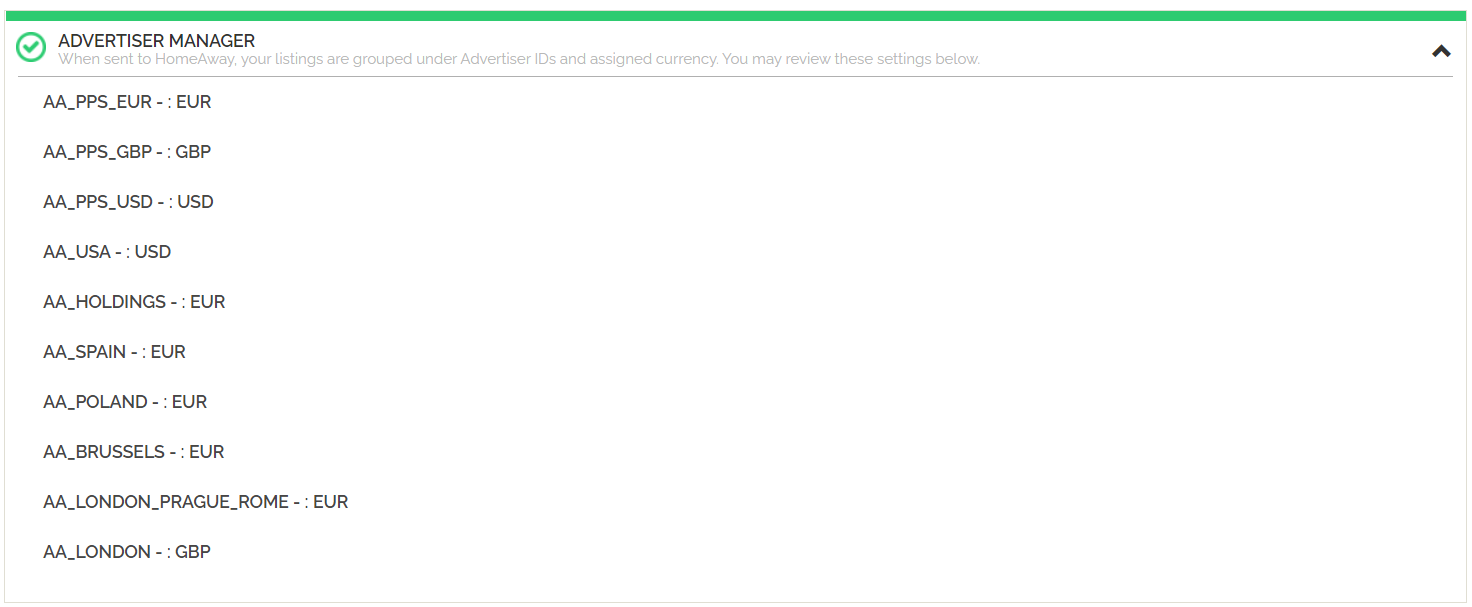
In the connection with Vrbo, all your listings are assigned one or more Advertiser IDs. You can review them in the Advertiser Manager settings and, additionally, check the currencies assigned to each Advertiser ID.