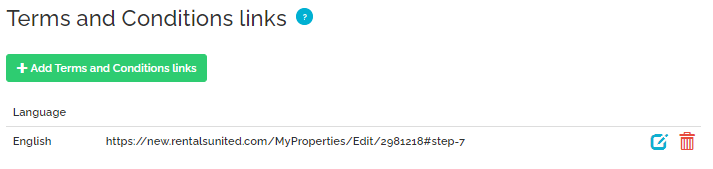
Payment methods 
Payment methods refer to the types of payments available for the guests at the property to pay for the provided services. At least one payment method is required to successfully set up this stage. Nonetheless, it is possible to specify as many payment methods as required, so that the guests are given freedom to choose.
Note that selection of the payment methods does not cause Rentals United to automatically charge your guests.
Find the list of available Payment methods below:
- Visa
- Master Card, Mastercard
- Discover
- Diners
- Maestro
- JCB
- Amex, American Express, AmericanExpress
Cancellation Policy 
Cancellation Policy (CP) describes the charges applied if a reservation is cancelled within a specific period of time.
For Vrbo, there are two ways to set the Cancellation Policy.
- During the Connecting to Vrbo or Establishing connection in new design procedure you are prompted to select a Cancellation Policy.
- Cancellation Policy can be specified anytime in the Account SettingsChannel Settings.
Below, you can read in a greater detail about the available options and also read how to set the Cancellation Policy for Vrbo. Bear in mind that whatever Cancellation Policy is selected, if a guest does not show up, this will always result in a 100% cancellation penalty.
-
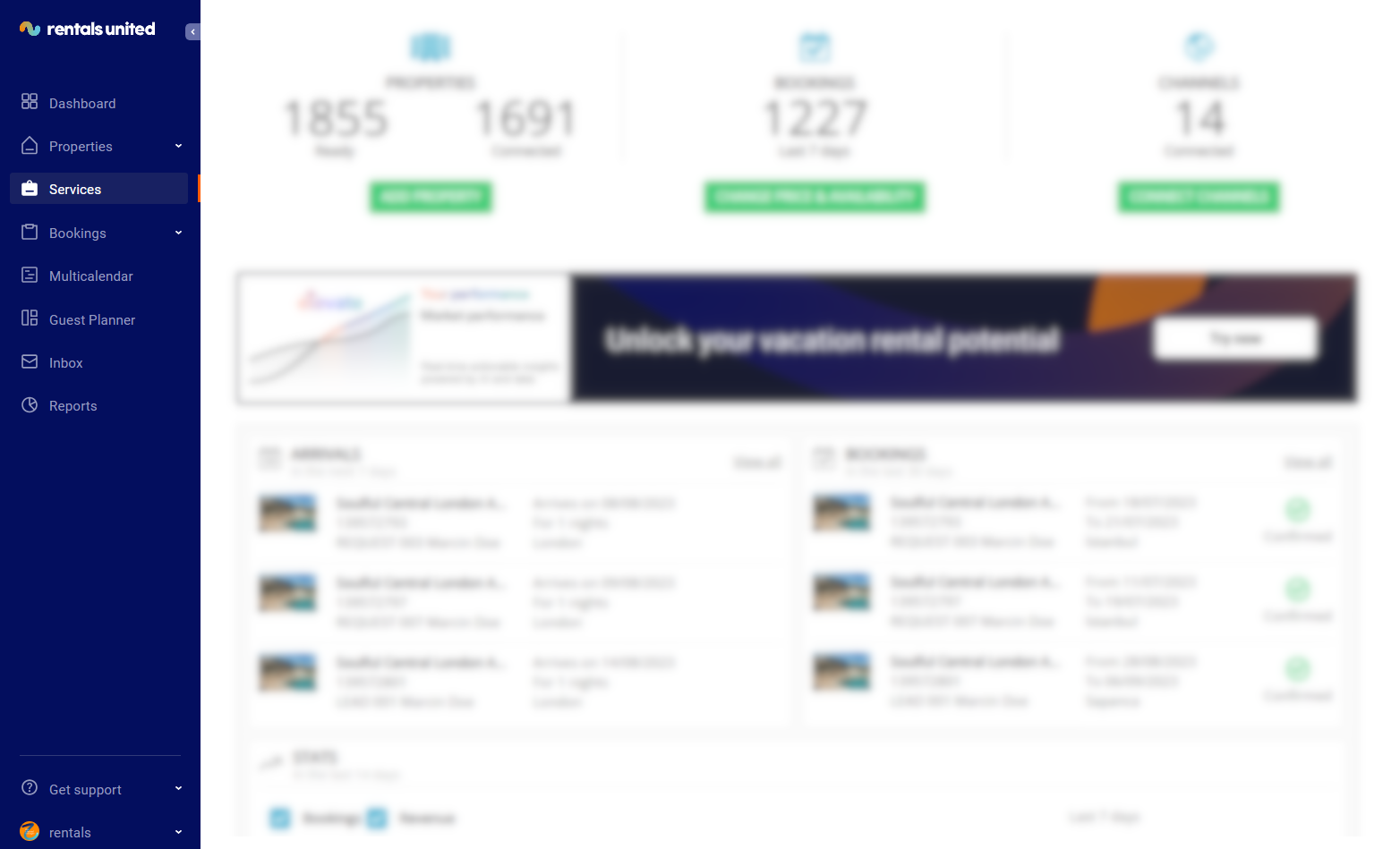
In Rentals United platform, go to the Services tab.
-
Click the My services tab.
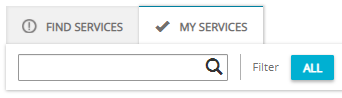
- Type the Sales Channel name in the search box or scroll down through the list of available channels.
- Unfold the Sales Channel section by clicking the Down arrow button.
-
Click the Account Settings button.

-
Select one of three ways to set the Cancellation Policy for properties connected to Vrbo.
Vrbo predefined Cancellation Policy- A list of available custom policies opens.
-
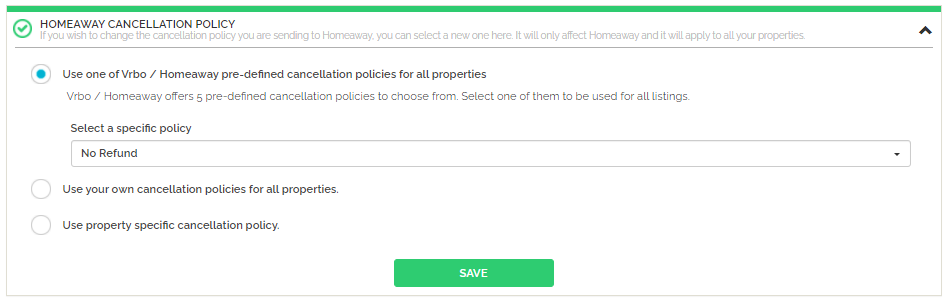
Select the Vrbo predefined policy for all properties option.
-
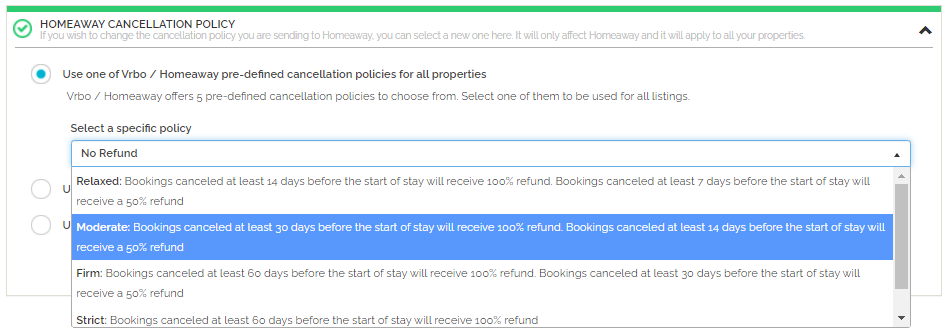
From the dropdown list, select one of five available options.
Read more
- Relaxed
If a booking is cancelled at least 14 days before the arrival - 100% refund; if a booking is cancelled at least 7 days before the arrival - 50% refund;
- Moderate
If a booking is cancelled at least 30 days before the arrival - 100% refund; if a booking is cancelled at least 14 days before the arrival - 50% refund;
- Firm
If a booking is cancelled at least 60 days before the arrival - 100% refund; if a booking is cancelled at least 30 days before the arrival - 50% refund;
- Strict
If a booking is cancelled at least 60 days before the arrival - 100% refund;
- No refund
If a booking is cancelled, no refund is provided.
- Click the Save button.
- A list of available custom policies opens.
-
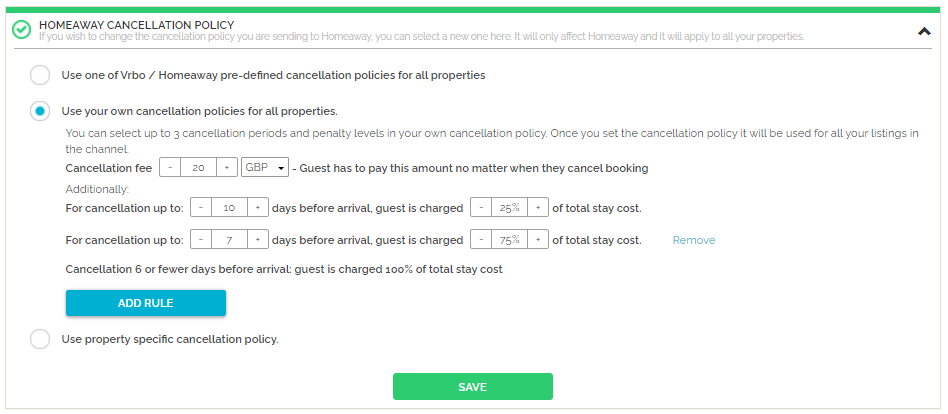
Set the details of the Cancellation Policy.
-
If needed, specify the cancellation fee.
Cancellation fee is the amount to be paid if the reservation gets cancelled. Regardless of the fact if the cancellation was done within the refundable period or not, cancellation fee will be always applied. It is possible to set its value to 0; then, cancellations are free of charge.
- Set the currency in which cancellation fees will be paid.
- Define up to three cancellation rules.
-
- Click the Save button.
- A list of available custom policies opens.
-
Select the own property-specific Cancellation Policy option.
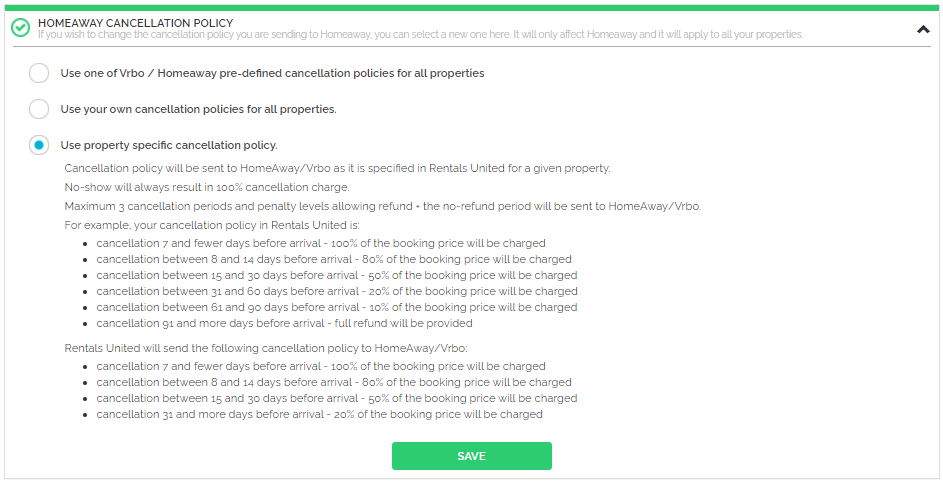 Note: Even though more Cancellation Policies may be defined, the maximum number shared with Vrbo is 4. Specifically, 3 shortest cancellation periods with the penalty levels allowing refund + 1 no-refund period.
 - Click the Save button.
- Set the Cancellation Policy in Rentals United platform following the Cancellation Policy procedure.
Terms and Conditions
Terms and Conditions refers to a set of legal provisions and establishments between a PM (that is a service provider) and a guest (that is a person to use the service). In order to use the offered services, the guest accepts the Terms and Conditions issued by the PM and agrees to follow them. In Rentals United, PM provides a URL directing to Terms and Conditions file. The file format must be PDF.
Vrbo requires such a file to be provided. Hence, there are two options:
- PM can create the Terms and Conditions file on their own and provide the URL with the PDF extension to each property advertised on Vrbo.
- PM can leave the field empty. In this case, the Terms and Conditions file will be auto-generated by Rentals United for each property. The auto-generated text utilises the information from:
- Arrival information
- Arrival instructions
- Normal check-in and check-out times
- Late check-in and early check-out fees
- Down payment
- Cleaning price
- Cancellation Policy
- Security deposit
- Maximum number of guests
- Smoking policy
- Pets policy