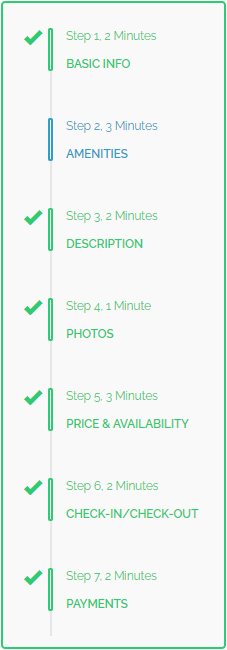
In the this section, all the necessary information about the property and its layout can be specified. It is possible to adjust the number of rooms, their type and any other information that is relevant, including rules for your future guests and amenities. The information you provide will be automatically generated (yet editable) in Step 3: Description.
Rooms number
In the Rooms section, it is possible to specify the room number.
-
Under the icon representing the room type, click the “+” sign to add an amenity or “-” to subtract. Follow the tips under the icons.

-
Specify if the property has a separate kitchen by ticking the Separate kitchen information box.

Amenities selection
There are more than a thousand amenities available to choose in order to better describe your property. Property Amenities are divided into 5 categories:
-
Popular Amenities
-
Security & Safety
-
Policies
-
Accessibility
-
Cleanliness / Safety
-
Select amenities that apply to your property by checking the box next to specific amenities.
 .
. -
Additional information fields become active for some of amenities.
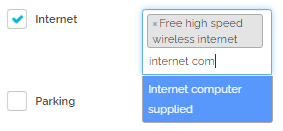
Amenities can have more precise information provided; hence, there are inactive information fields next to some of them, for example Internet or Parking. These fields become active after ticking the amenity box.
-
Select additional descriptors to amenities where possible. They can be selected only from the dropdown list. No custom text is allowed.
Amenities distribution across rooms
Based on the information provided Room composition and Amenities selection, a summary of room types is created in the table.
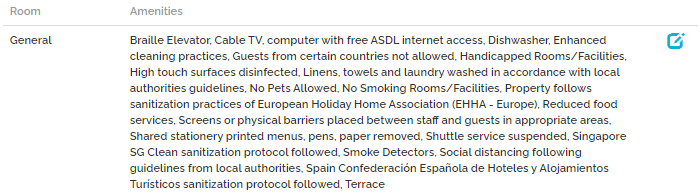
In the Amenities distribution across rooms section, amenities can be distributed across the rooms for more precise information for your guests. Also, additional amenities (which were not selected in the previous step) can be added here, for example bed types.
-
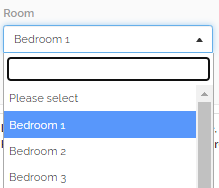
Click the Add room button and select a relevant room type from the Room dropdown list.
-
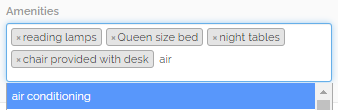
Select all amenities applicable to the specified room type from the Amenities dropdown list.
-
Click the Save button. \

-
Continue adding new room types and amenities until the description reflects the current set-up of your property.
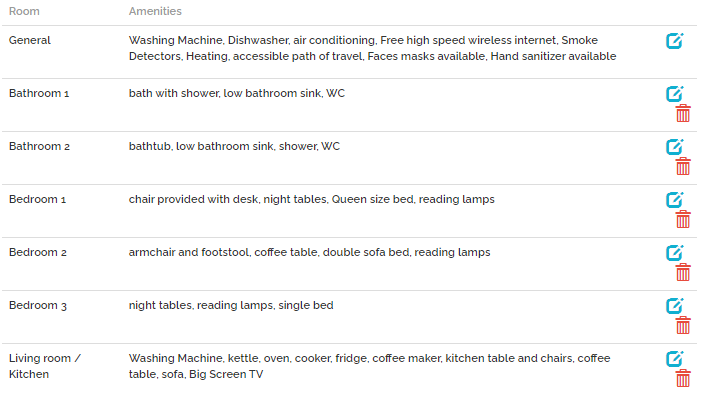 Note: Even though rooms can be deleted, it is not possible to create more rooms than specified in the Composition section in Step 2: Amenities.Note: While you are specifying what beds are available at your property, bear in mind that you need to have at least as many places in beds as specified in Maximum number of guests Step 1: Basic info.
 -
Click the Save & Next button to move to the next stage.
Beds and number of sleeping places
Beds are special amenities with a predefined number of places to sleep. Not all bed amenities that you can find in Rentals United have sleeping places assigned. The table below presents beds and their number of places to sleep.
Bear this in mind when selecting amenities, as insufficient number of sleeping places results in an error and may prevent you from going live on some sales channels.
In order to learn how different beds are mapped in different sales channels, see Channel Integrations.
Double sofa bed
| Bed name | Amenity ID | Number of places to sleep |
|---|---|---|
| Double bed | 61 | 2 |
| Double sofa bed | 200 | 2 |
| Double sofa | 203 | 2 |
| Extra bed | 209 | 1 |
| Mattress | 210 | 1 |
| Sofabed | 237 | 1 |
| Single bed | 323 | 1 |
| King size bed | 324 | 2 |
| Bunk beds (sgl on top, dbl on bottom) | 384 | 2 |
| Pair of twin beds | 440 | 2 |
| Bunk bed | 444 | 2 |
| 2 single beds in lounge | 455 | 2 |
| Queen size bed | 485 | 2 |
| Wallbed | 515 | 1 |
| Pull-out bed | 624 | 1 |
| Murphy bed | 778 | 1 |
| Rollaway beds | 779 | 1 |
| French bed | 939 | 1 |
| Tribunk bed | 957 | 3 |
| Extra large double | 1344 | 2 |
| Extra long beds 2 meter | 1345 | 1 |
| Futon mat | 1346 | 1 |
| Large double | 1347 | 2 |
| Double futon | 1825 | 2 |
| Air mattress | 1865 | 1 |
| Floor mattress | 1866 | 1 |